Productivity Software Examples for Businesses
I was talking to a small business owner last week who was pulling her hair out. She knew team output had dipped significantly, but she couldn’t figure out why. Her gut told her that the hours were bleeding away into games, video sites, and endless social media feeds. The problem was, she had no way to prove it and no way to stop it. What she needed was a reliable way to enforce website policies and keep access records for management review, without turning into a micromanager. This is the exact scenario where IT management steps in. If you want to fix productivity, you need the right tools to measure and manage computer-based work.
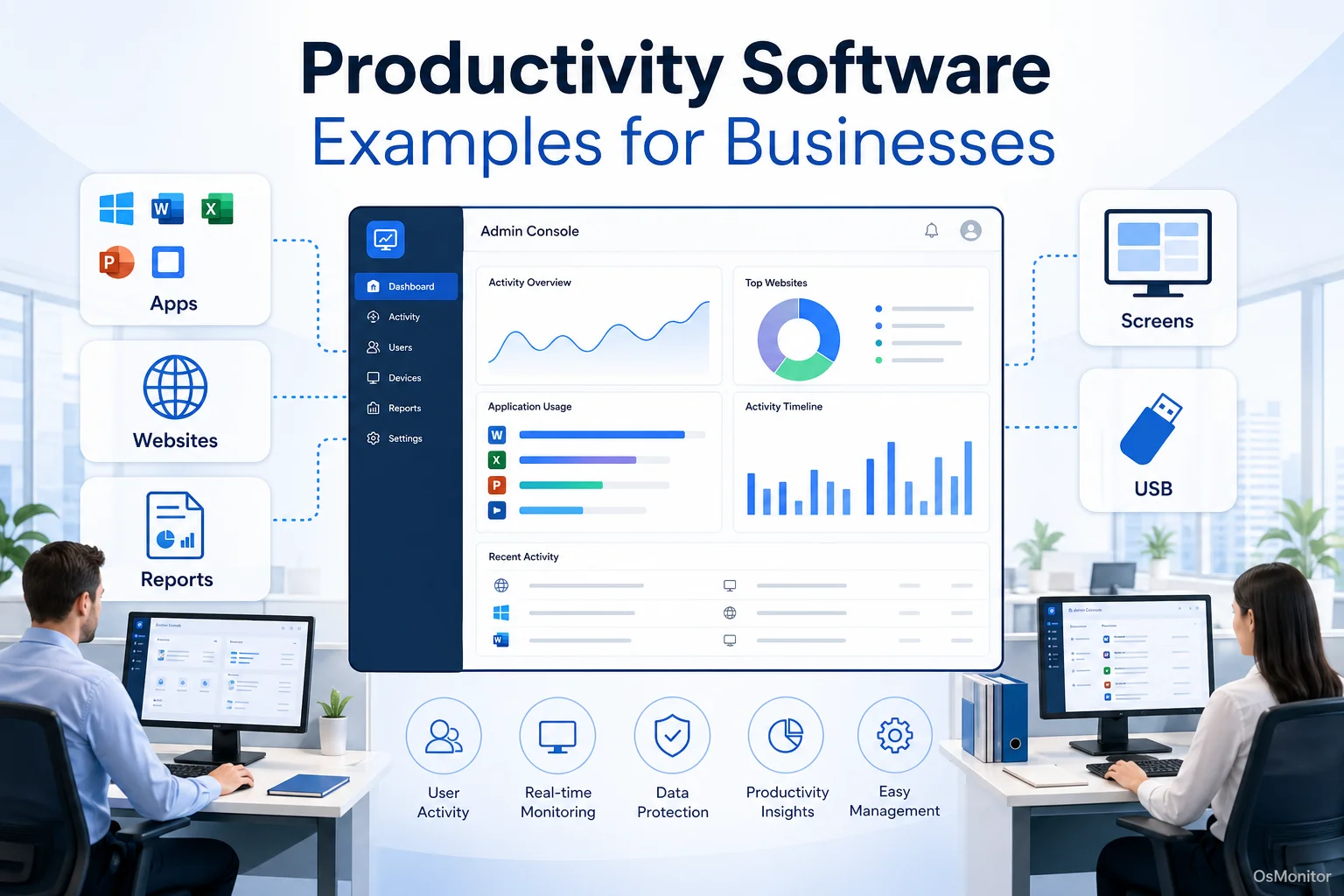
A practical overview of productivity software examples for workplace computer management.
What Are Examples of Productivity Software?
If you ask the average consumer, “what are examples of productivity software?”, they’ll probably list apps like Notion, Evernote, or Microsoft To-Do. But in the IT and business management world, the definition is completely different.
When IT directors search for productivity software examples, they are looking for enterprise-grade tools designed to monitor and manage computer usage across a network. Their primary purpose is to hand managers and administrators clear, undeniable data on how company-owned hardware is being utilized during the 9-to-5.
Practical examples of these software features include:
- Time Tracking: Logging the exact active duration employees spend inside specific applications and websites.
- Activity Reporting: Generating clean, readable summaries of daily computer usage.
- Policy Enforcement: Actively blocking access to non-productive websites, games, or unauthorized executables.
- Screen Monitoring: Capturing live video or periodic screenshots of desktop activity for contextual review.
These tools solve real problems. They help businesses spot workflow bottlenecks, ensure compliance with IT policies, and build a focused work environment. They answer the hard questions: Which expensive software licenses are actually being used? How much time is lost to non-work browsing? Is the team working inefficiently and in need of better training?
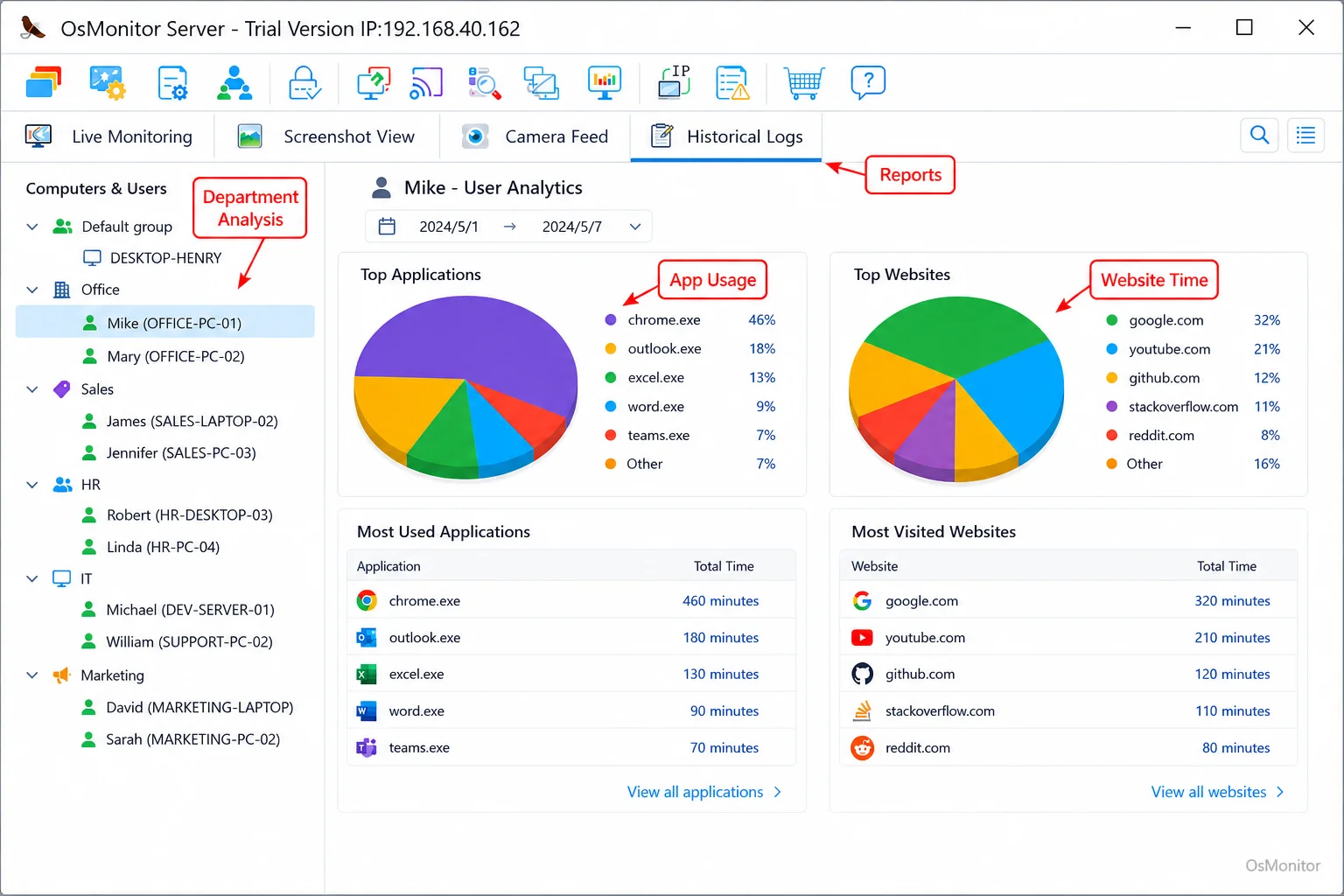
A real-product style screenshot highlighting application and productivity reports in OsMonitor.
OsMonitor: A Practical Example of Productivity Management Software
OsMonitor is a textbook example of dedicated employee computer monitoring software built for workplace productivity. Let’s be clear about what it is: it is a practical tool for IT teams to understand and improve efficiency. It is not a heavy cybersecurity firewall or a forensic audit appliance.
OsMonitor operates on the principle of transparent management. It provides the exact tools required to implement and enforce your Acceptable Use Policies. It is designed for legal, business-oriented use cases—helping you gather objective data for performance reviews, optimize your software budget, and secure basic company assets. If your business needs reliable Employee Productivity Monitoring Software for Office PCs & Tools, OsMonitor delivers a comprehensive, self-hosted solution that keeps your sensitive logs entirely under your control.
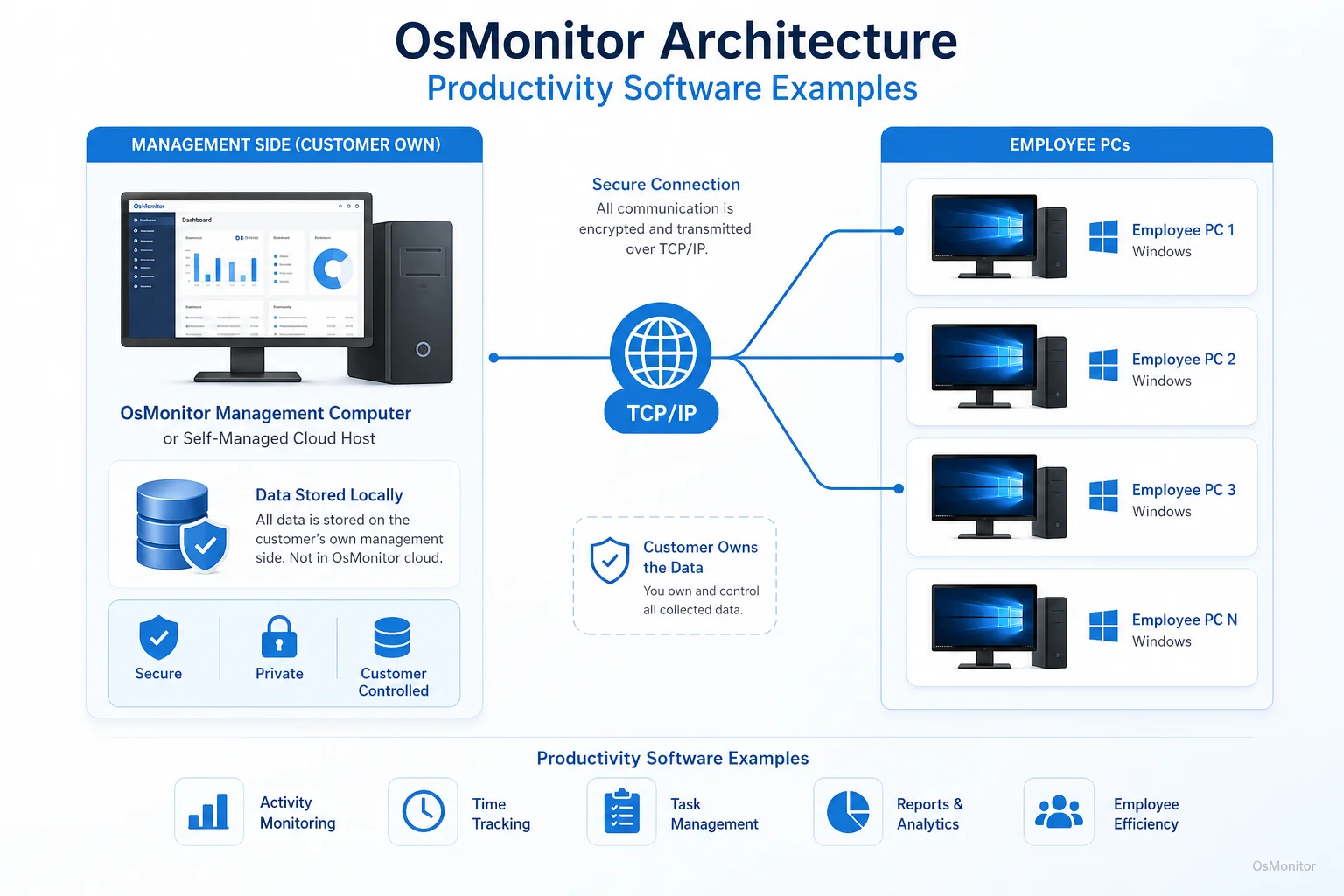
OsMonitor keeps monitoring data under the customer’s control on the management computer or self-managed server.
How OsMonitor Works: A Self-Hosted Approach
When looking at productivity software examples, architecture matters. OsMonitor uses a classic client-server model, which is the most reliable setup for network management.
The system is split into two simple parts:
- The Server/Management Console: You install this on a single IT PC or a dedicated office server. This is your command center. All logs are aggregated here, blocking policies are built here, and reports are generated here.
- The Client Agent: A tiny, highly efficient agent is pushed to each employee’s Windows endpoint. It runs silently in the background, logging activity and enforcing the rules you set on the server.
This architecture is powerful because it allows OsMonitor to function flawlessly inside a closed Local Area Network (LAN) with zero internet access required. All data moves directly from the endpoints to your server. This self-hosted approach guarantees your business retains 100% ownership of its sensitive operational data.
Core Features in Productivity Software Examples
Effective software doesn’t just watch; it manages. The goal is to actively guide the team toward better habits. Here is a breakdown of the key features you should look for.
| Feature | Description | Business Benefit |
|---|---|---|
| Website & App Monitoring | Tracks exact active time spent on URLs and executables. | Identifies time-wasting activities and validates work focus. |
| Screen Monitoring | Provides live feeds or historical playback of employee screens. | Offers visual context for activity logs and is invaluable for QA training. |
| Productivity Reports | Aggregates raw logs into readable summaries by user or department. | Replaces guesswork with hard data for performance reviews. |
| Policy Enforcement | Actively blocks non-work websites, apps, and USB thumb drives. | Instantly kills distractions and secures data from physical theft. |
| Document Backup | Automatically saves specified files from the PC to the server. | Protects critical work from accidental deletion or sudden hardware failure. |
| Remote Assistance | Lets IT securely take over the employee’s mouse and keyboard. | Drastically speeds up technical support and reduces downtime. |
These features work together as an ecosystem. For instance, detailed Application Usage Monitoring for Employee Computers & Tools might reveal a department struggling with legacy software, signaling a need for an upgrade. Meanwhile, strict website blocking ensures that while they are working, they aren’t distracted.
On-Premise Data Control vs. Cloud SaaS
The biggest debate right now is where your data should live. Many modern solutions are SaaS (Software as a Service), meaning your internal logs are uploaded to a vendor’s cloud server. While easy to set up, this is a massive security and privacy risk for regulated industries.
OsMonitor is a strict on-premise solution. All collected logs stay directly on your own hardware or a self-managed private cloud instance.
This model provides massive advantages:
- Complete Data Privacy: You own the data. No third-party vendor ever has access to your logs.
- Enhanced Security: Keeping your data inside your private network drastically reduces the risk of an external breach.
- LAN-Only Operation: It runs perfectly offline, making it the only choice for highly secure, air-gapped environments.
- No Recurring Fees: You buy the software once. There are no monthly SaaS subscriptions draining your IT budget.
This makes it incredibly appealing to businesses prioritizing data sovereignty and predictable costs.
Responsible Implementation and Limitations
This is a powerful IT administration tool, and it must be deployed responsibly. It is built strictly for use on company-owned hardware. You must write a clear Acceptable Use Policy and ensure your staff knows the hardware is monitored. Always consult local legal counsel to ensure your deployment complies with regional privacy and labor laws.
Also, be realistic about its scope. OsMonitor is a productivity and policy enforcement tool. It is not an enterprise antivirus or SIEM platform. It manages efficiency; it does not replace your firewall.
FAQ About Productivity Software
What is productivity software examples?
In a business IT context, it refers to specialized network tools that track employee computer activity, log application usage, and enforce IT policies (like website blocking) to streamline office efficiency and secure basic assets.
Is productivity software legal for businesses?
In most jurisdictions, yes. Employers have the right to monitor the use of their own hardware. However, privacy laws vary heavily by region. You must maintain transparency, establish a written policy, and consult local legal counsel before deployment.
Does OsMonitor require a client on employee computers?
Yes. It relies on a highly stable client-server architecture. A lightweight client agent must be installed on each Windows endpoint you intend to manage.
Where is OsMonitor monitoring data stored?
Your data stays with you. All logs and screen recordings are stored exclusively on your own management PC or your internal server. We do not use third-party vendor clouds.
Can OsMonitor work without internet in a LAN?
Absolutely. It is fully designed to operate flawlessly within a closed Local Area Network (LAN) without any internet connection, which is essential for high-security facilities.
What Windows versions does OsMonitor support?
It supports Windows 7, 8, 10, and 11, along with Windows Server editions (both 32-bit and 64-bit).
If you are ready to stop guessing and start managing your team with clear, objective data, a self-hosted solution is the best path forward. Download OsMonitor Free Trial to test the full suite of features securely within your own network.