Application Usage Monitoring for Employee Computers
If you manage a business, you’ve probably faced this frustration: deadlines are tight, but you suspect a good chunk of the workday is bleeding away into casual browsing, gaming, or endless video streaming. The goal isn’t just to slam down a firewall and block every fun site on the internet. You need to actually understand how your company’s hardware is being utilized. You need a way to maintain clear, accessible records of computer and website access so you can review them objectively, ensuring your IT policies are respected and work hours are actually dedicated to productive tasks. Achieving this requires a tool that provides detailed insights without slowing down your network or disrupting your team’s workflow.
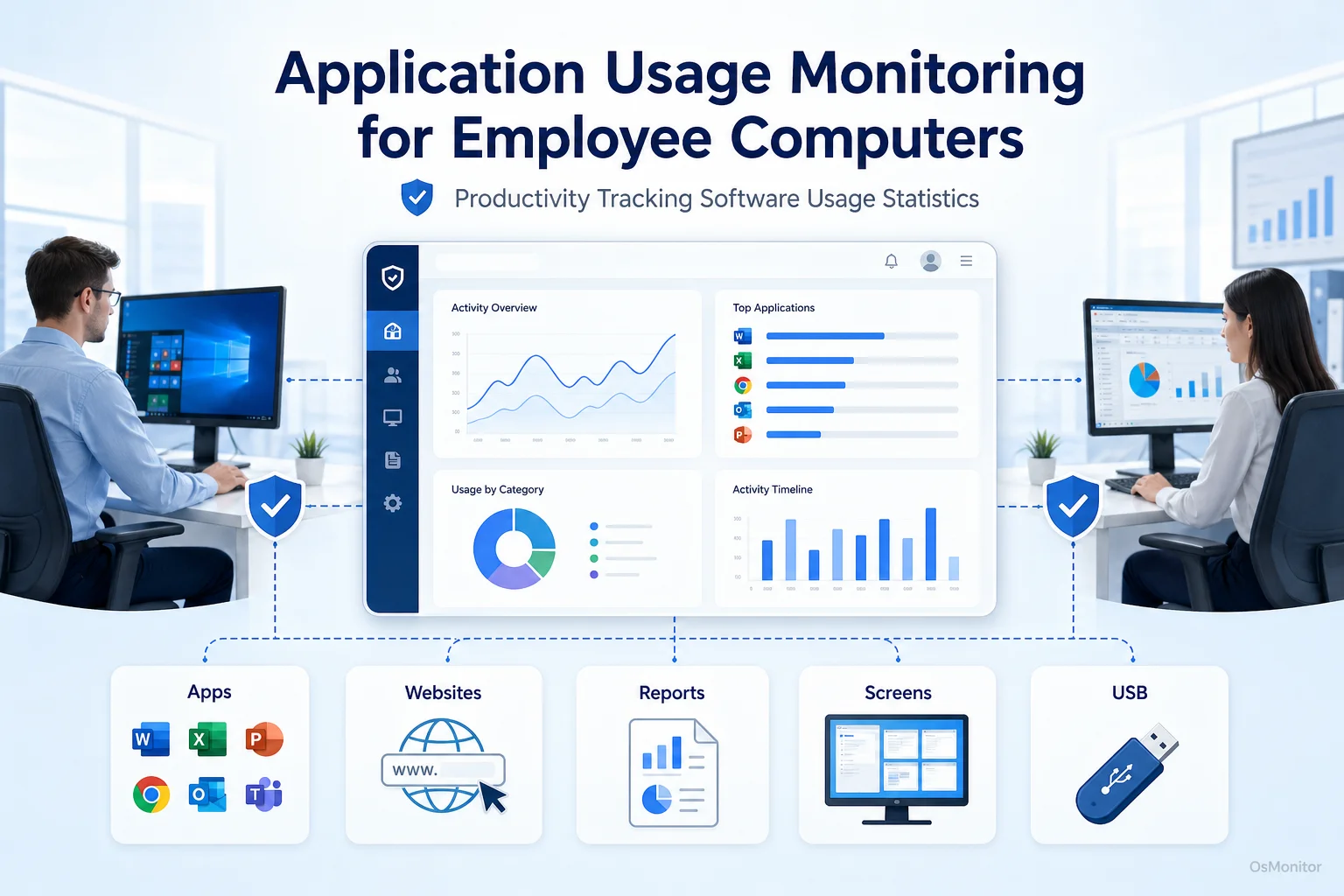
A practical overview of productivity tracking software usage statistics for workplace computer management.
Understanding the Need for Productivity Tracking Software Usage Statistics
Let’s cut right to it: collecting accurate productivity tracking software usage statistics is a foundational step for any IT department aiming to optimize operations. This is not about micromanagement; it’s about making decisions based on hard data rather than gut feelings. By tracking exactly which applications and websites your employees rely on the most, you can identify workflow patterns, address glaring inefficiencies, and ensure your expensive software licenses are actually being utilized.
The core benefits of dedicated software usage tracking include:
- Identifying Productivity Bottlenecks: If you consistently see heavy use of non-work-related applications or entertainment websites during core business hours, it usually indicates disengagement or a broken workflow.
- Optimizing Software Licensing: Most companies overspend drastically on software. Usage data reveals which expensive design or CRM tools are actually critical and which licenses can be canceled.
- Enforcing Acceptable Use Policies: Clear, undeniable data on website and application access provides a factual basis for enforcing your company’s IT policies.
- Improving Workflow Efficiency: If a team is spending excessive hours in an inefficient, legacy application, it strongly signals the need for a modern tool or better training.
A systematic approach to software usage monitoring transforms anecdotal “I think they are distracted” observations into actionable, objective business intelligence.
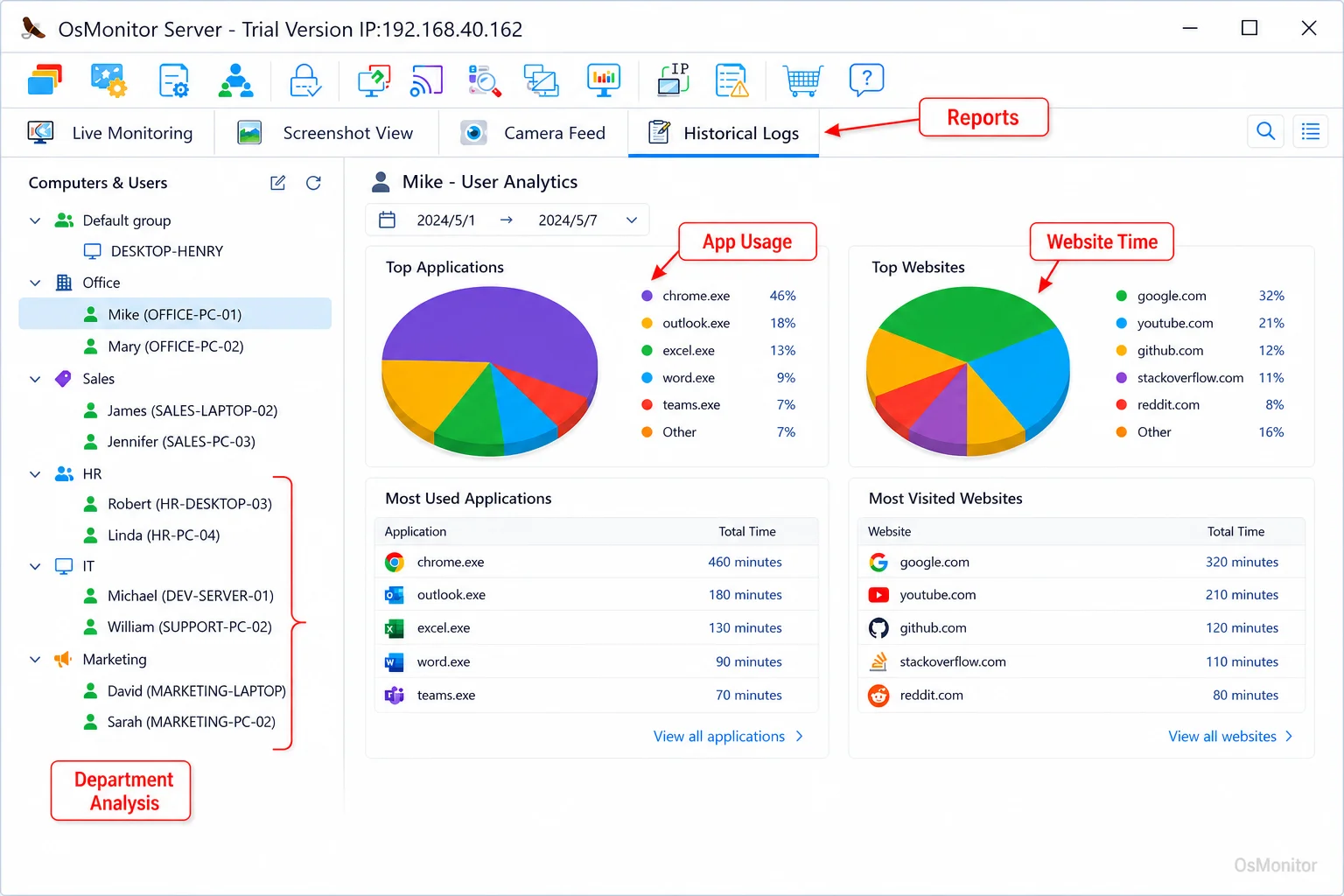
A real-product style screenshot highlighting application and productivity reports in OsMonitor.
How OsMonitor Delivers Actionable Application Usage Insights
OsMonitor is a classic, highly reliable client/server-based office computer management tool built precisely to deliver these productivity tracking software usage statistics. It works by deploying a very lightweight client to the employee endpoints, which then quietly reports activity back to a central management console sitting on an IT admin’s desk. This architecture guarantees that all your sensitive logs remain entirely under your control.
Comprehensive Software and Website Usage Analysis
OsMonitor doesn’t just guess; it meticulously records the exact active time spent on every single application and website. The management console aggregates this raw data into clean, readable reports. Managers can instantly see which applications were the active window, for exactly how long, and at what specific times. This granular level of detail is the gold standard for accurate application usage tracking. The system logs the executable name, the active window title, the start time, and the total duration of active use.
Department and Individual Reporting
The software allows for flexible reporting that matches your org chart. You can pull summaries for entire departments or drill down into individual employee logs. This is crucial for separating team-wide trends from isolated issues. For instance, if the entire marketing department shows high usage of a specific social media site, that might be their job. If it’s a single accountant spending three hours on YouTube, that requires a conversation. This targeted reporting is a core component of effective Employee Activity Monitoring Software.
Key Data Points for Application Usage Monitoring
OsMonitor captures a wide array of data points to give you a complete picture of the workday.
| Data Category | Information Tracked | Business Application |
|---|---|---|
| Application Usage | Executable name, active window title, exact active time, total runtime. | Clearly separate time spent in productive tools vs. non-work software. |
| Website Browsing | Exact URL visited, page title, duration of active visit, frequency. | Enforce AUP policies against gaming, streaming, or inappropriate content. |
| Download Statistics | File name, source URL, timestamp, total file size. | Spot unauthorized software installations or massive, bandwidth-hogging downloads. |
| Policy Violations | Running tally of every attempt to access a blocked app or URL. | Measure how often staff are trying to bypass your IT rules and address recurring issues. |
Blocking and Policy Enforcement
Monitoring is only half the battle. OsMonitor allows administrators to actively enforce IT policies. You can build blacklists to block specific applications or websites entirely. If a user tries to launch a blocked game or visit a streaming site, the action is killed instantly and logged as a violation. This powerful combination of visibility and control makes it an elite app monitoring tool for keeping your network focused.
Implementing Fair and Effective Workplace Computer Use Policies
The raw data generated by application usage monitoring software is only effective if it’s tied to a transparent workplace policy. The goal is to foster a culture of accountability, not to create a stressful, paranoid environment.
- Establish a Clear Acceptable Use Policy (AUP): Write a clear document stating exactly which apps and sites are considered work-related and which are strictly prohibited during business hours.
- Communicate Policies to All Employees: Don’t deploy the software in secret. Ensure every team member knows the AUP and understands that company-issued hardware is monitored. Transparency is vital for trust and legal compliance.
- Focus on Trends, Not Anomalies: Use the data to spot consistent patterns of distraction. Taking five minutes to check the news is normal; burning three hours a day on social media is a problem.
- Use Data for Constructive Feedback: If an employee is struggling with output, use the usage reports to start a constructive conversation. They might be stuck in inefficient software or dealing with burnout.
- Review and Refine Policies: The internet changes daily. Review your blocking rules regularly to ensure new distractions are handled.
By following these steps, you can use application usage tracking as a tool for genuine workflow improvement. It is a key part of the strategy detailed in our guide on Employee Productivity Monitoring Software for Office PCs & Tools.
Deployment and Data Control: On-Premise and Self-Managed
The biggest advantage of OsMonitor is data sovereignty. Unlike the endless wave of heavily marketed cloud SaaS subscriptions, OsMonitor is built to run entirely within your own private network infrastructure.
The system relies on a secure client/server model. You install the management console on a single PC or server in your office. The lightweight client is pushed to the endpoints. All monitoring data is transmitted directly from the clients to your server over your Local Area Network (LAN).
This architecture provides two massive security benefits:
- No Internet Required: The entire system functions flawlessly without an internet connection, making it the perfect choice for highly secure, air-gapped facilities.
- Complete Data Ownership: All collected logs—from app usage to web histories—are stored exclusively on your own server. Your sensitive operational data never touches a third-party vendor’s cloud.
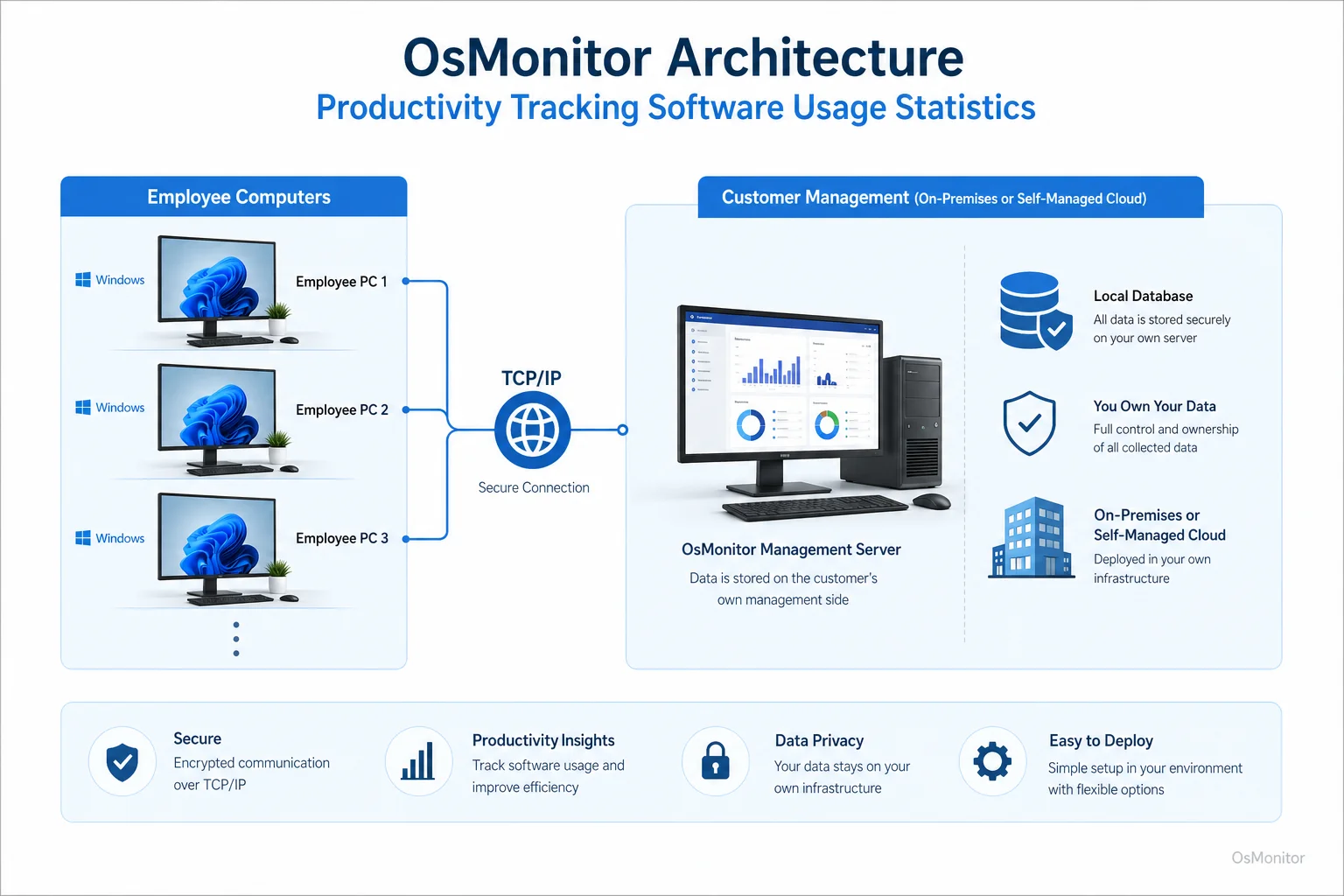
OsMonitor keeps monitoring data under the customer’s control on the management computer or self-managed server.
Technical Requirements and System Compatibility
OsMonitor is engineered to be incredibly lightweight, ensuring it never slows down your staff’s older workstations.
- Operating System Support: It is natively compatible with Windows, supporting everything from Windows 7 up to Windows 11 and Windows Server editions (both 32-bit and 64-bit).
- Lightweight Client: The client agent is tiny—usually under 2MB. It runs silently in the background, consuming almost zero CPU or RAM, so it never interferes with daily work.
- No Extra Hardware: It is a pure software solution. You don’t need to buy an expensive proprietary hardware appliance; it utilizes your existing network infrastructure.
Important Considerations and Limitations
Before deploying any IT management software, you need to understand its scope and limitations.
First, OsMonitor requires the installation of the client software on each endpoint you want to manage. It is not an “agentless” system. It requires that installation to actively enforce your blocking rules.
Second, and most importantly, you must ensure your deployment complies with all applicable local and regional laws regarding workplace privacy. Always consult with legal counsel to draft a transparent policy and notify your employees appropriately. OsMonitor is built strictly for authorized, legal business use on company-owned hardware.
If you are ready to stop guessing and start managing your digital tools with hard facts, OsMonitor provides a secure, self-hosted solution. Download OsMonitor Free Trial to test the full suite of features securely on your own network.
Frequently Asked Questions (FAQ)
What is productivity tracking software usage statistics?
It refers to the actionable data collected by specialized IT management software detailing how employees utilize applications and websites on company hardware. It logs app names, active usage durations, URLs visited, and visit frequency to help businesses optimize workflows and enforce IT policies.
Is productivity tracking software usage statistics legal for businesses?
In most jurisdictions, yes. Employers have the right to monitor the use of company-owned devices for legitimate business reasons. However, privacy laws vary heavily by region. You must maintain transparency, establish a written AUP, and consult local legal counsel before deployment.
Does OsMonitor require a client on employee computers?
Yes. OsMonitor utilizes a highly stable client/server architecture. A lightweight client agent must be installed on each Windows endpoint to collect usage data and enforce your blocking rules.
Where is OsMonitor monitoring data stored?
Your data stays with you. All logs and screen recordings are stored exclusively on your own management computer or internal server. We never upload your data to OsMonitor vendor servers.
Can OsMonitor work without internet in a LAN?
Absolutely. It is fully designed to operate perfectly inside a closed Local Area Network (LAN) without any internet access, which is essential for high-security environments.
What Windows versions does OsMonitor support?
It supports Windows 7, 8, 10, and 11, along with Windows Server editions (both 32-bit and 64-bit).