Best Employee Time Tracking Software: Monitoring vs Timesheets
When a business owner comes to me looking for the best employee time tracking software, it usually isn’t because they want to streamline payroll. It’s almost always because they’ve noticed a drop in team output and suspect that casual browsing, gaming, or video streaming is eating into core business hours. The goal isn’t just to track a 40-hour work week; it’s to understand how those hours are spent. They want to reduce distractions and keep undeniable records of computer access so they can manage effectively. This scenario highlights a massive split in the market: Do you need a simple manual timesheet, or do you need a robust, automated computer monitoring solution? Making the right choice is the difference between guessing and actually knowing what’s happening on your network.
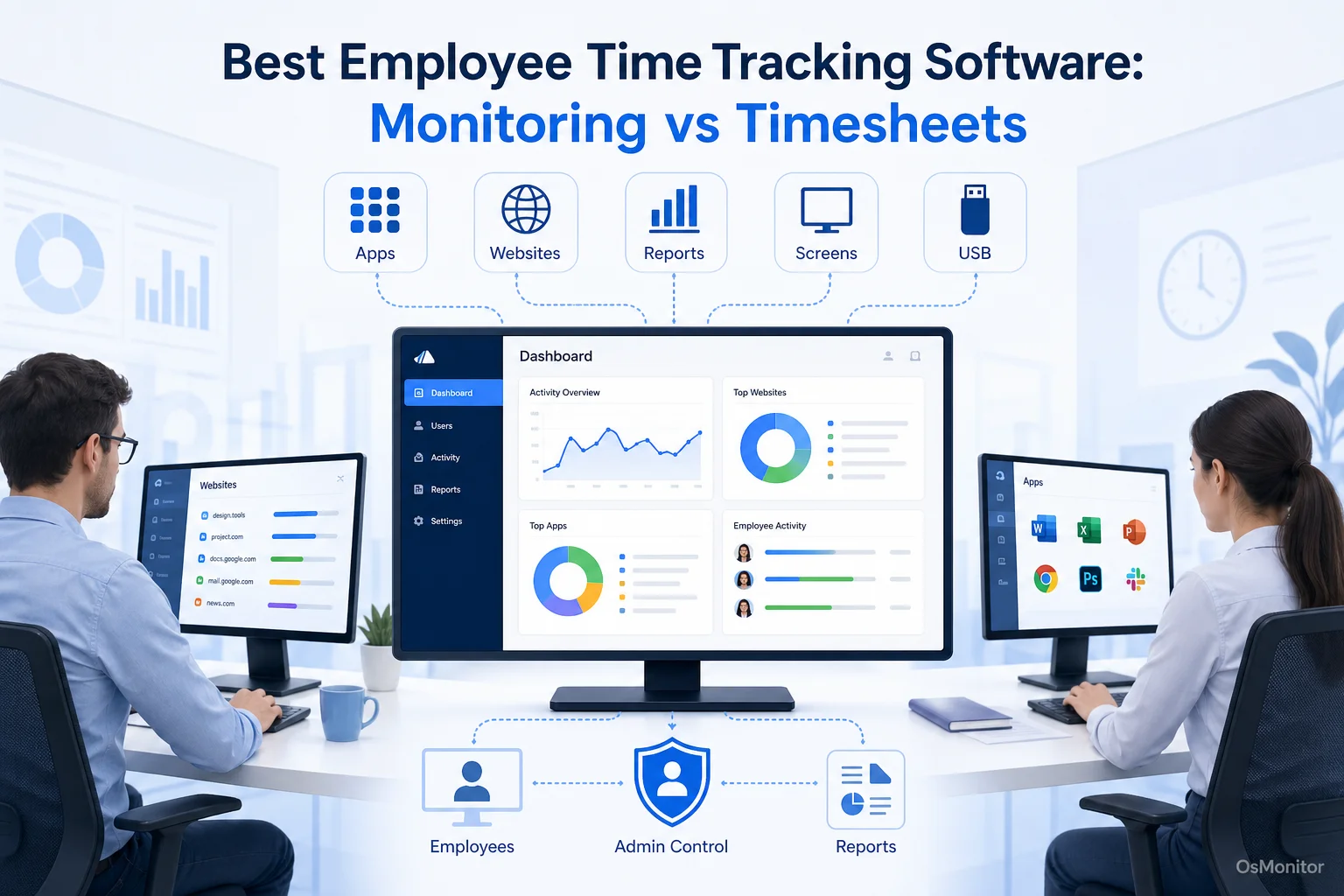
A practical overview of best employee time tracking software for workplace computer management.
Key Selection Criteria for Employee Time Tracking Software
Picking the right software requires you to look under the hood. Feature lists are great, but the underlying architecture, data handling, and pricing model will dictate whether the tool is an asset or an IT liability. Before you deploy anything, evaluate these core criteria.
Deployment Model: On-Premise vs. Cloud SaaS
This is the biggest decision you will make: Where does your data live?
- Cloud SaaS (Software as a Service): Most trendy time trackers run in the cloud. You pay a monthly fee, log in via a browser, and all your internal employee data sits on the vendor’s servers. It’s convenient, but you are handing highly sensitive operational data to a third party, and if your internet goes down, you lose access to your dashboard.
- On-Premise: You install the software on your own server or a dedicated IT PC. The data never leaves your building. If you are looking for the best employee time tracking solution that prioritizes absolute data privacy and security, on-premise is mandatory. It is the only way to guarantee compliance for heavily regulated industries.
Data Ownership and Privacy
With SaaS, the vendor owns the infrastructure your data sits on. With an on-premise system, you own the data. Every application log, every website visit, and every screen capture is stored on your own hard drives. This approach simplifies your data governance strategy and completely removes the risk of a third-party vendor breach.
Operating System Compatibility
Does the software match your hardware? While cloud tools claim to work on everything, they often lack deep system integration. If your office runs entirely on Windows, you need a dedicated Windows Employee Monitoring Software. A tool built specifically for your OS will be vastly more stable and capable than a generic web app trying to be a jack-of-all-trades.
Reporting and Analytics Capabilities
A good tool does more than count to 40 hours. The best employee time tracking software delivers actionable intelligence.
- Application and Website Usage: Exactly which apps and URLs are taking up the most time?
- Productivity Analysis: Can it clearly separate time spent in your core CRM from time spent on Facebook?
- Department and Individual Reports: Can you quickly compare the output of your sales team versus your marketing team?
- Alerts and Violations: Will the system instantly notify you if a user tries to access a blocked site or plug in an unauthorized USB drive?
Policy Enforcement and Controls
This is where timesheets fail. They offer zero IT control. A true monitoring solution allows administrators to actively enforce rules. You can proactively block access to specific websites, lock down unauthorized software, and restrict USB drive usage to prevent data theft. This stops distractions before they start.
Pricing and Licensing Model
- Subscription (SaaS): You pay per user, every single month. It looks cheap initially, but the lifetime cost is staggering.
- One-Time Purchase (Perpetual License): You buy the software once and own it forever. This requires a higher upfront investment but results in a drastically lower total cost of ownership.
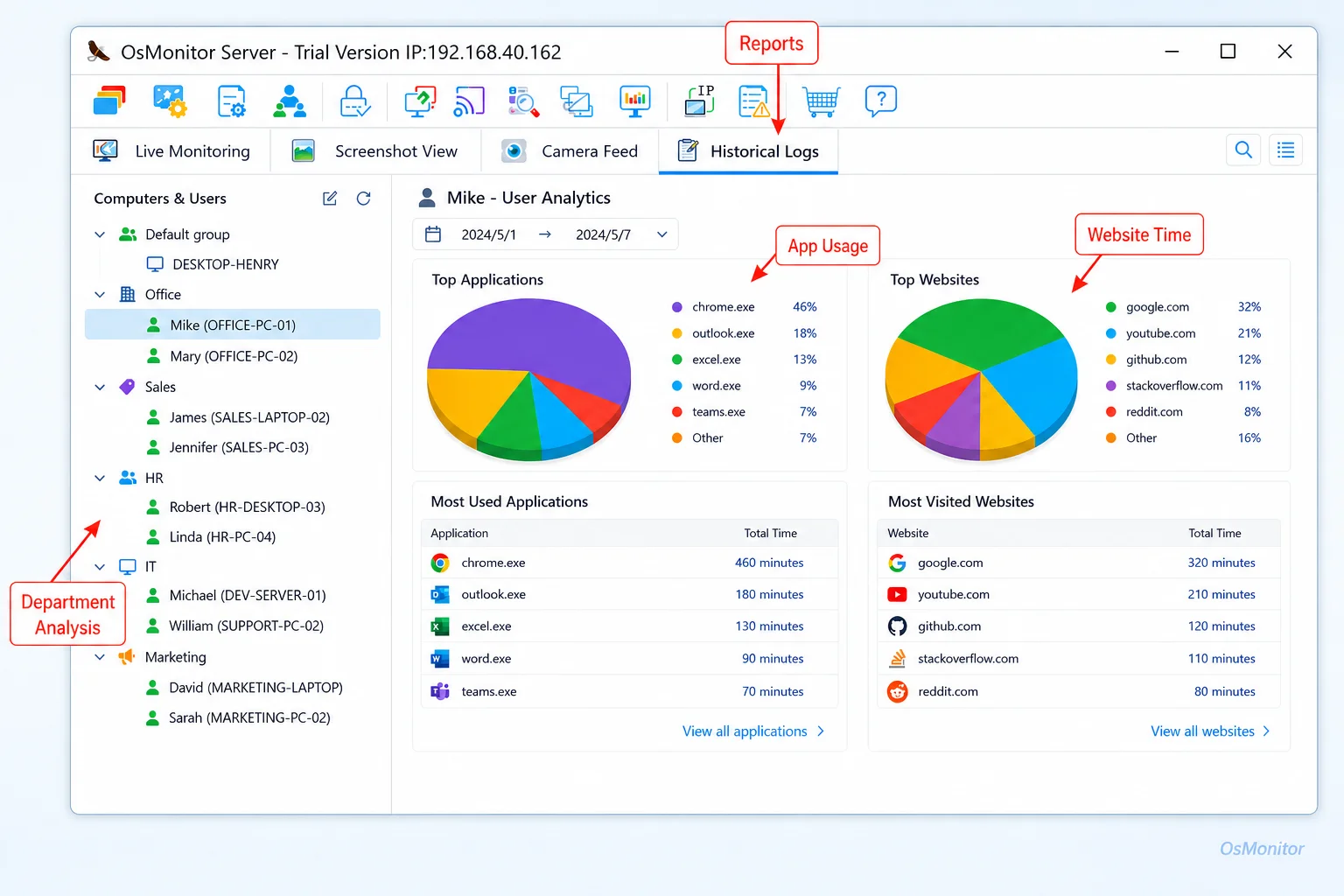
A real-product style screenshot highlighting application and productivity reports in OsMonitor.
Common Types of Time Tracking Tools
The software market is crowded. Understanding the different categories will help you find the right fit.
Manual Timesheet Software
These are digital stopwatches designed for client billing (e.g., Toggl, Harvest). Employees manually click “start” and “stop.”
- Pros: Great for freelancers billing by the hour.
- Cons: Prone to human error (forgetting to hit stop). More importantly, they provide zero insight into what the employee was actually doing on the computer while the timer was running.
Automated Time Tracking and Monitoring Software
This category logs activity automatically. Tools run silently in the background, logging the exact active time spent on applications and websites.
- Pros: Delivers objective, undeniable data on how time is spent. Eliminates manual entry errors and allows IT to enforce blocking policies.
- Cons: Must be deployed transparently with clear HR policies to maintain team trust.
Project Management Software with Time Tracking
Platforms like Asana or Jira let users log time against specific tasks.
- Pros: Good for tracking project budgets.
- Cons: The time entry is still manual, and it completely ignores non-project computer usage (like idle time or casual browsing).
All-in-One Workforce Management Platforms
Massive HR suites (like ADP or Gusto) that handle payroll and PTO.
- Pros: Centralizes HR functions.
- Cons: They are usually very expensive, and their time tracking modules lack the deep, IT-level activity logging required for actual productivity analysis.
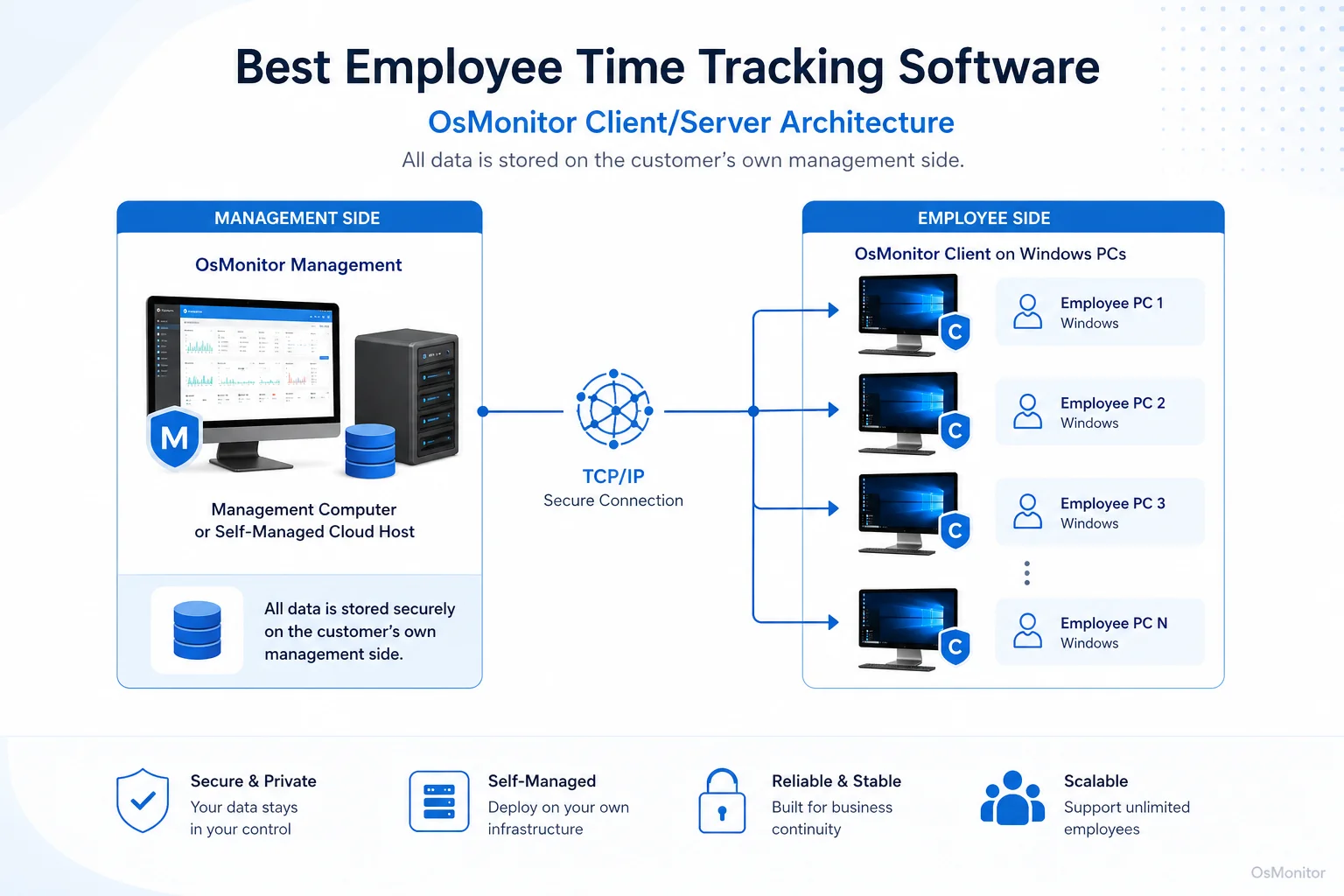
OsMonitor keeps monitoring data under the customer’s control on the management computer or self-managed server.
Where OsMonitor Fits: On-Premise Computer Monitoring
OsMonitor isn’t a manual timesheet or a bloated HR suite. It is a highly focused, client/server-based computer management tool. It falls into the automated tracking category, designed specifically for businesses that need detailed activity records and the power to enforce IT policies.
Its biggest differentiator is the deployment model. OsMonitor is a strict On-Premise Employee Monitoring Software. Your data is stored on your own server, not our cloud. This provides a level of data sovereignty that SaaS vendors simply cannot offer, making it the premier choice for organizations that manage company-owned Windows PCs and refuse to compromise on data security.
Core Features of Comprehensive Time Tracking Software
If you want to know which approach is better for your business, compare what they actually do.
| Feature | Manual Timesheet Software | Automated Monitoring Software (OsMonitor) |
|---|---|---|
| Time Entry | Manual start/stop clicking | 100% automated based on OS activity |
| Accuracy | Prone to human error and estimates | Pinpoint accuracy based on active window time |
| Productivity Insights | Limited strictly to project hours | Granular detail on every app and website used |
| Policy Enforcement | None | Proactive website blocking and USB locking |
| Data Granularity | “4 hours on Design Project” | “32 minutes active in Photoshop, 14 minutes on YouTube” |
| Employee Effort | Requires constant user interaction | Runs silently in the background |
| Use Case | Freelance client billing | Internal productivity management and IT security |
Automated solutions give you the granular facts. Knowing exactly how much time is spent on specific tools is the only way to spot bottlenecks. If you want to optimize your operations, a deep dive into Application Usage Monitoring for Employee Computers & Tools is infinitely more valuable than a manual timesheet.
Limitations and Ideal Use Cases
No software solves every problem. You have to know its limits.
OsMonitor is the ideal solution for:
- Companies that operate on a Windows-based network.
- Businesses demanding 100% data privacy via local network storage.
- IT departments that need to actively block non-work websites or unauthorized apps.
- Managers who need objective, undeniable activity reports for performance reviews.
OsMonitor is NOT a fit for:
- Organizations that primarily use Mac, Linux, or mobile devices.
- Companies relying heavily on “Bring Your Own Device” (BYOD) policies.
- Freelancers who just need a simple stopwatch for client billing.
- IT teams that prefer to hand their data over to a cloud SaaS provider.
Finally, because OsMonitor is a robust system, it requires installing a lightweight client on each endpoint. It is not an “agentless” web tool.
Frequently Asked Questions (FAQ)
What is the best employee time tracking software?
It depends entirely on your needs. For simple client billing, a manual stopwatch tool is fine. But for deep internal productivity analysis, enforcing IT policies, and securing your network, an automated, self-hosted monitoring suite like OsMonitor is the superior choice.
Is employee time tracking software legal for businesses?
In most jurisdictions, yes. Employers have the right to monitor company-owned hardware. However, privacy laws vary heavily by region. You must maintain transparency, write a clear Acceptable Use Policy, and consult a local legal professional before deployment.
Does OsMonitor require a client on employee computers?
Yes. It uses a highly stable client/server architecture. A lightweight client application must be installed on each Windows PC you intend to manage so it can enforce your rules locally.
Where is OsMonitor monitoring data stored?
Your data stays with you. All logs and screen recordings are stored exclusively on your own management computer or your internal server. We never use third-party vendor clouds.
Can OsMonitor work without internet in a LAN?
Absolutely. It is fully designed to operate flawlessly within a closed Local Area Network (LAN) without any internet connection, which is vital for high-security environments.
What Windows versions does OsMonitor support?
It supports Windows 7, 8, 10, and 11, along with Windows Server editions (both 32-bit and 64-bit).
If your goal is to move past manual timesheets and gain clear, objective insights into your network’s productivity, a self-hosted automated solution is the right path. View OsMonitor Pricing to explore our straightforward, one-time purchase options.