Employee Productivity Monitoring Software for Office PCs
When someone searches for employee productivity monitoring software, they usually are not looking for another dashboard full of pretty charts. They are trying to answer a very practical question: where does the workday go on company computers?
For many small and mid-sized offices, the issue starts quietly. Deadlines slip. A few employees seem busy, but important work is still late. Managers may suspect too much time is going into video sites, games, online shopping, or social media during work hours, but guessing is not a reliable way to manage a team.
That is where a responsible employee productivity monitoring tool can help. It gives managers clear computer usage records, application and website reports, and policy-based alerts, so decisions are based on facts rather than impressions.
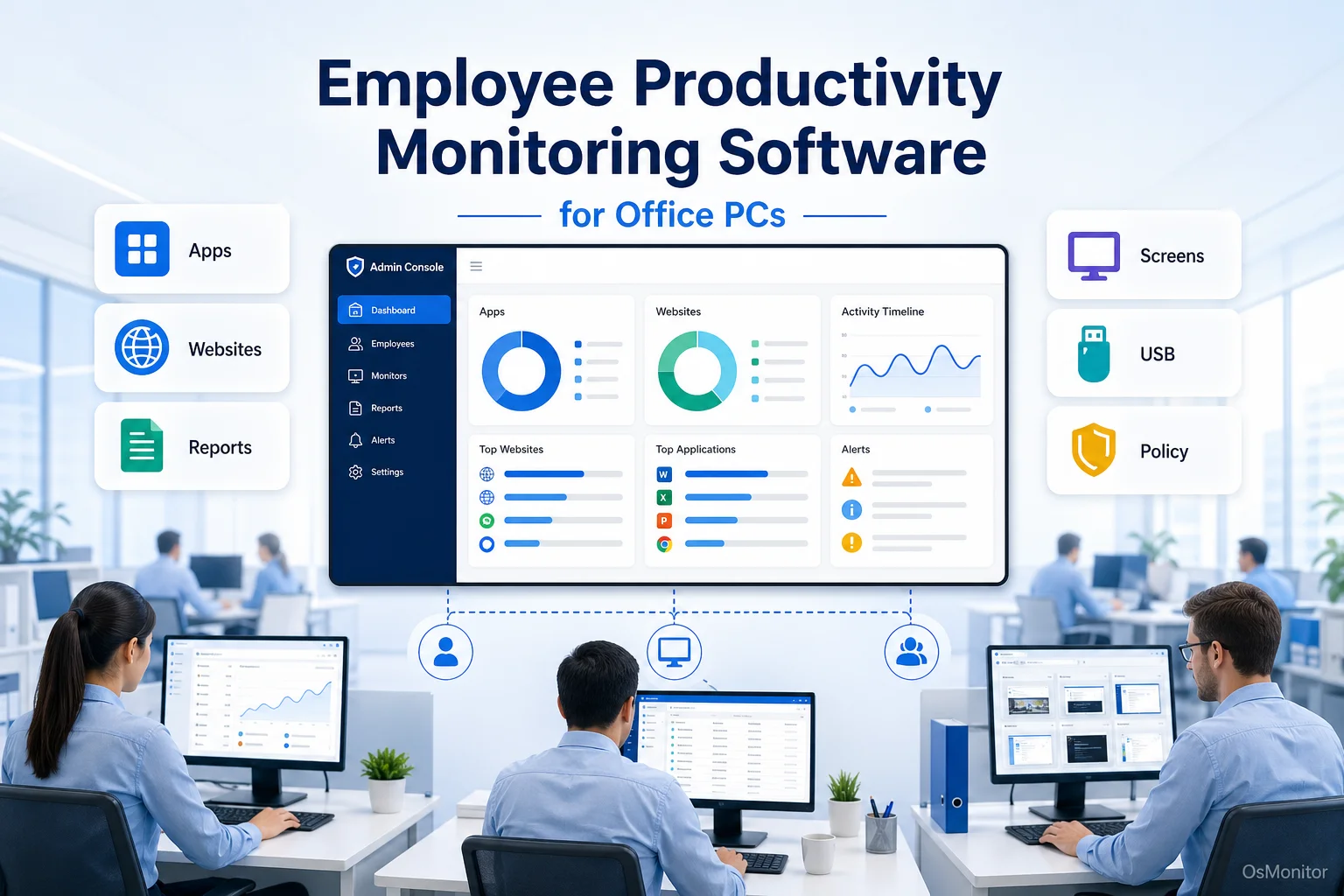
A practical overview of employee productivity monitoring software for workplace computer management.
How Productivity Monitoring Software Provides Clarity on Computer Usage
Employee productivity monitoring software helps businesses understand how company-owned computers are used during the workday. Instead of relying on complaints, assumptions, or occasional walk-arounds, managers can review objective records showing which applications and websites were used, how long they were active, and when activity happened.
For example, a manager may see that an employee spent most of the day in a CRM system, accounting software, design tools, or other work-related applications. That is useful confirmation. On the other hand, if the report shows long periods on entertainment websites or non-work applications during core hours, the manager now has a clear starting point for a practical conversation.
Good employee productivity monitoring tools are not just about catching problems. They also help identify good work patterns. A team may discover that some employees are most focused in the morning, that certain departments lose time switching between too many tools, or that network-heavy activities are slowing down everyone else.
OsMonitor is designed for this kind of workplace computer activity management. It uses a straightforward client/server structure, so businesses can collect and review computer usage records directly inside their own office network. The screenshot below shows how application usage and productivity information can be presented in a clear, reviewable format.
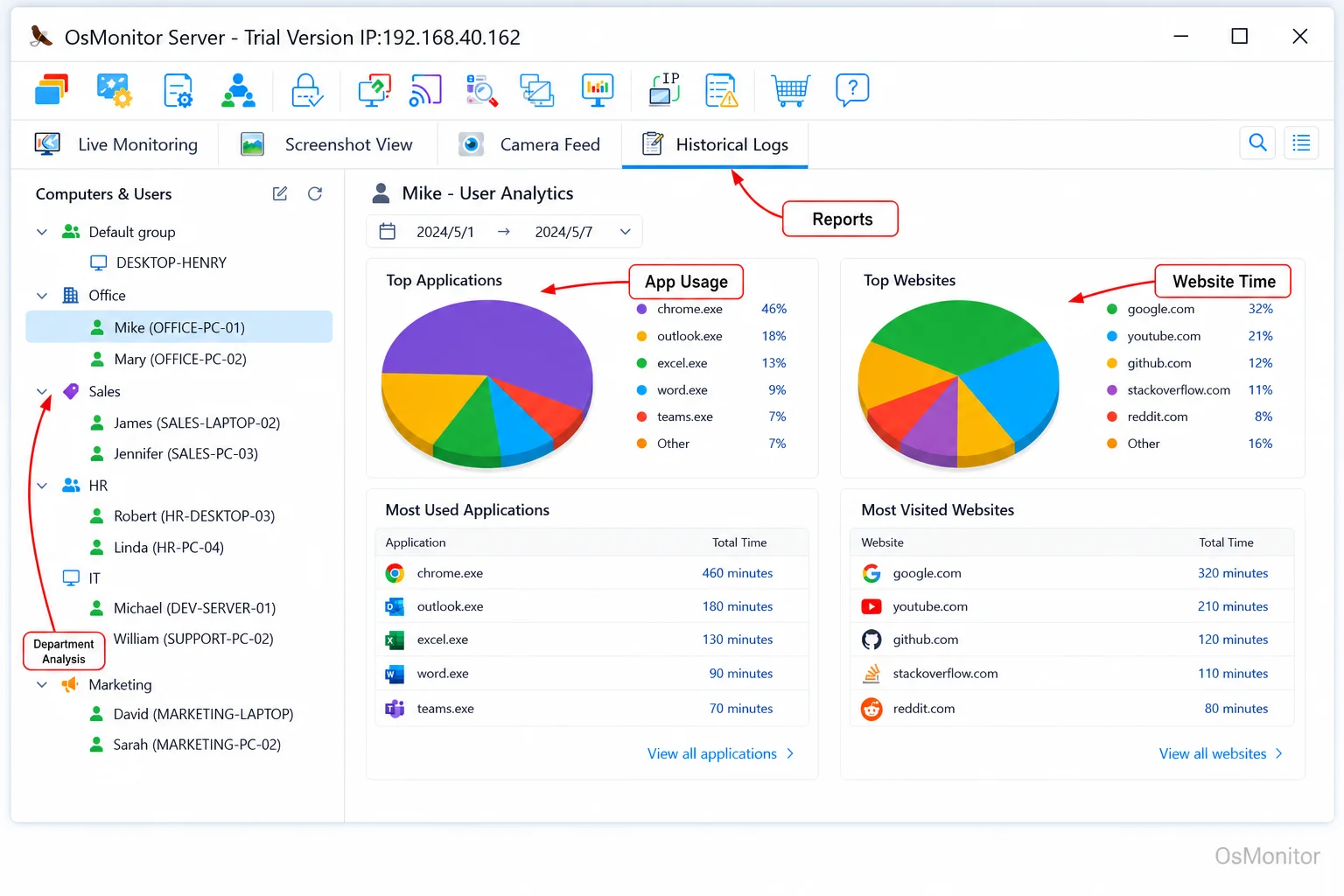
A real-product style screenshot highlighting application and productivity reports in OsMonitor.
Key Features for Tracking and Improving Workplace Productivity
Useful software for tracking employee productivity should do more than record whether a computer is on or off. A real office needs context: which applications were used, which websites were visited, whether company policies were followed, and whether the data is easy for managers to understand.
Application and Website Usage Analysis
Application and website usage records are the foundation of most employee productivity monitoring tools. They help managers see how much time is spent in business software compared with non-work activities.
For example, time in Microsoft Excel, AutoCAD, QuickBooks, a CRM platform, a ticketing system, or an internal business application may be considered productive for a specific role. Time on video streaming, online games, shopping websites, or unrelated social platforms during work hours may need review.
The important point is context. Not every website visit is a problem, and not every long application session means productive work. But when managers can review computer usage reports by employee, department, or time period, they can spot patterns more fairly.
This is why employee productivity tracking software is most useful when it turns raw activity into readable reports. Managers should not have to dig through endless technical logs. They need practical summaries that help them understand how work computers are being used.
Productivity Reports and Violation Alerts
Data is only helpful when it is easy to read and act on. A practical employee productivity monitoring tool should provide reports such as:
- Total active and idle time.
- Top applications used during the workday.
- Top websites visited.
- Time spent on work-related and non-work-related activities.
- Activity timelines for reviewing daily work patterns.
- Department-level computer usage summaries.
Some businesses also need alerts. For example, an employee productivity tracking software with alerts may notify a manager when a blocked website is accessed, when a non-work application is used for too long, or when a computer usage policy is violated.
This turns monitoring from a passive report into part of a wider Employee Activity Monitoring Software strategy. The goal is not to flood managers with warnings. The goal is to make policy enforcement more consistent and less emotional.
Bandwidth and Download Monitoring
Productivity is not only about time. It is also about shared office resources.
Large downloads, video streaming, and unnecessary file transfers can slow down the office network. In some cases, they may also create business risks if employees download files from unapproved sources.
Bandwidth and download monitoring helps IT administrators see which computers are using the most network resources, what types of downloads are happening, and whether certain activities conflict with company policy. For a small office with limited network capacity, this can be just as important as application and website reports.
Implementing Productivity Policies with Monitoring Tools
Employee productivity monitoring software works best when it supports a clear workplace policy. It should not be used as a substitute for communication, management, or trust. It should be used to make computer usage expectations clear and measurable.
A typical workflow looks like this:
Establish Clear Policies: Create a written computer and internet usage policy. Explain what is acceptable, what is not acceptable, and how company-owned computers may be reviewed.
Configure Monitoring Rules: Set up the software according to that policy. This may include website categories, application lists, time limits, alerts, and department-level rules.
Review Data Regularly: Check productivity reports on a consistent schedule. Weekly reviews are often more useful than reacting to every small event.
Provide Constructive Feedback: Use activity records to support practical conversations. The focus should be improving work habits, reducing distractions, and helping the team stay focused.
The table below shows how specific policy goals can be supported by productivity monitoring tools.
| Policy Goal | Relevant Feature | Example Configuration |
|---|---|---|
| Reduce time on social media | Website Filtering & Time Tracking | Block social media sites during core hours or set a daily time limit of 30 minutes. |
| Ensure focus on core tasks | Application Usage Reports | Monitor time spent in essential software, such as ERP, CAD, CRM, or accounting tools, compared with non-essential apps. |
| Prevent large, non-work downloads | Bandwidth & Download Monitoring | Set alerts for downloads exceeding 500MB from non-approved sources. |
| Discourage online shopping | Website Blocking | Add major e-commerce websites to a blocklist that is active from 9 AM to 5 PM. |
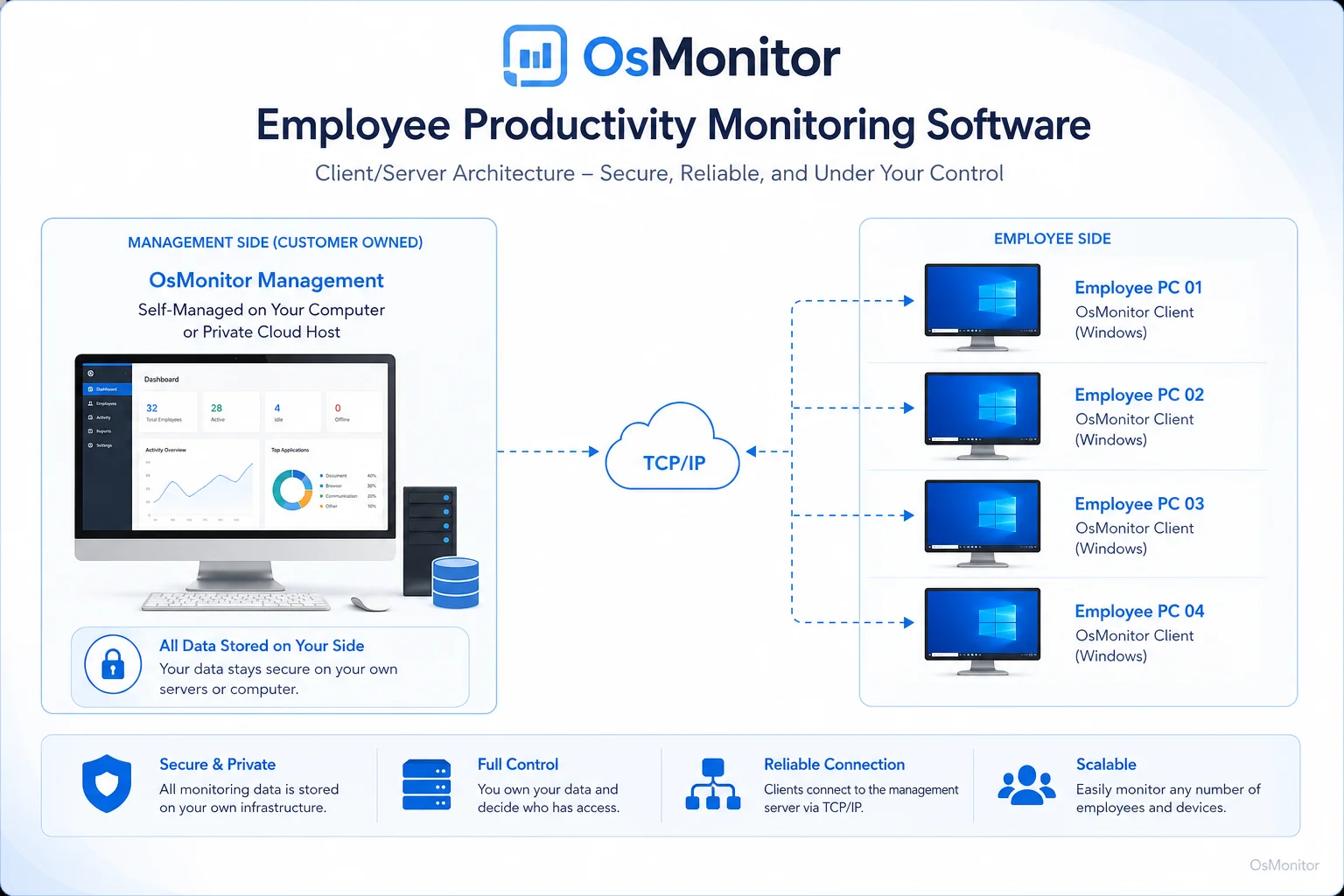
OsMonitor keeps monitoring data under the customer’s control on the management computer or self-managed server.
Data Ownership, Deployment, and System Requirements
When choosing employee productivity monitoring software, features matter. But deployment and data ownership matter just as much.
Some companies are comfortable with cloud dashboards. Others prefer to keep employee computer activity records inside their own office network. For businesses that care about data control, privacy, or internal compliance, this can be a major factor.
On-Premise Deployment for Full Data Control
OsMonitor uses an on-premise client/server model. The management console runs on a manager’s computer or a self-managed company server, while a lightweight client is installed on employee PCs.
This means computer usage records are stored on your own hardware. They are not sent to a vendor cloud for normal operation. For companies that want direct control over employee activity records, this model can be easier to understand and manage.
It also means OsMonitor can work inside a local area network. In offices where internet access is restricted, unstable, or intentionally limited, this can be a practical advantage. For many businesses, this makes OsMonitor a suitable On-Premise Employee Monitoring Software option.
Lightweight and Efficient for Any Office Environment
Employee productivity monitoring tools should not make office computers feel slow. If the software creates performance problems, employees and IT staff will notice quickly.
OsMonitor is designed to be lightweight. The employee-side client is small and built for normal Windows office environments. It supports modern Windows systems, including Windows 7, Windows 8, Windows 10, Windows 11, and Windows Server editions, with both 32-bit and 64-bit compatibility.
Because it runs on existing office PCs, businesses do not need special hardware to begin using it. That makes deployment more practical for small and mid-sized companies that want straightforward computer usage reports without building a complicated IT system.
Important Considerations and Limitations
Employee productivity monitoring software can be very useful, but it should be introduced carefully. The best results usually come from clear policies, employee notification, and fair use of the data.
Client Installation and Transparency
OsMonitor requires a small client program to be installed on each employee computer that will be monitored. This is how the system collects application usage, website activity, and other computer usage records.
From a business and legal perspective, transparency is important. Employees should know that company-owned computers may be monitored according to company policy. This should be explained in a written IT policy, employee handbook, or computer usage agreement.
Responsible monitoring is easier to defend and easier to manage. It also reduces confusion because employees understand what is being reviewed and why.
Legal and Ethical Compliance
Employee monitoring laws vary by country, state, province, and industry. In many places, employers can monitor company-owned computers when there is a legitimate business reason, a clear written policy, and proper employee notice. However, the details can differ significantly.
Employee productivity monitoring software should be used to support business policies, protect company resources, and improve workplace focus. It should not replace legal advice. Before implementing any monitoring program, businesses should review local employment laws and consult qualified legal counsel when needed.
Frequently Asked Questions (FAQ)
What is employee productivity monitoring software?
Employee productivity monitoring software is a business tool used to measure and review how employees use company computers. It can record application usage, website visits, active time, idle time, and other computer activity records. The purpose is to help managers understand work patterns, reduce distractions, and support fair productivity reviews.
Is using employee productivity monitoring software legal for businesses?
In many regions, businesses may monitor company-owned computers when they have a clear policy and employees have been properly notified. However, laws vary by location and industry. Businesses should always check local requirements and consult legal counsel before using any employee productivity monitoring tools.
What is the difference between employee productivity monitoring and time tracking?
Time tracking usually records hours worked or time spent on projects. Employee productivity monitoring focuses more on computer usage, such as applications used, websites visited, active and idle time, and policy-related activity. Many companies use both, but they answer different questions.
What does “software for tracking employee productivity” usually mean?
Some buyers search for software for tracking employee productivity when they want a tool that shows how work computers are being used. In clearer business language, this usually means employee productivity monitoring software or employee computer activity management software.
Can productivity reports help managers without micromanaging employees?
Yes, if the software is used responsibly. Productivity reports should help managers identify patterns, support coaching, and enforce written policies consistently. They should not be used to judge every small action without context.
Does OsMonitor require software to be installed on employee PCs?
Yes. OsMonitor uses a client/server model. A lightweight client must be installed on each employee computer that will be monitored, and the central management console runs on a manager’s computer or self-managed server.
Where is the monitoring data stored when using OsMonitor?
OsMonitor stores monitoring data on your own hardware, such as the management computer or a self-managed company server. The data is not stored on OsMonitor’s vendor cloud for normal operation, giving businesses more direct control over their computer usage records.
Can OsMonitor work in an office LAN without an internet connection?
Yes. OsMonitor can work inside a local area network without requiring an internet connection for its core monitoring, data collection, and reporting functions. This can be useful for offices with restricted or offline network environments.
What versions of Windows does OsMonitor support?
OsMonitor supports Windows 7, Windows 8, Windows 10, Windows 11, and Windows Server editions. It is compatible with both 32-bit and 64-bit Windows systems.
Employee productivity monitoring software works best when it helps managers replace guesswork with clear, fair, and useful computer usage records. With the right policy and a responsible approach, it can help teams stay focused, protect company resources, and make productivity conversations more practical.
If you want to see how OsMonitor works in a real office environment, you can Download OsMonitor Free Trial and review its productivity reports, website activity records, application usage summaries, and on-premise deployment model yourself.