User Activity Monitoring Software for Business Computers
When a small business owner tells me their team seems distracted, the conversation usually circles back to one core problem: visibility. How do you reduce visits to games, video sites, and entertainment platforms during work hours without standing over everyone’s shoulder? To fix productivity drains, management needs hard data on computer usage patterns and clear website access logs. That is exactly what user activity monitoring software delivers—it provides a structured, objective way to see how company hardware is being used without disrupting your team’s workflow.
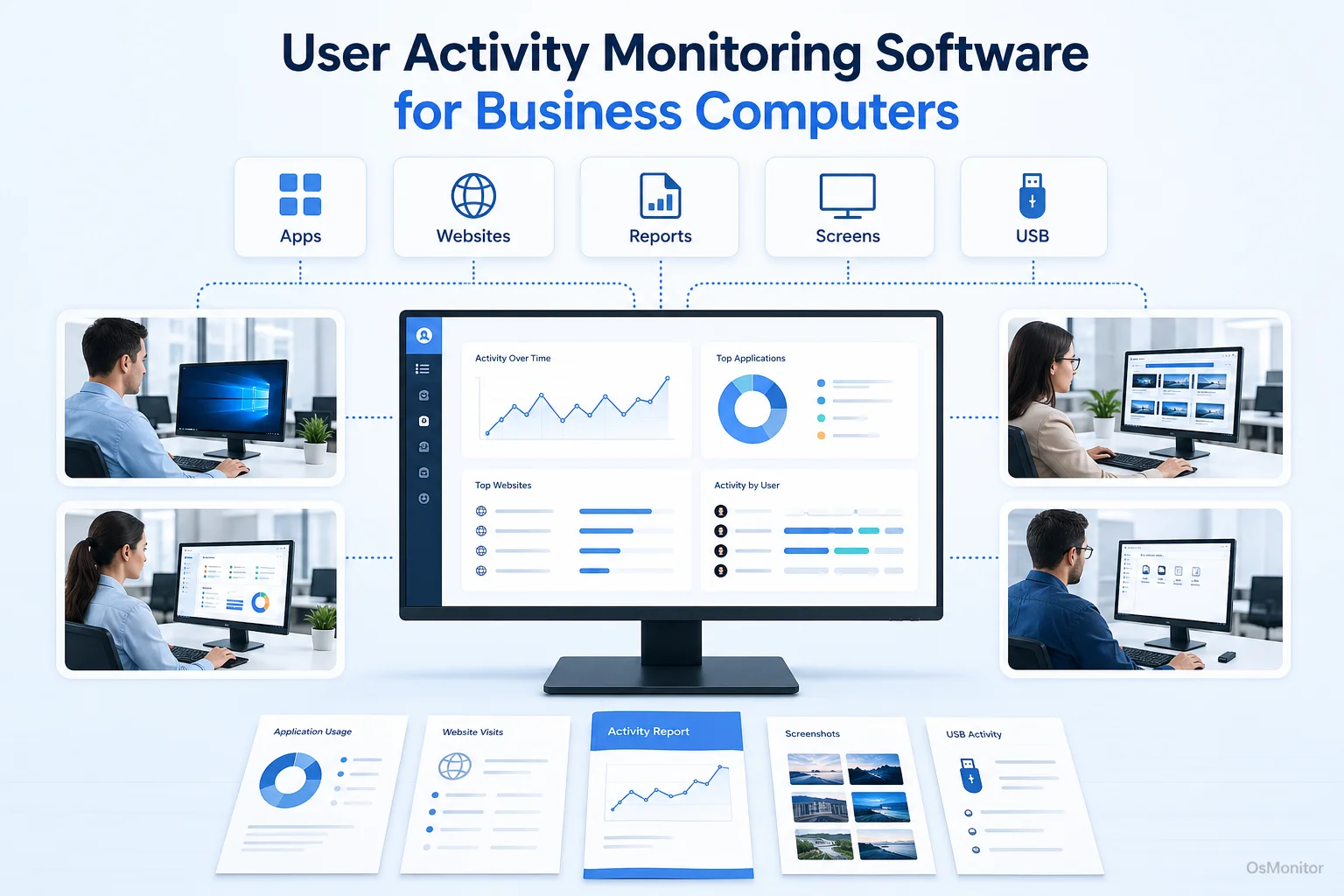
A practical overview of user activity monitoring for workplace computer management.
Understanding User Activity Monitoring in the Workplace
People often ask, what is user activity monitoring (UAM)? Simply put, it’s the IT practice of recording and analyzing how employees utilize their company-issued workstations and network resources. The objective isn’t to micromanage; it’s about establishing transparent workplace computer management. By gaining a high-level view of digital behavior, you can boost productivity, enforce acceptable use policies, and protect your sensitive data.
Solid user activity monitoring solutions give administrators aggregated logs on application usage, website visits, and file transfers. OsMonitor handles this using a highly secure client/server architecture. A central management console sits on an IT admin’s PC, while a lightweight client agent runs quietly on each employee’s Windows machine.
Crucially, all logs are stored directly on your management computer or your own internal server. You keep 100% ownership of your data. This architecture is a vital component of modern IT administration and forms the backbone of any reliable Computer Monitoring Software strategy.
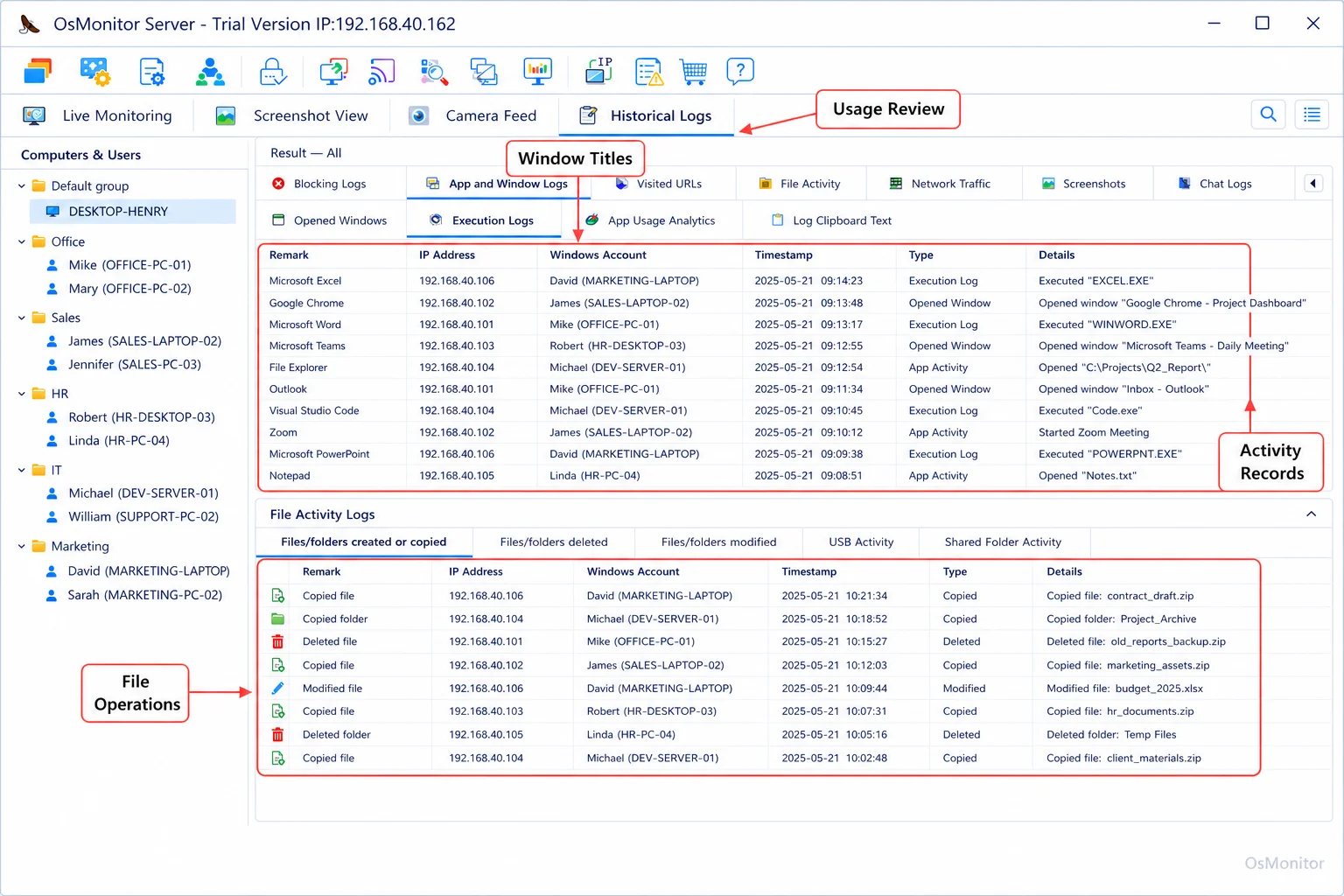
A real-product style screenshot highlighting computer activity records in OsMonitor.
Core Features of Effective User Activity Monitoring Tools
The user activity monitoring market is flooded with options, but the best user activity monitoring software always shares a few core, business-focused features. These user activity monitoring tools have to do more than just passively log keystrokes; they need to provide actionable analytics.
Application and Website Usage Analysis
If you want to optimize your team’s time, you first need to know where it’s being spent. User activity monitoring software logs the active window and calculates exactly how much time is dedicated to each app or site.
Key metrics you should look for include:
- Software Usage Time: Identify which applications drive your business and spot unauthorized programs. This is also a great way to audit expensive software licenses.
- Website Visit Logs: A complete URL history with time stamps. This is your primary tool for curbing non-productive browsing.
- Violation Counts: Set strict rules blocking specific sites or apps. The software will automatically block access and tally up every attempt to break the rule, making policy enforcement effortless.
Data and File Transfer Records
Protecting data is job number one. If you are researching insider threat user activity monitoring, tracking file movement is where you start. OsMonitor logs all file copy operations to USB drives and external storage. It also tracks web download statistics. This gives you a clear audit trail of what data is entering or leaving your network, acting as a practical defense against both accidental data loss and malicious theft.
Reporting and Analytics
Raw data is useless if it takes hours to decipher. Robust UAM software generates clean, detailed reports. Managers can pull summaries for an individual, a department, or the whole company. These reports highlight trends in software usage and policy violations, giving you a factual basis for your next performance review.
| Feature Category | OsMonitor Functionality | Business Benefit |
|---|---|---|
| Activity Logging | Records application usage, website visits, and file operations. | Provides a clear, auditable record of all computer activity. |
| Time Tracking | Calculates active time spent on each website and application. | Helps identify productivity drains and optimize software licenses. |
| Policy Enforcement | Blocks access to specified websites and applications. | Ensures compliance with company policies and reduces distractions. |
| Reporting | Generates detailed reports by user, department, or time period. | Offers actionable insights for management to improve team efficiency. |
| Data Control | Stores all monitoring data on a local, company-owned server. | Guarantees data privacy and ownership, avoiding third-party clouds. |
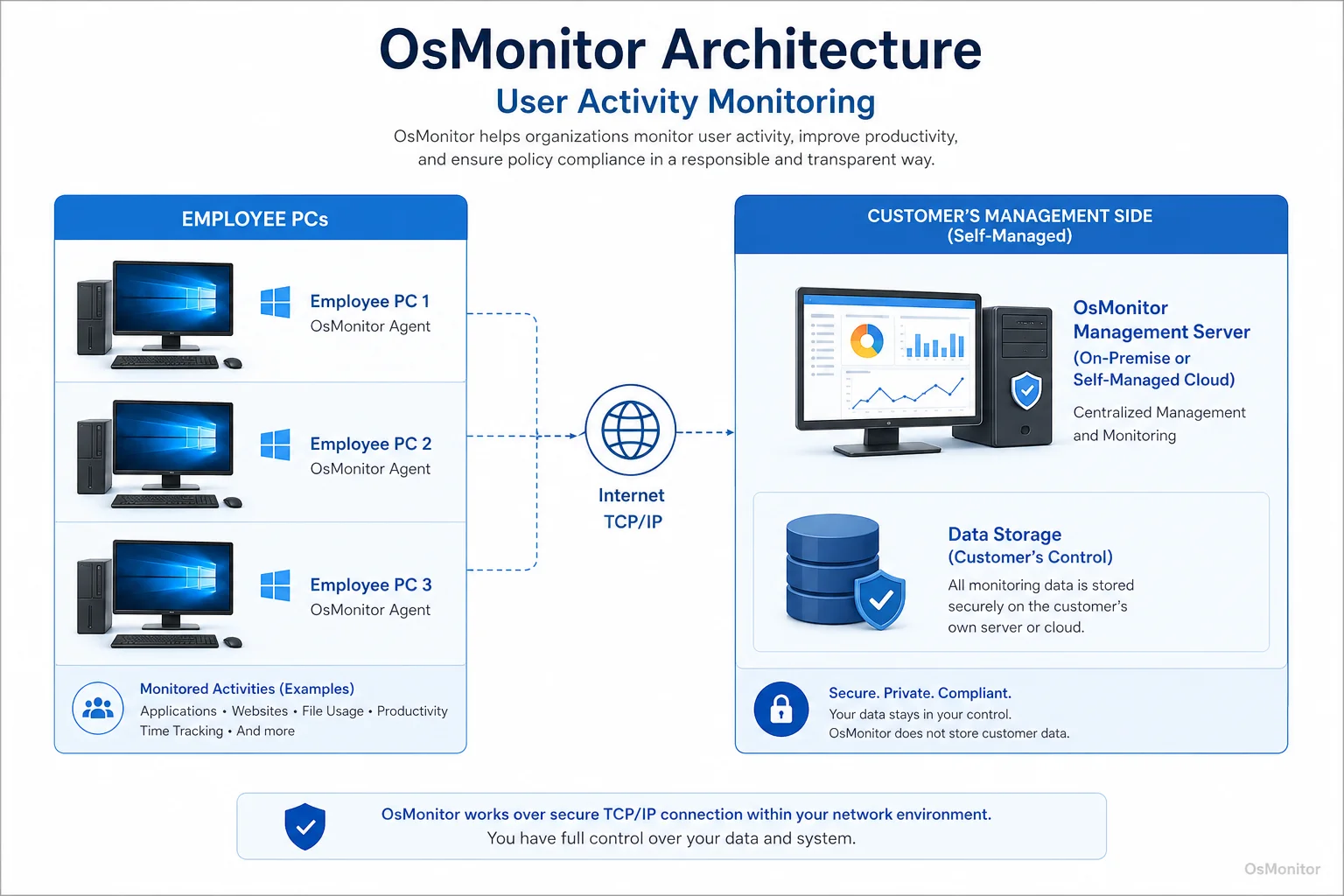
OsMonitor keeps monitoring data under the customer’s control on the management computer or self-managed server.
Deployment, Data Ownership, and Technical Specifications
One of OsMonitor’s biggest selling points is its deployment model. Unlike the endless SaaS subscriptions that dominate the market, OsMonitor is built to be self-hosted, prioritizing your data ownership and budget.
On-Premise Data Control
All your logs are stored directly on your management computer or an internal server. Your sensitive operational data never touches a third-party vendor’s cloud. This is mandatory for businesses dealing with strict data privacy laws. Better yet, the system functions perfectly inside a closed Local Area Network (LAN) without any internet connection at all. This makes it a premier choice for IT teams seeking secure On-Premise Employee Monitoring Software.
System Compatibility and Lightweight Design
OsMonitor is engineered exclusively for Windows environments. It supports Windows 7, 8, 10, 11, and Windows Server editions (32-bit and 64-bit). (Note: Some buyers ask about chromeos user activity monitoring, but OsMonitor is a dedicated Windows application and does not support Chromebooks.)
The client agent is incredibly lightweight—under 2MB. It runs silently, using almost zero CPU or memory, ensuring it never drags down employee productivity. You don’t need any specialized hardware; it’s a pure software solution that deploys in minutes.
Implementing UAM Policies and Best Practices
To roll out user activity monitoring successfully, it has to be paired with a transparent workplace policy.
- Create a Clear Acceptable Use Policy (AUP): Write down exactly what is acceptable on company hardware. Explicitly state that these devices are monitored for security and productivity.
- Notify Employees: Do not hide it. Be transparent about the software, what it tracks, and why it is necessary. Transparency builds trust.
- Focus on Trends, Not Individuals: Use your department activity reports to fix broken workflows or spot training gaps, rather than using the logs just to punish minor infractions.
- Comply with Local Laws: Workplace privacy laws differ vastly depending on where you are. Always run your monitoring strategy past local legal counsel to ensure compliance.
Remember, the system requires the client to be installed on the target machine to function. It is a powerful administrative tool meant for authorized workplace monitoring on company-owned assets.
Frequently Asked Questions (FAQ)
What is user activity monitoring?
It is the IT practice of using specialized software to track how employees utilize company-issued computers. It logs app usage, website visits, and file transfers to ensure staff productivity, enforce IT policies, and secure network data.
Is user activity monitoring legal for businesses?
In most jurisdictions, yes. Businesses have the right to monitor activity on company-owned hardware. However, you generally must have a clear policy and notify your staff. Always consult a legal expert to ensure your practices comply with local privacy and labor laws.
How does insider threat user activity monitoring help with security?
It creates an undeniable audit trail. By tracking file transfers to USB drives and logging unauthorized application use, IT security teams can spot and investigate unusual behavior before data leaves the building.
Does OsMonitor require a client on employee computers?
Yes. It uses a highly reliable client/server model. You must install the lightweight client agent on each Windows PC you want to manage so it can communicate with your central console.
Where is OsMonitor monitoring data stored?
Your data stays with you. It is stored exclusively on your own management computer or your self-managed server. We do not use third-party vendor clouds, guaranteeing you full data ownership.
What Windows versions does OsMonitor support?
It supports Windows 7, 8, 10, 11, and Windows Server editions (both 32-bit and 64-bit).
If you are ready to take the guesswork out of management and get clear insights into your digital workflows, a self-hosted tool is the way to go. View OsMonitor Pricing to learn more about how a one-time purchase model can save your IT budget.