Remote Computer Monitoring Software for Business PCs
Managing a distributed workforce is tough. Whether you have multiple branch offices or a fully remote team, the biggest challenge is maintaining visibility into productivity and computer usage without turning into a micromanager. You can’t rely on endless, disruptive “status update” Slack messages to ensure that company-owned laptops are being used for actual work. Instead, you need a centralized way to oversee network activity. This is exactly where remote pc monitoring software steps in. It gives you a structured, objective overview of your team’s workflow, no matter where their desks are located.
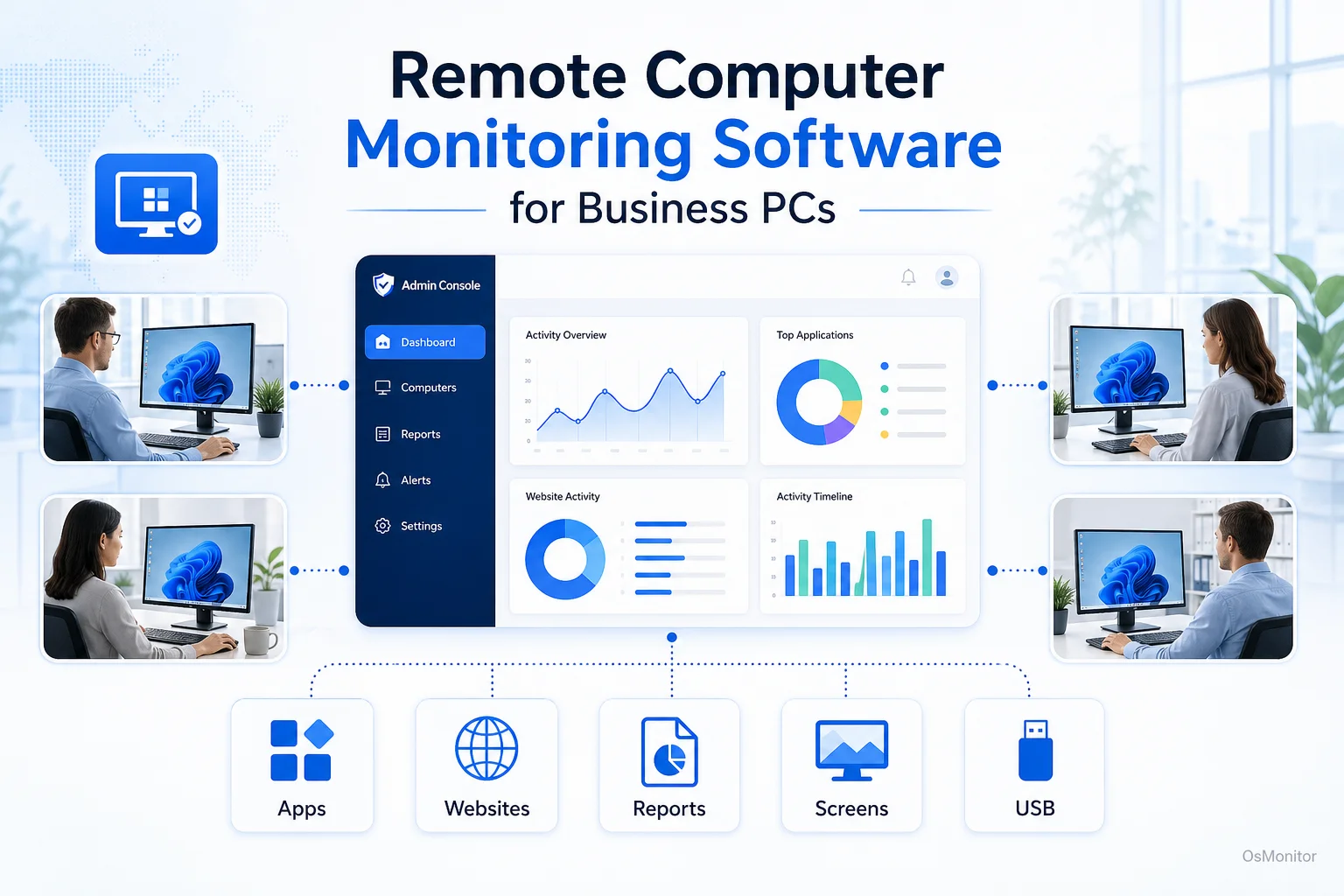
A practical overview of remote pc monitoring software for workplace computer management.
Why Businesses Need Remote PC Monitoring Software
As your company expands beyond a single room, manual oversight becomes impossible. A manager shouldn’t have to interrupt their team to figure out if a project is moving forward. They should be able to glance at a multi-screen wall and get an immediate read on the room.
For hybrid and remote teams, this need is non-negotiable. Remote computer monitoring software solves several massive business headaches:
- Productivity Management: It hands you hard data on how work hours are spent, detailing exactly which applications and websites dominate the day. This helps you spot productivity drains and offer targeted help before deadlines are missed.
- Project Oversight: For heavy computer-based roles (design, coding, data entry), you can view real-time progress without constantly requesting screen shares.
- IT Support and Security: Administrators can use remote desktop monitoring to fix technical issues instantly on an employee’s machine without being physically present. It also enforces security by tracking file movement and blocking unauthorized USB drives.
- Resource Allocation: By understanding exactly which expensive software licenses are being utilized, you can optimize your IT budget.
For organizations leaning heavily into work-from-home, this software ensures remote staff get the same IT support and management oversight as in-office employees. A properly configured Remote Employee Monitoring Software for Work-from-Home Teams bridges that physical gap, building a highly efficient distributed workforce.
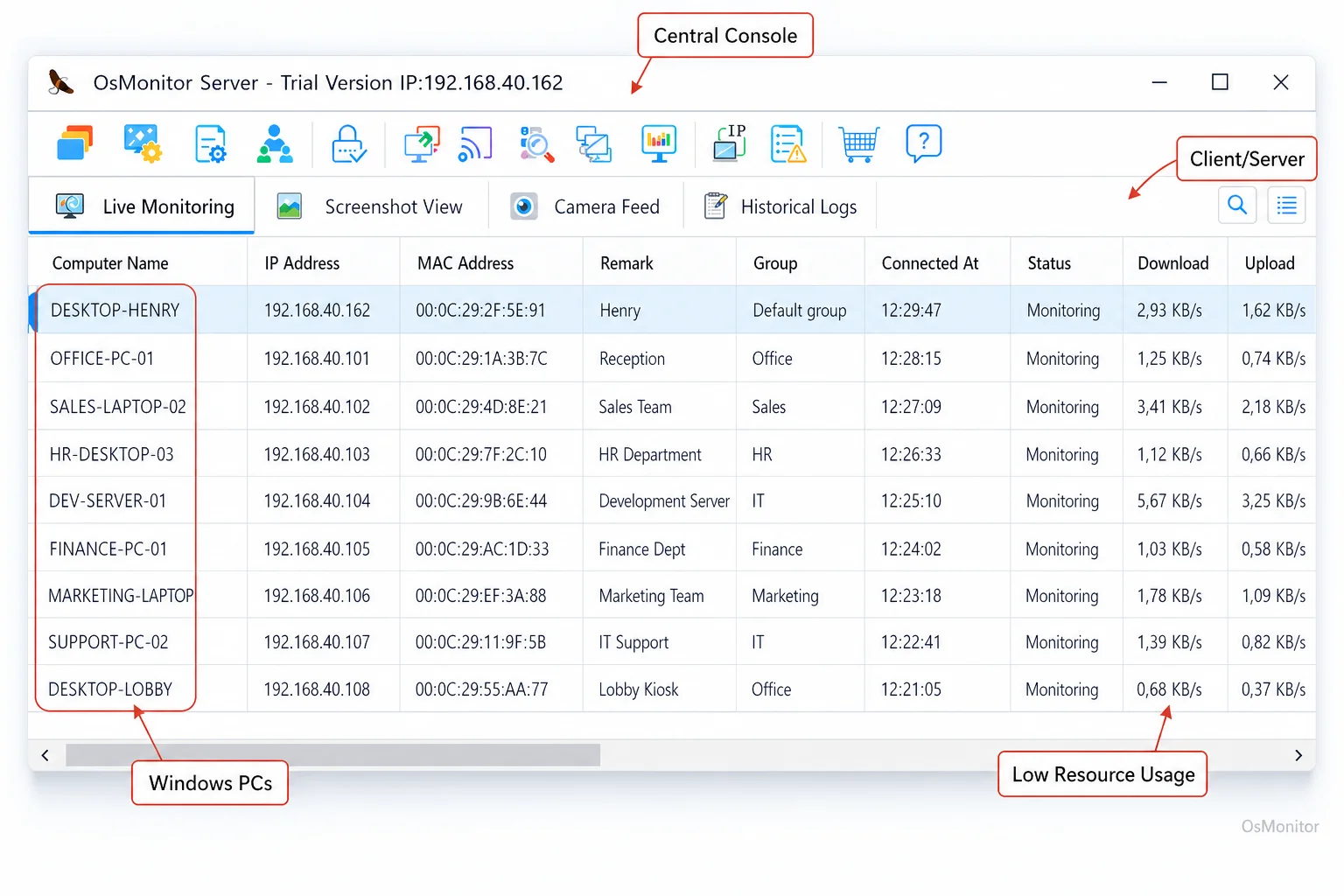
A real-product style screenshot highlighting centralized computer monitoring in OsMonitor.
How OsMonitor Enables Remote Computer Monitoring
If you are researching the market, you will notice OsMonitor is fundamentally different from the flashy, cloud-based remote computer monitoring platforms. OsMonitor is a rock-solid, client/server-based management tool designed specifically for Windows environments. It is built for businesses that demand absolute control over their data.
The system is split into two simple parts:
- The Server/Management Console: You install this on a single IT admin’s PC or a dedicated office server. This is your command center for collecting logs, viewing live screens, and building access policies.
- The Client Agent: A tiny, highly efficient agent (under 2MB) is pushed to each employee’s Windows endpoint. It runs silently, logging activity and securely transmitting it back to your server.
This architecture offers unmatched deployment flexibility. If you run a single, highly secure office, the entire system can communicate purely over the local area network (LAN) with zero internet access required. If you manage remote staff, you can host your server on a self-managed private cloud instance (like AWS) or have remote clients connect via VPN. The crucial detail is that all your sensitive logs are consolidated on your hardware.
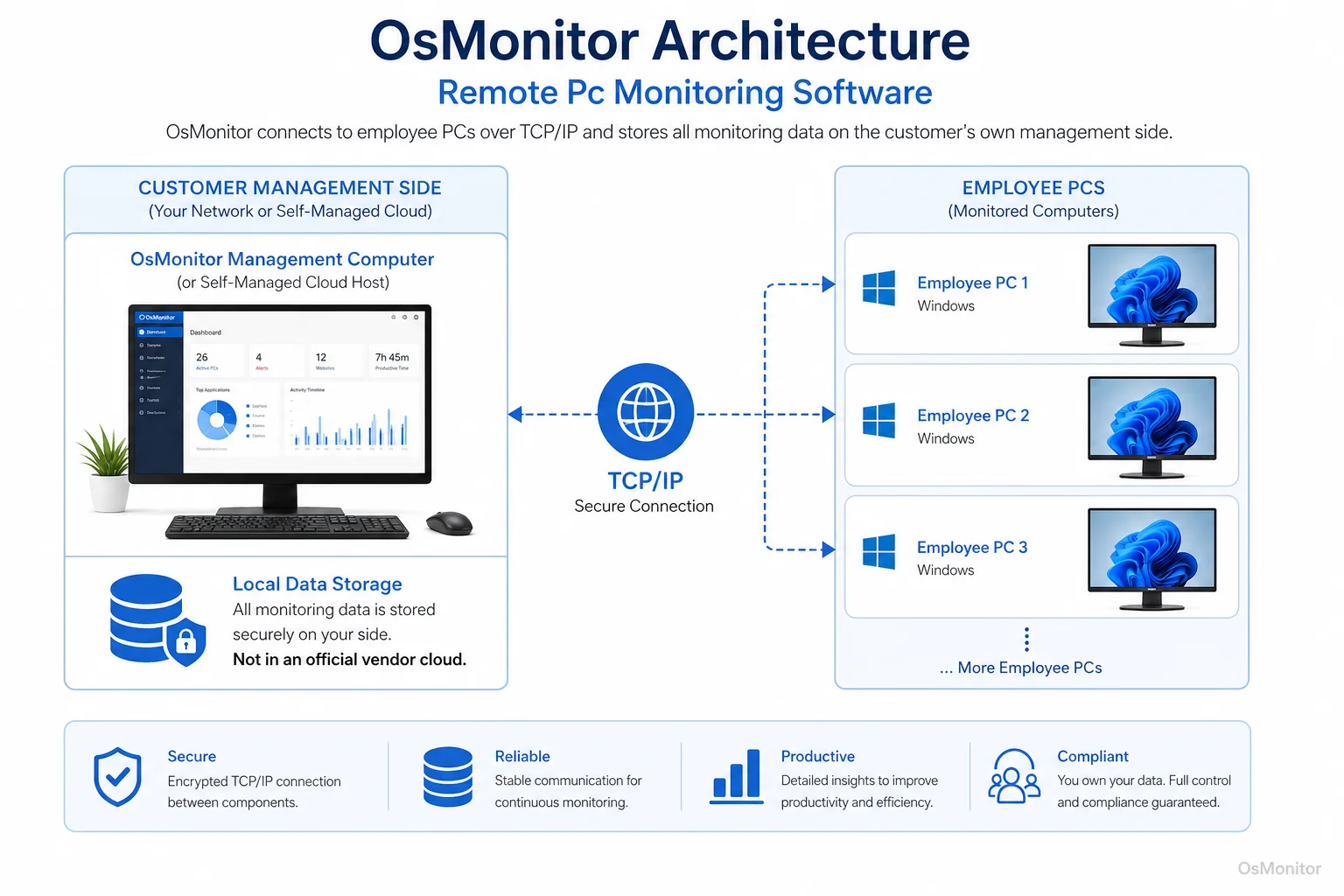
OsMonitor keeps monitoring data under the customer’s control on the management computer or self-managed server.
Core Features of Remote Desktop Monitoring Software
Effective remote computer monitoring is much more than just taking screenshots. A comprehensive suite like OsMonitor provides a complete toolkit for managing productivity, network security, and day-to-day IT administration.
Real-Time Screen Monitoring
This is the feature that changes how you manage. It allows you to view live employee desktops—either individually or grouped into a multi-screen “wall.” It is invaluable for getting a quick pulse on team activity and making sure everyone is focused on core tasks.
Remote Assistance and Control
When a remote worker hits a technical wall, IT cannot walk over to their desk. The built-in remote desktop monitoring software capabilities allow administrators to securely take control of the employee’s mouse and keyboard to troubleshoot the issue instantly. This drastically reduces downtime.
Comprehensive Activity Logging
OsMonitor records a massive array of computer activities, giving you a detailed, objective history:
- Application Usage: Logs exactly which executables were run and for how long they were actively used.
- Website Browsing: Records all URLs visited with precise timestamps.
- File Operations: Tracks file creation, copying, deletion, and renaming across local drives and network shares.
- Bandwidth Usage: Monitors network traffic per machine to spot massive, non-work-related downloads.
This data is the foundation of objective performance reviews. These features form the core of Employee Activity Monitoring Software, taking the guesswork out of management.
Policy Enforcement and Alerts
Administrators can proactively lock down the network. You can block access to non-work websites, specific applications, or external USB storage. Furthermore, the system can instantly alert management if a user attempts a blocked action or tries to copy sensitive files.
Data Ownership and Deployment Flexibility
When choosing a remote computer monitoring software, data privacy is the biggest hurdle. Unlike SaaS platforms that hoard your sensitive internal logs on their vendor servers, OsMonitor is strictly an on-premise solution. You own the data.
All logs, screen captures, and file histories are stored exclusively on your management PC or your self-managed server. You never have to worry about a third-party vendor getting breached.
| Feature | LAN-Only Deployment | Self-Hosted Cloud Deployment |
|---|---|---|
| Data Location | On the manager’s PC within the local network. | On a company-controlled server (physical or cloud). |
| Internet Requirement | Not required for monitoring. | Required for remote clients to connect. |
| Ideal Use Case | Single office or highly secure, air-gapped environments. | Distributed teams, WFH, multiple branch offices. |
| Accessibility | Accessible only from within the local network. | Accessible securely from anywhere via your own setup. |
This gives you the flexibility to manage a global enterprise while keeping your data as secure as a single-room office.
System Requirements and Implementation
OsMonitor is incredibly lightweight and won’t drag down older hardware.
- Operating System: It fully supports Windows 7, 8, 10, 11, and Windows Server editions.
- Architecture: Compatible with both 32-bit and 64-bit systems.
- Hardware: No expensive proprietary hardware is needed; it runs on standard Windows PCs.
- Client Size: The client is under 2MB, meaning it has zero impact on endpoint performance.
Deployment is simple: install the server on your IT machine, then push the client to the endpoints. For remote deployment, the client simply connects to your server’s designated IP address.
It is absolutely crucial to note that remote pc monitoring must be handled transparently. You must establish a clear, written Acceptable Use Policy and notify your staff that company-owned hardware is monitored. Always consult local legal counsel to ensure compliance with regional labor and privacy laws.
Frequently Asked Questions (FAQ)
What is remote PC monitoring software?
It is a suite of IT management tools that allows administrators to oversee, secure, and manage activity on company-owned computers from a central location. It is used to enforce security policies, provide IT support, and gather productivity data for distributed teams.
Is remote PC monitoring software legal for businesses?
In almost all jurisdictions, yes. Employers have the legal right to monitor the use of company-owned hardware. However, privacy laws vary heavily by region. You must maintain transparency, notify your employees, and consult a local legal professional to ensure full compliance.
Buyers often search for “remote pc monitoring software free”. Are there safe free options?
If you are looking for remote computer monitoring software free of charge, be very careful. Truly free tools often lack basic security or monetize by selling your internal data. Professional IT requires a secure, paid solution. However, OsMonitor does offer a full-featured free trial to test the software securely on your own network.
Does OsMonitor require a client on employee computers?
Yes. It uses a highly stable client/server model. You must install the lightweight client agent on each Windows PC you intend to manage.
Where is OsMonitor monitoring data stored?
Your data stays with you. It is stored exclusively on your own management PC or your self-managed server. We do not use third-party vendor clouds.
Can OsMonitor work without internet in a LAN?
Absolutely. For an in-office setup, OsMonitor is designed to function flawlessly within a closed Local Area Network (LAN) without any internet connection.
What Windows versions does OsMonitor support?
It supports Windows 7, 8, 10, and 11, along with Windows Server editions (both 32-bit and 64-bit).
If you are ready to secure your distributed network and gain clear insights into your team’s workflow, a self-hosted tool is the most reliable path. Download OsMonitor Free Trial to explore its capabilities on your own hardware.