Productivity Monitoring Software for Employee Computer Usage
If you manage a team, you already know that interrupting someone’s deep work just to ask “how’s the project going?” is a surefire way to kill their momentum. But you still need to know where things stand. The most efficient way to gauge activity without being disruptive is by using productivity monitoring software. Instead of tapping shoulders, you can pull up a central screen wall to view multiple workstations simultaneously. It gives you a real-time, at-a-glance read on who is hammering away at a task, who might be stuck, and how the overall workflow of the department is progressing.
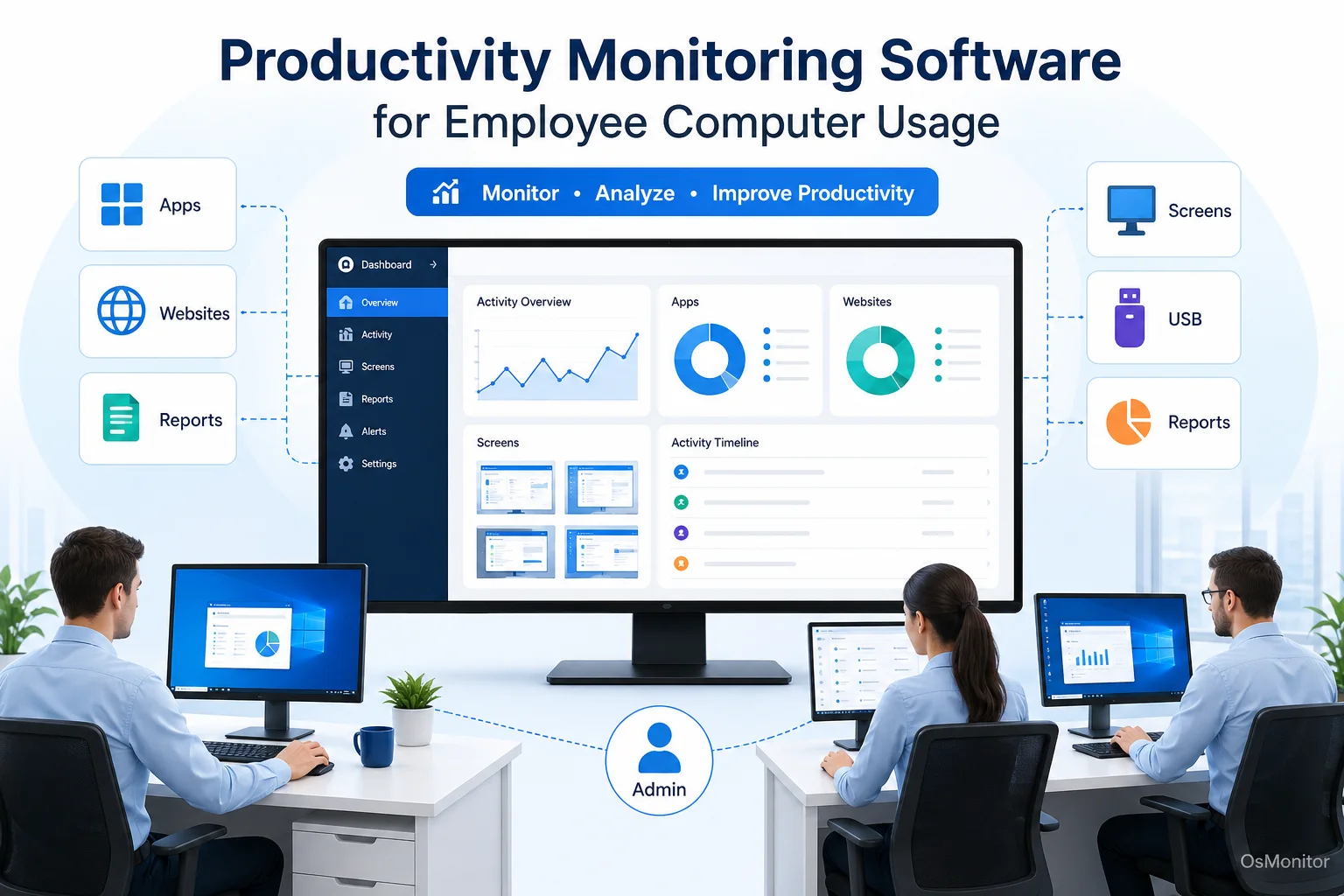
A practical overview of productivity monitoring software for workplace computer management.
What is Productivity Monitoring Software?
Essentially, work productivity monitoring software is an IT management tool that measures and analyzes how staff utilize their company-issued computers. The goal here isn’t to play “gotcha.” It’s about gathering objective, undeniable data on application usage, website visits, and overall active time. This helps managers spot productivity trends, streamline broken workflows, and ensure expensive company hardware is actually being used for business. Unlike heavy cybersecurity tools that hunt for external hackers, this software focuses purely on internal efficiency and day-to-day operational management.
OsMonitor is built specifically for this type of authorized workplace monitoring. It helps your organization understand exactly where the hours go by collecting accurate computer activity data. This empowers managers to have fact-based performance reviews, identify where more training is needed, and balance team workloads. It is a practical management solution designed to elevate team productivity.
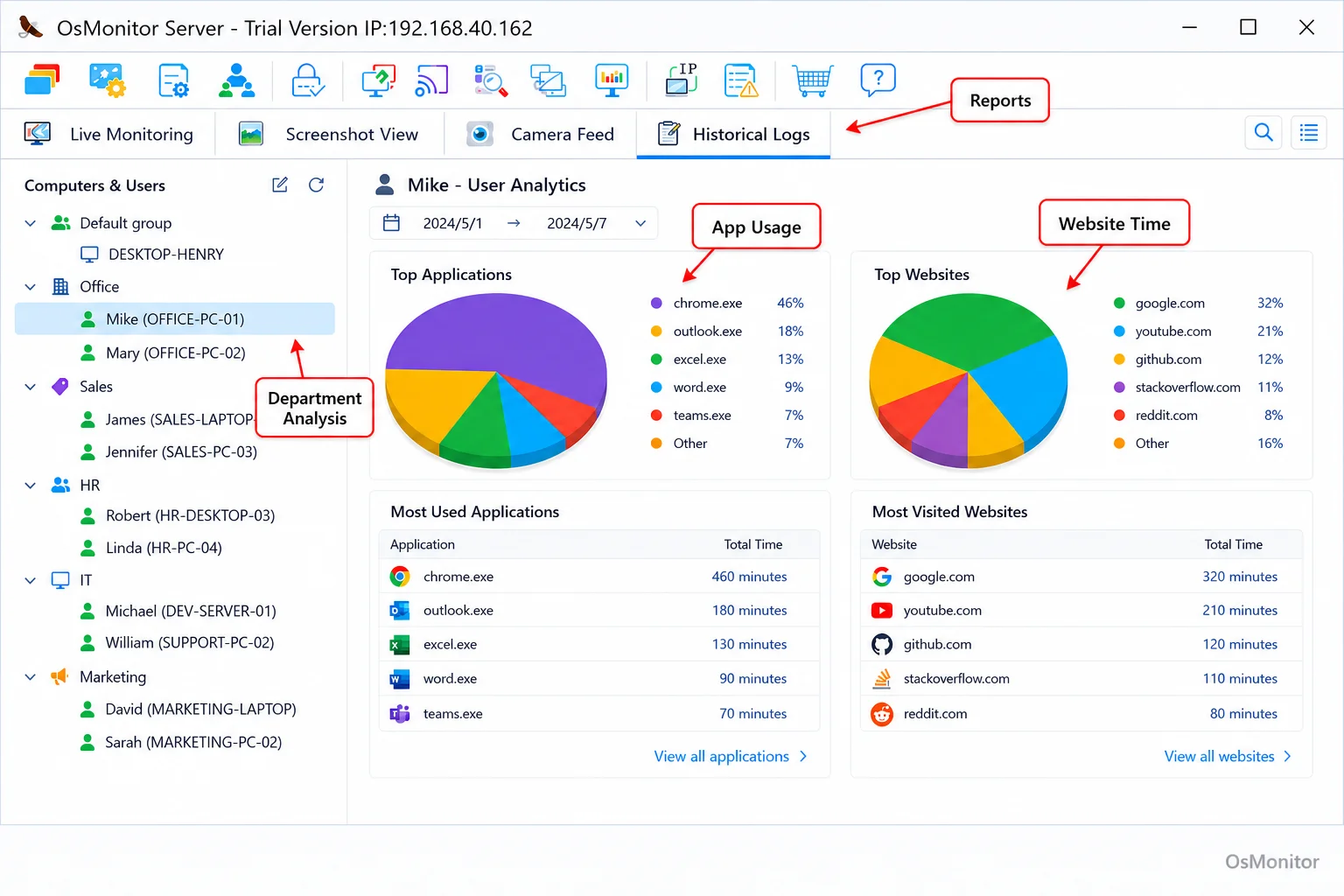
A real-product style screenshot highlighting application and productivity reports in OsMonitor.
Core Features for Enhancing Workplace Productivity
A solid piece of productivity monitoring software has to do more than just record timestamps. It needs a suite of practical features that offer deep insights and enforce your IT policies effortlessly.
Real-Time Screen Monitoring and Session Recordings
Visual oversight cuts through the noise. OsMonitor’s centralized dashboard allows you to display live feeds from dozens of employee computers on a single screen. This is an absolute necessity for supervisors in fast-paced environments like customer support centers or design firms. For a deeper historical review, the system includes productivity monitoring software session recordings. This lets you play back an employee’s screen activity from earlier in the week, which is incredibly useful for training or figuring out exactly how a workflow error occurred.
Application and Website Usage Analysis
If you want to improve efficiency, you first need to know where the time is being spent. The software automatically logs the active time spent in every application and website. Managers can pull clean, detailed reports showing:
- Total active keyboard/mouse time versus idle time.
- Hours spent in productive software (like CRMs, CAD tools, or Office 365).
- Time burned on non-work-related websites or apps.
- A chronological timeline of the workday.
This data instantly highlights which tools are vital and which websites are massive distractions. It’s the core feature of any effective Employee Activity Monitoring Software.
Real-Time Alerts for Policy Violations
To keep your network secure and focused, administrators can set up productivity monitoring software real-time alerts. You define the rules—like blocking specific gaming sites, restricting portable apps, or locking down USB drives. If a user attempts to violate those rules, the system immediately fires an alert to the management console, allowing you to address the issue before it becomes a habit.
Comprehensive Reporting and Analytics
Raw data is useless if it takes hours to read. OsMonitor generates customizable reports for individuals or entire departments. These reports visualize your metrics through clear charts, highlighting:
- The top 10 most heavily used applications and websites.
- Productivity scores based on your own defined categories.
- Bandwidth usage and file download statistics.
- A running count of policy violations over the month.
These analytics give managers the objective facts they need to optimize their teams. (Note: If you are searching for productivity monitoring software free options, be aware that fully featured, secure reporting engines rarely exist in free tools without compromising your data privacy.)
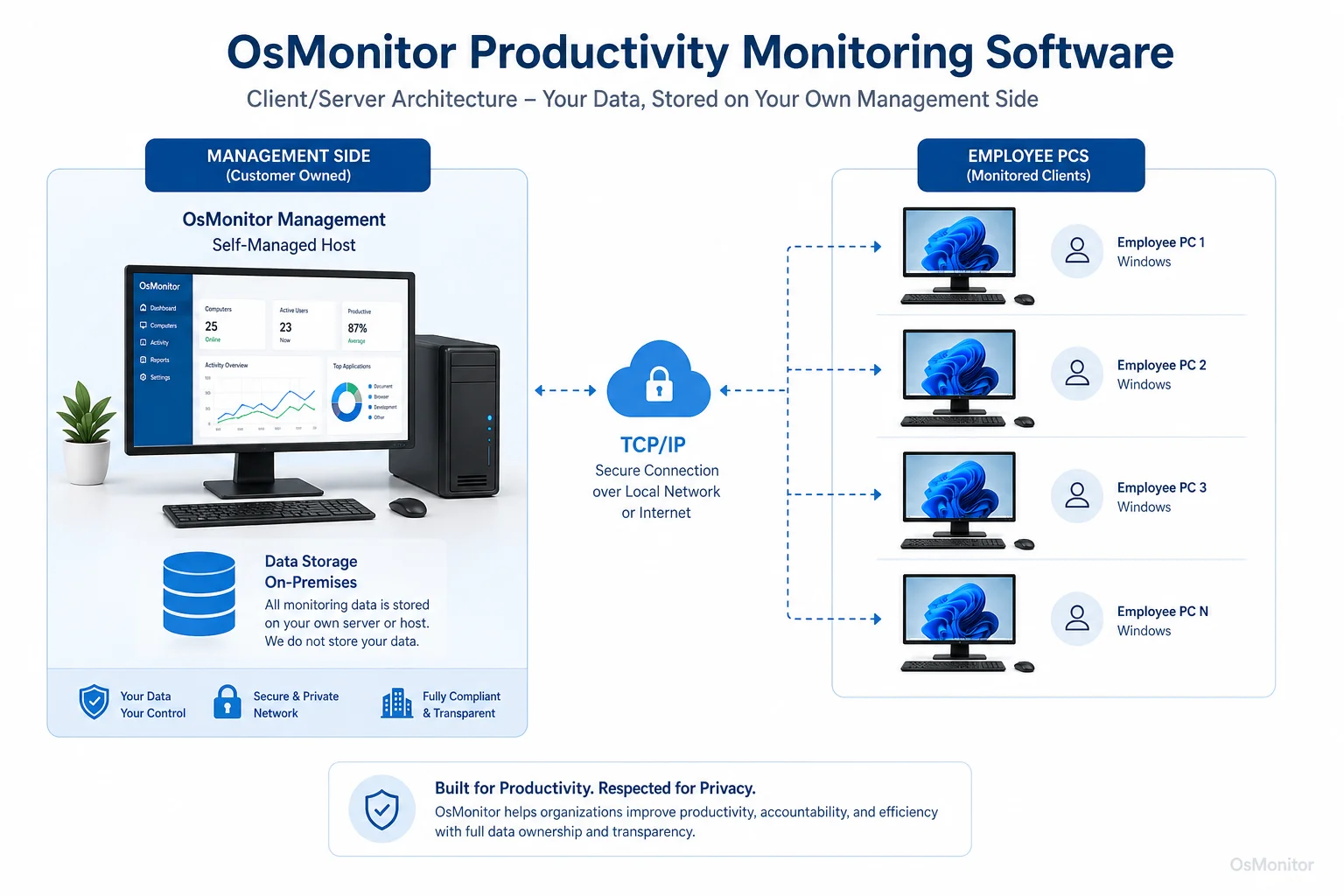
OsMonitor keeps monitoring data under the customer’s control on the management computer or self-managed server.
How OsMonitor Works: On-Premise Data Control
Here is the most important technical detail: OsMonitor operates on a strict client/server model, ensuring your business retains 100% control over its data.
The system has two simple parts:
- The Server/Management Console: You install this on a single IT or management PC. This is your command center where all monitoring data is securely collected and analyzed.
- The Client: You deploy a tiny, lightweight agent to each Windows computer you want to manage. It runs silently, capturing activity and securely sending it back to your server.
This architecture is the definition of on-premise deployment. All your logs stay on your own hardware. This makes OsMonitor an elite On-Premise Employee Monitoring Software because it can run entirely inside a closed Local Area Network (LAN) without any internet connection. Your sensitive internal data is never pushed to a third-party vendor’s cloud server.
Practical Use Cases for Productivity Monitoring
This software adapts to almost any business environment where Windows PCs are the primary tool.
| Use Case | Key Features Applied | Business Benefit |
|---|---|---|
| Office Environments | Application/Website Reports, Live Dashboards | Identify workflow inefficiencies and ensure focus on core business tasks. |
| Call Centers | Real-Time Alerts, Application Control | Keep agents focused on CRM and communication tools, reducing handle times. |
| Educational Labs | Website Blocking, Screen Monitoring | Ensure students use computer resources strictly for academic purposes. |
| Distributed Teams | Session Recordings, Productivity Reports | Maintain consistent productivity standards and visibility across remote workers. |
| Design & Engineering | Application Usage Time, File Tracking | Verify time spent on expensive project software and protect intellectual property from USB leaks. |
Responsible Implementation and Limitations
To make this software work for your company culture, it must be rolled out responsibly. You must create a clear, written computer usage policy that tells your staff exactly what is being monitored and why. The goal is to support the team with better processes, not to create a culture of anxiety.
From a technical standpoint, OsMonitor is a dedicated Windows employee monitoring software. The lightweight client must be installed on each company-owned PC to function. Furthermore, it is your responsibility to ensure that your authorized workplace monitoring complies with your local and regional labor laws. Always consult your legal counsel before deployment.
Frequently Asked Questions
What is the purpose of work productivity monitoring software?
It helps businesses understand exactly how company-issued computers are utilized. By gathering objective data on app/web usage and active time, managers can improve efficiency, streamline broken workflows, and enforce IT policies fairly.
Is it legal to use productivity monitoring software in the workplace?
In most jurisdictions, yes—employers have the right to monitor company-owned hardware. However, privacy laws vary heavily by region. You must have a clear policy, notify your employees, and consult a local legal professional to ensure full compliance.
How is OsMonitor installed on employee computers?
It’s a simple client/server setup. You install the management console on your PC, and push a very lightweight client application to each Windows endpoint you need to manage.
Where does OsMonitor store the monitoring data?
Your data stays with you. It is stored exclusively on your own management computer or your self-managed server. We do not use vendor clouds, giving you total data ownership.
Can OsMonitor function in an offline LAN environment?
Absolutely. It is fully capable of running perfectly within a closed Local Area Network (LAN) without any internet access, which is crucial for high-security facilities.
What versions of Windows are compatible with OsMonitor?
It supports Windows 7, 8, 10, and 11, along with Windows Server editions (both 32-bit and 64-bit).
If you are ready to stop guessing and start managing your team with accurate data, a self-hosted solution is the way to go. Download OsMonitor Free Trial to test the full suite of features securely within your own network.