Work From Home Monitoring Software for Employee Computer Activity
One of the most frequent complaints I hear from managers running distributed teams is the feeling of working in the dark. In a traditional office, you can glance around the room to see who is struggling with a software issue or if a project is moving forward. When everyone is scattered, you lose that ambient awareness. Instead of constantly interrupting your staff with Slack messages asking for status updates, many IT departments are deploying work from home monitoring software. It acts as a centralized dashboard, giving you a clear, objective overview of activity and productivity across your entire remote workforce—all while keeping your company data securely on your own servers.
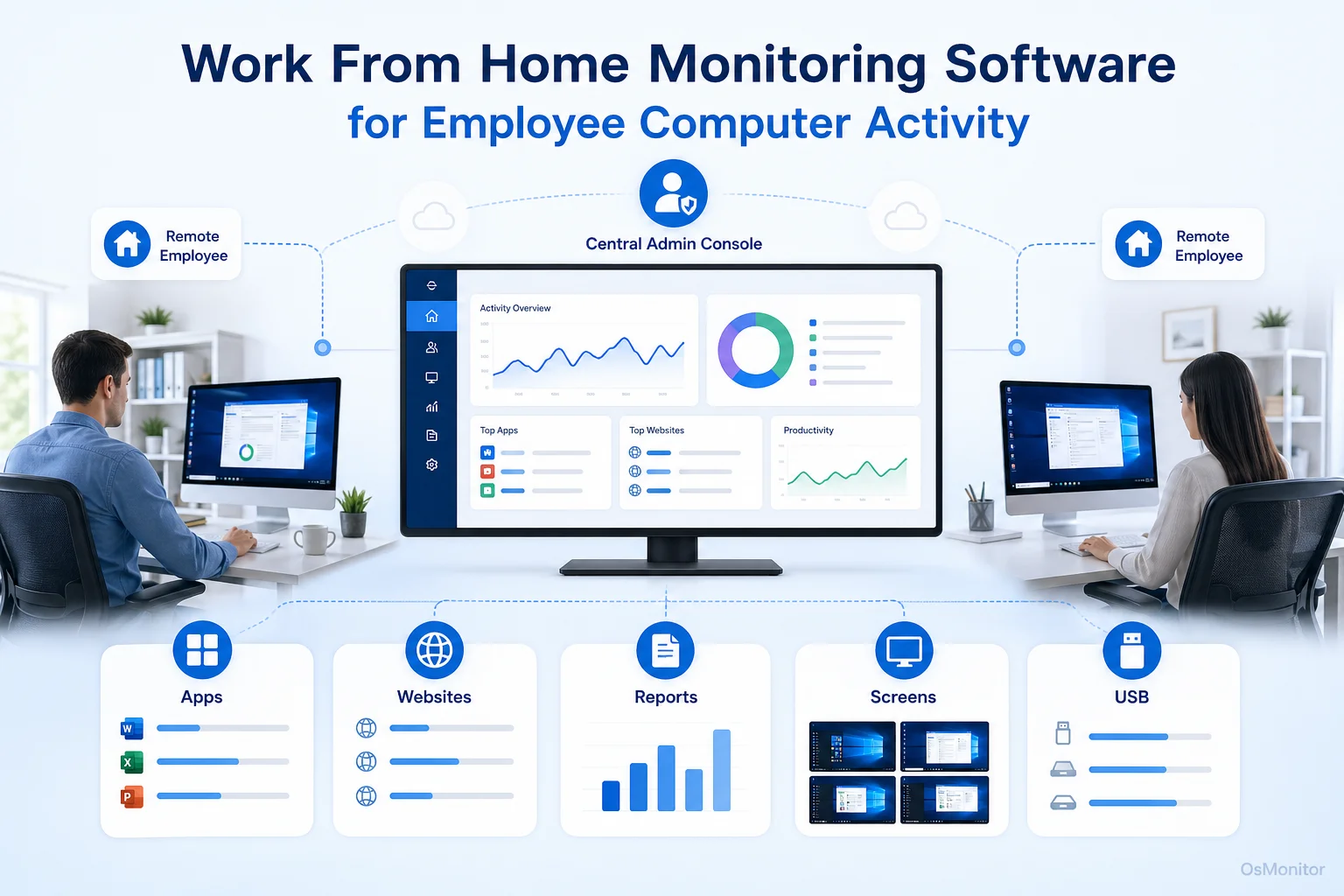
A practical overview of work from home monitoring software for workplace computer management.
How to Monitor Work From Home Employees Effectively and Transparently
The sudden shift to remote work left a lot of managers scrambling to figure out how to monitor work from home employees without coming across as micromanagers. The goal shouldn’t be to watch every keystroke; the goal is to replicate the natural visibility of a physical office so you can support your team better.
Effective work from home employee monitoring software bridges that physical gap by providing data-driven insights into daily computer activity. It helps you answer the constant question of how to monitor employee work from home routines fairly and accurately.
OsMonitor tackles this using a highly secure client/server architecture. A lightweight client application is installed on each remote worker’s company-issued Windows PC. This client securely transmits activity data—either over your corporate VPN or a self-managed internet host—back to a central management console run by your IT admin or department head.
This setup is crucial: it ensures that all logs remain strictly under your company’s control. It’s a secure, private solution for monitoring work from home productivity, avoiding the massive security risks of sending your internal data to a vendor’s public cloud.
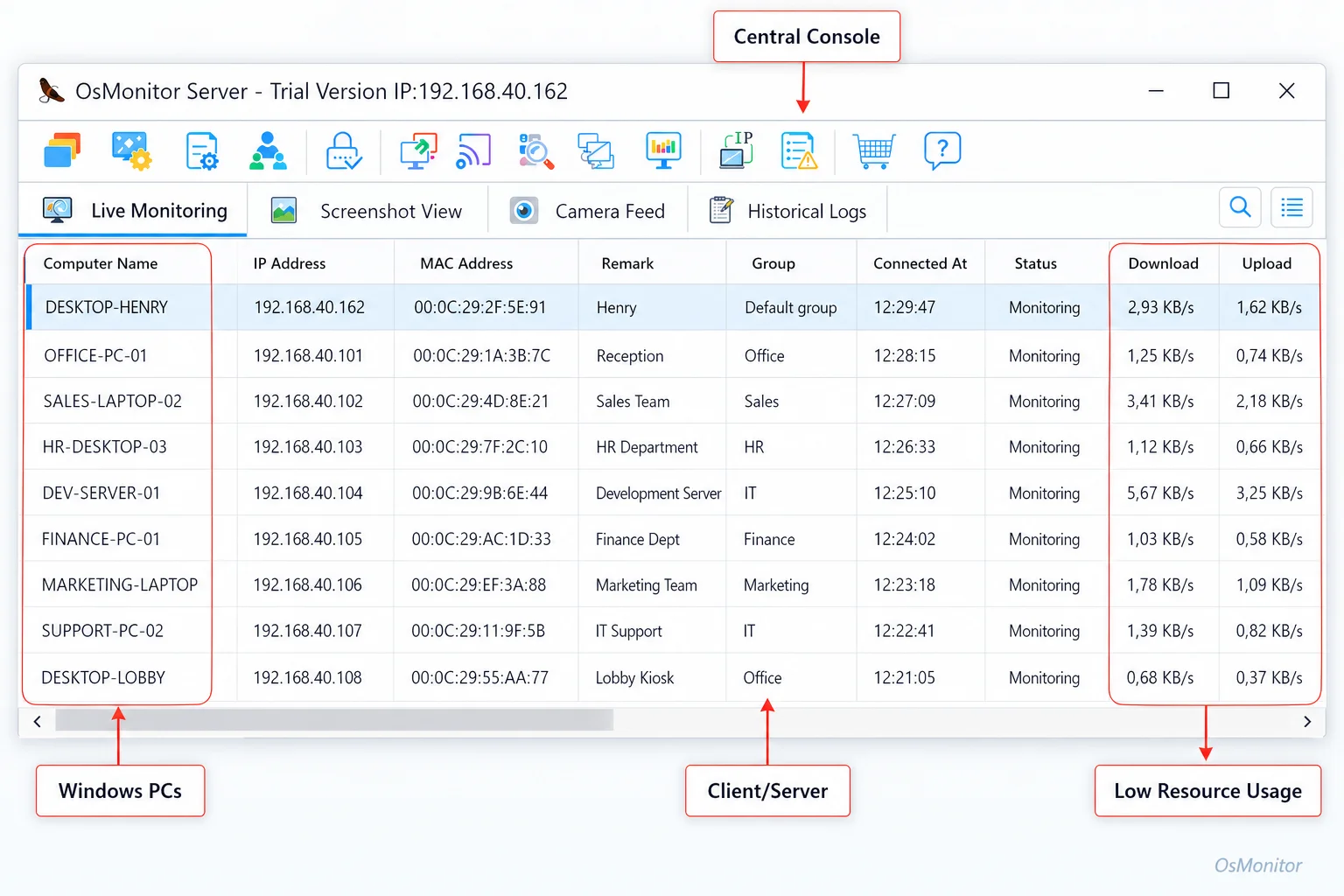
A real-product style screenshot highlighting centralized computer monitoring in OsMonitor.
Key Features of Effective Work From Home Tracking Software
To properly manage a remote team, you need tools that provide clarity without causing friction. A solid work from home tracking software suite focuses heavily on actionable productivity metrics, network security, and IT support.
Real-Time Screen Monitoring for Distributed Teams
One of the most direct ways to understand team activity is through a live screen wall. A centralized dashboard allows a manager to see the desktops of all remote employees in a single, tiled view. This is incredibly useful for:
- Visual Confirmation: Quickly identifying who is actively engaged, who is idle, and who might be fighting with a crashed application.
- Project Coordination: Helping team leads understand the real-time progress on fast-paced, collaborative tasks.
- Targeted Support: Identifying an employee who is stuck and offering proactive IT assistance.
This functionality is the backbone of comprehensive Employee Screen Monitoring Software, providing immediate operational awareness for remote teams.
Analyzing Work From Home Productivity Statistics
People always ask: does work from home increase productivity? The answer usually lies in the data. If you are reading a generic work from home productivity study, it won’t tell you how your team is performing. You need software that tracks exact application and website usage to generate your own internal work from home vs office productivity statistics.
Managers can pull reports that detail:
- Time Spent on Applications: See exactly how many hours are dedicated to core business tools (like CRMs or Adobe Suite) versus non-essential apps.
- Website Browsing History: Analyze the ratio of time spent on industry-related sites versus social media or entertainment platforms.
- Productivity Ratios: Compare active keyboard/mouse time to idle time to establish baseline engagement patterns.
These work from home productivity statistics give you an objective look at wfh productivity, replacing guesswork with hard numbers.
Comprehensive Reporting and Activity Logs
Beyond the live views, historical reports are critical for strategic management. Proper work from home monitoring tools should generate clean, easy-to-read reports for individuals or entire departments.
Key reporting features should include:
- Bandwidth and Download Monitoring: Track large file downloads to manage bandwidth and flag potential security risks.
- Violation Alerts: Set strict rules for accessing blocked websites or using unauthorized USB drives, and get instant notifications if a policy is broken.
- Scheduled Reports: Automatically generate and email weekly summaries of computer activity to department heads.
Remote Assistance and IT Support
Work-from-home staff face technical issues daily, but they don’t have an IT guy down the hall to fix them. Integrated remote control features are a massive part of wfh monitoring software. Administrators can securely access a remote computer to troubleshoot software, install critical updates, or configure network settings. It turns a standard monitoring tool into a powerful IT support platform, drastically reducing downtime.
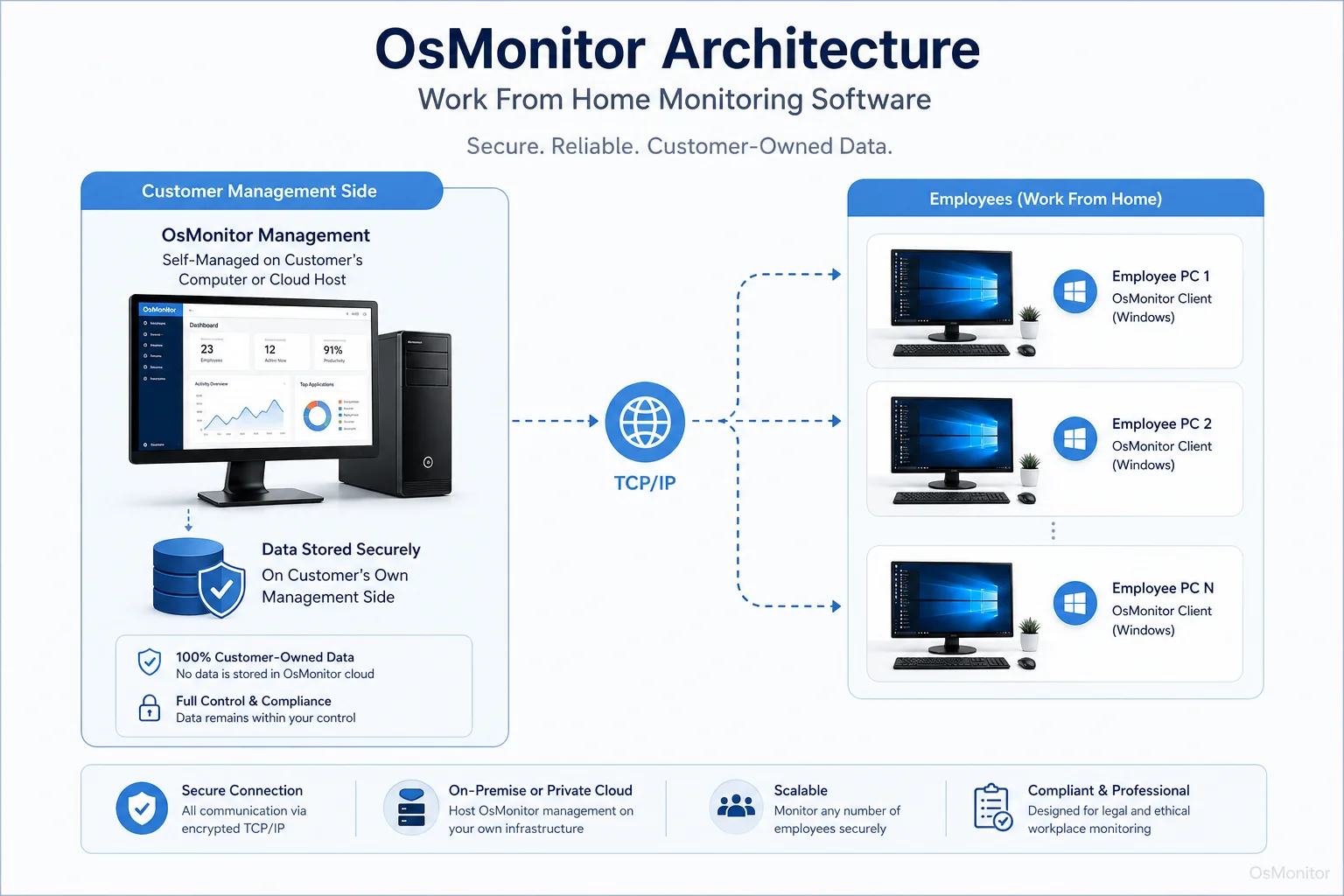
OsMonitor keeps monitoring data under the customer’s control on the management computer or self-managed server.
Deployment and Data Ownership for Remote Teams
When evaluating employee monitoring software work from home solutions, data ownership should be your top priority. Unlike SaaS platforms that hoard your data on their servers, OsMonitor is strictly an on-premise or self-hosted system. Every screen capture and activity log stays on hardware that you control.
This client/server model gives you three highly secure deployment options for tracking work from home teams:
- VPN (Virtual Private Network): Remote staff connect to your corporate network via VPN. The OsMonitor client communicates with your central server exactly as it would if they were sitting in the office.
- Self-Managed Cloud Host: Don’t have a physical office server? Install the OsMonitor server on a private cloud instance (like AWS, Azure, or Google Cloud) that your company fully controls.
- Port Forwarding: Configure a public IP address to route traffic directly to your internal OsMonitor server, allowing secure client connections over the internet.
This strict focus on data ownership aligns perfectly with the principles of On-Premise Employee Monitoring Software, keeping your sensitive operational data firmly in-house.
Implementing a Fair and Productive WFH Monitoring Policy
If you want to know how to monitor work from home successfully, the secret is transparency. You must establish a clear policy that explains exactly what is being tracked and why. This shifts the narrative from “secret surveillance” to “authorized workplace monitoring” aimed at supporting the team.
Here is a quick framework I use for monitoring work from home employees:
| Policy Area | Guideline | Purpose |
|---|---|---|
| Scope of Monitoring | Monitoring applies only to company-owned hardware during designated business hours. | To respect privacy while focusing strictly on work-related computer activity. |
| Data Collected | The system logs app usage, website visits, file transfers, and active screen time. | To gather work from home productivity data, ensure security, and provide IT support. |
| Data Access | Logs are restricted strictly to direct managers and authorized IT personnel. | To maintain confidentiality and prevent data misuse. |
| Data Usage | Metrics are used for performance reviews, workflow optimization, and policy enforcement. | To provide objective, data-driven feedback. |
| Employee Notification | All remote staff are informed of the software upon receiving their company hardware. | To ensure transparency and comply with legal requirements. |
System Requirements and Limitations
OsMonitor is a lightweight, efficient tool built specifically for business environments.
- Compatibility: It supports all modern Windows versions, from Windows 7 up to Windows 11, including Windows Server editions (32-bit and 64-bit).
- Hardware: It requires no special proprietary hardware. The management console and client have minimal footprint and won’t slow down older remote laptops.
- Limitations: It is exclusively built for Windows PCs. The client must be installed on the employee’s machine for the system to function. It is up to your business to ensure your work from home monitoring practices comply with your local employment and privacy laws.
Frequently Asked Questions (FAQ)
What is work from home monitoring software?
It is a suite of IT tools designed to help businesses manage remote staff by tracking computer activity on company-issued devices. It helps measure productivity, enforce security policies, and provide remote IT support.
Is work from home monitoring software legal for businesses?
In most jurisdictions, yes. Monitoring company-owned hardware is legal, especially when governed by a clear, written policy and proper employee notification. However, laws vary heavily by region. Always consult local legal counsel to ensure compliance with privacy and labor laws.
Some managers search for “how to monitor work from home employee” or ask about “wfh monitoring”. What is the best method?
The most reliable method for employee monitoring work from home is deploying a dedicated client/server application like OsMonitor to company-owned Windows PCs, which automatically logs app/web usage and provides real-time screen visibility to management.
Does OsMonitor require a client on employee computers?
Yes. To properly handle monitoring work from home productivity, a lightweight client application must be installed on each remote Windows PC so it can report back to your central server.
Where is OsMonitor monitoring data stored?
Your data stays with you. It is stored directly on your own hardware—whether that is a physical office server or a private cloud server you control. We never store your data on vendor servers.
Can OsMonitor work without internet in a LAN?
Absolutely. It functions perfectly within a closed Local Area Network (LAN) without needing an internet connection, making it ideal for highly secure hybrid environments.
What Windows versions does OsMonitor support?
It supports Windows 7, 8, 10, and 11, along with Windows Server editions (both 32-bit and 64-bit).
By providing transparent, actionable data, this software helps businesses thrive in a distributed world. To see how these work from home productivity tools can streamline your operations, Download OsMonitor Free Trial and test it in your own network environment.