Best Remote Employee Monitoring Software for Distributed Teams
When your team is scattered across different cities, branch offices, or home setups, managing productivity can quickly feel like you are flying blind. You lose that natural office visibility. You can’t just walk down the hall to gauge progress, identify roadblocks, or see if company resources are being used effectively. Instead, you end up sending endless “just checking in” messages, which interrupts everyone’s workflow. To fix this, you need a way to review multiple workstations simultaneously through a centralized screen wall, giving you a quick, silent update on team status. This is exactly why IT departments search for the best remote employee monitoring software. It provides a clear, centralized view of computer activity, helping you support your teams and maintain operational efficiency, regardless of where their desks are located.
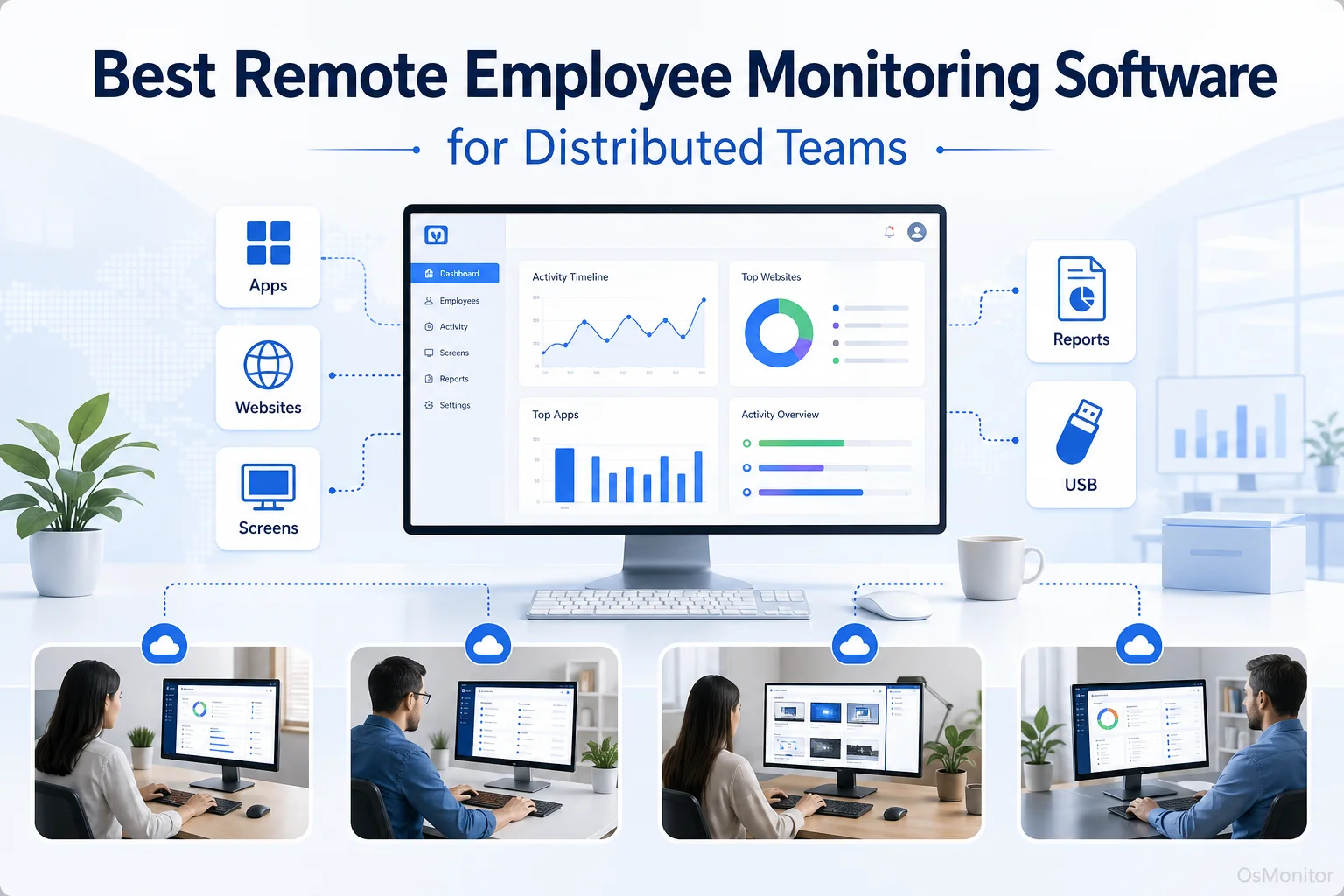
A practical overview of best remote employee monitoring software for workplace computer management.
Key Selection Criteria for Remote Monitoring Software
Finding the right tool isn’t just about looking at a feature list. It requires careful consideration of your IT infrastructure, especially concerning data security, network scalability, and legal compliance. Here are the absolute most important criteria to evaluate when selecting the best remote employee monitoring software for your distributed team.
1. Deployment Model: Cloud SaaS vs. Self-Hosted
This is the biggest decision you will make: where does your monitoring data live?
- Cloud SaaS (Software-as-a-Service): These platforms are hosted by the software vendor and accessed via a web browser. They are easy to deploy, but your sensitive internal logs and screen recordings are stored on the vendor’s third-party servers. For many industries, this raises massive data privacy and compliance red flags.
- On-Premise / Self-Hosted: This model allows you to install the software on your own servers—whether that is a physical box in your office or a private cloud instance you fully control (like AWS or Azure). This gives you 100% ownership and control over your data. For businesses in finance, healthcare, or government sectors, this approach is mandatory. It is ideal for teams operating within a LAN or connecting over a secure VPN.
2. Data Ownership and Privacy
For remote teams, activity data is constantly in motion. Understanding who owns this data is paramount. The best software to monitor remote employees will give you absolute ownership. With self-hosted solutions, you retain full control, ensuring that your sensitive business information and employee activity records are never accessible to third-party vendors. This is a massive advantage when building a compliance strategy for regulations like GDPR or CCPA.
3. Platform Compatibility
You must ensure the software matches your hardware. If your organization runs heavily on Windows 7, 10, 11, or Windows Server, you need a dedicated Windows Employee Monitoring Software. A tool built specifically for your OS will provide far more stable and robust features than a generic, web-based, cross-platform solution.
4. Reporting and Analytics
Watching screens is helpful, but effective remote management requires understanding long-term productivity trends. Look for software that provides actionable department activity reports. Key reporting features include:
- Precise application and website usage time.
- Productivity analysis (separating core business tools from non-work browsing).
- Attendance logs and active work duration.
- Bandwidth usage reports.
- The ability to filter logs by individual, department, or date range.
5. Remote Control and Policy Enforcement
A distributed workforce demands centralized IT control. The software must allow you to push usage policies remotely. This includes blocking non-work-related websites, restricting unauthorized applications, and locking down USB devices to prevent data theft. Additionally, built-in remote assistance is invaluable for IT teams that need to troubleshoot a remote worker’s laptop without using clunky third-party tools.
6. Pricing and Licensing Model
Software costs compound. Most cloud solutions charge a recurring per-user, per-month subscription fee. While the upfront cost is low, the lifetime cost is astronomical, especially as your team grows. Conversely, on-premise solutions often offer a one-time purchase for a perpetual license. This provides predictable, budget-friendly long-term costs without the nightmare of recurring SaaS fees.
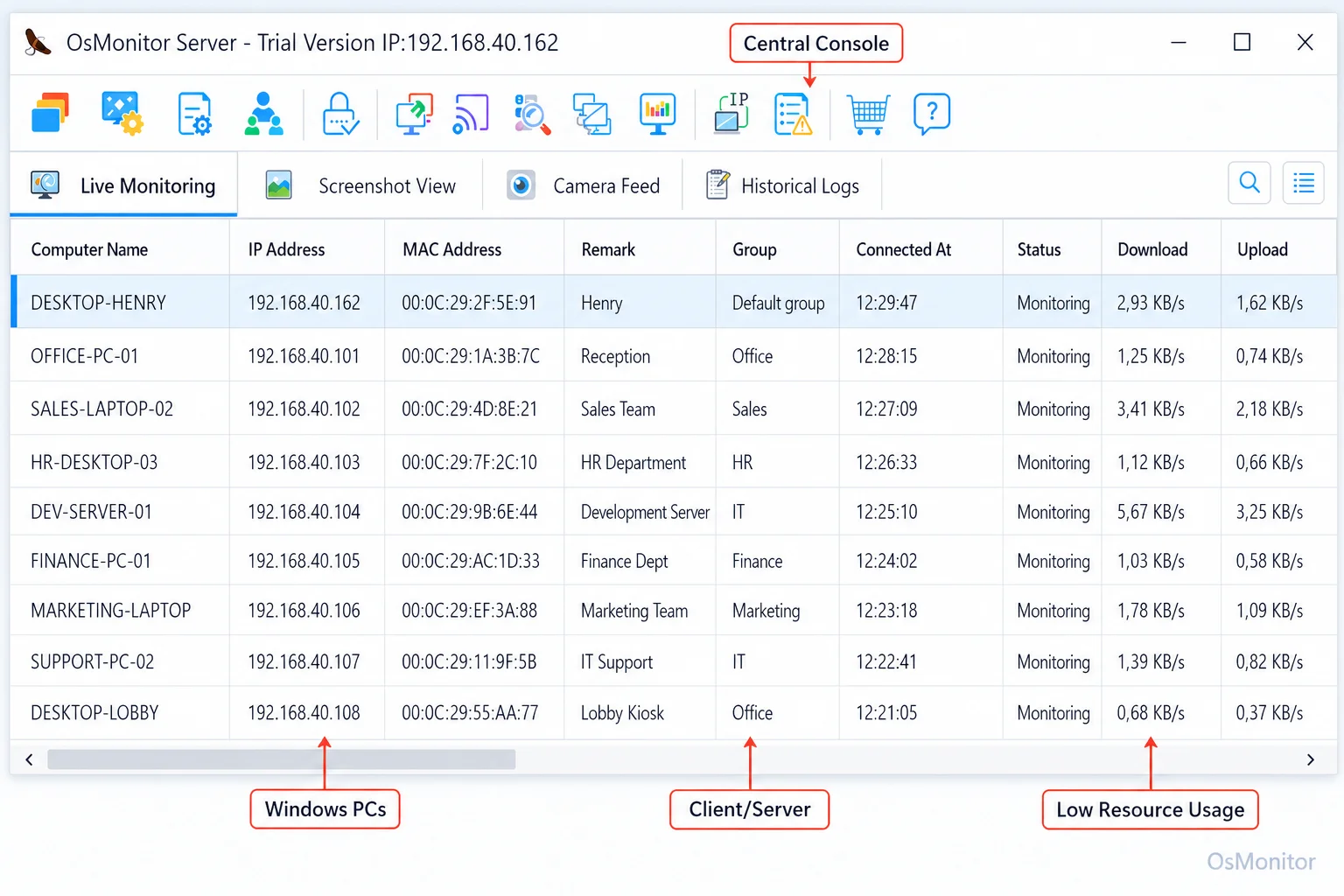
A real-product style screenshot highlighting centralized computer monitoring in OsMonitor.
Common Types of Remote Employee Monitoring Tools
The market is crowded. Understanding the different categories helps you cut through the marketing noise and find the right fit.
Cloud-Based SaaS Platforms
These are the all-in-one web dashboards. They bundle time tracking and screen monitoring into an easy-to-use interface. They are great for small startups, but their reliance on a vendor’s cloud for data storage and their expensive recurring subscriptions make them a tough sell for established IT departments.
Dedicated Time Tracking Applications
These tools just watch the clock. They log active time, idle time, and project hours. While some might consider them the best remote employee time tracking software for freelancers or agencies billing by the hour, they completely lack the deep IT management features (like policy enforcement and live screen walls) required for true network oversight.
On-Premise Computer Monitoring Software
This category includes robust client-server software designed for businesses that prioritize data security. The management console is installed on a central server owned by your company, and a lightweight client is pushed to the employee workstations. This ensures all monitoring data stays within your private network. For maximum control over sensitive information, an On-Premise Employee Monitoring Software setup is unmatched.
Project Management Tools with Monitoring Features
Platforms like Asana or Jira have add-ons for tracking time spent on tasks. While great for project alignment, they do not monitor how the computer is actually being used. They track the project, not the workstation.
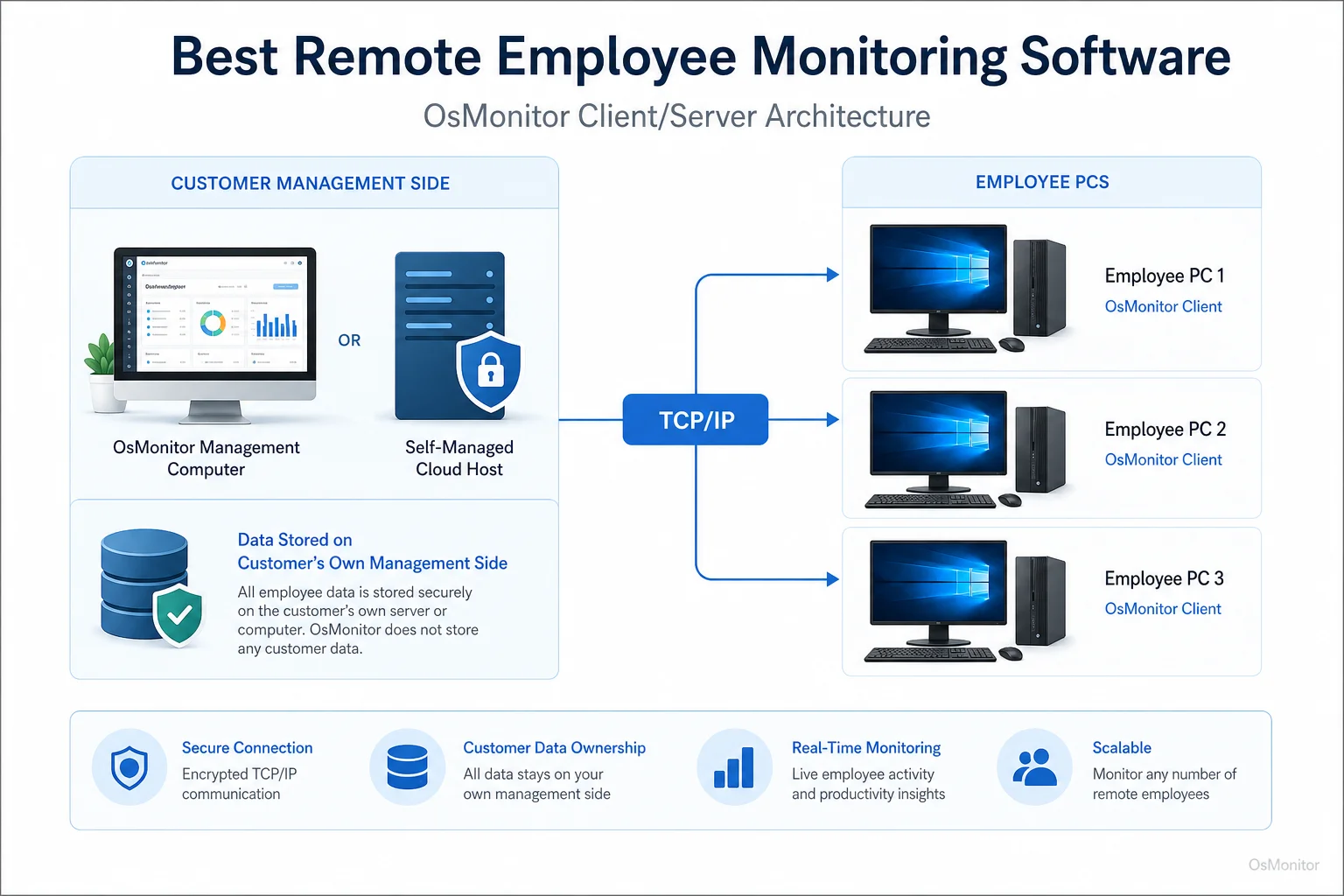
OsMonitor keeps monitoring data under the customer’s control on the customer’s management computer or self-managed server.
Where OsMonitor Fits: On-Premise Control for Remote Teams
OsMonitor is a classic client/server-based system that falls firmly into the on-premise category. It is specifically designed for businesses that demand full control over their activity logs. For remote teams, you can deploy OsMonitor in two secure ways:
- Via VPN: Remote employees connect to your corporate local area network (LAN) through a VPN. The OsMonitor server on the LAN communicates securely with the remote clients as if everyone were in the same building.
- On a Self-Managed Cloud Server: You install the OsMonitor server software on a private cloud server (like an AWS EC2 instance) that your company controls. Remote clients connect to this server over the internet. This gives you cloud-like accessibility, but you retain 100% data ownership.
This architecture makes OsMonitor an excellent choice for organizations managing a fleet of Windows PCs that require a secure, self-hosted solution.
Essential Features in Remote Employee Desktop Monitoring Software
When evaluating a remote employee desktop monitoring software suite, you need features that go beyond simple time tracking to provide a comprehensive view of network activity.
- Real-time Screen Monitoring: Managers can view remote desktops in real-time on a multi-screen “wall.” It’s perfect for checking project progress and seeing who needs IT support. Good Employee Screen Monitoring Software is the cornerstone of remote visibility.
- Website and Application Usage Tracking: The system logs all applications and websites accessed, alongside the active duration. It helps managers understand software utilization and gather accurate computer usage reports.
- Remote Assistance: IT support is tough when the user is three states away. Remote assistance allows an admin to take control of an employee’s mouse and keyboard to fix problems instantly.
- Centralized Policy Controls: Administrators can block websites, unauthorized applications, and USB storage devices directly from the central console, ensuring consistent security policies across the entire distributed team.
- Document and Data Backup: The system can automatically back up crucial file types from remote computers to your central server, protecting against accidental deletion or hardware failure.
The table below summarizes how these features support remote teams:
| Feature | Description for Remote Teams | OsMonitor Support |
|---|---|---|
| Real-time Screen Monitoring | View multiple remote employee desktops simultaneously to check progress and provide support without interrupting them. | Yes, via centralized dashboard and individual remote desktop view. |
| Website & Application Tracking | Log and analyze time spent on different websites and applications to understand productivity patterns across the distributed workforce. | Yes, with detailed time reports. |
| Data & Document Backup | Automatically back up important documents from remote computers to a central server to prevent data loss. | Yes, with configurable rules. |
| Remote Assistance | Directly control a remote employee’s computer to troubleshoot technical issues or provide hands-on training. | Yes, built-in remote control feature. |
| Centralized Policy Control | Enforce company policies by blocking non-work websites, applications, or USB devices on all remote computers from one console. | Yes, with granular controls. |
| Self-Hosted Data Storage | Ensure monitoring data is stored on your own server (local or private cloud) for maximum privacy and compliance. | Yes, data is stored on the customer’s management computer or server. |
Limitations and Ideal Use Cases
No single software is perfect for every organization. You have to know a tool’s limitations to ensure it fits your infrastructure.
OsMonitor is purpose-built for the Windows ecosystem. It is designed for Windows business computers. It does not support Mac, Linux, or mobile devices.
Furthermore, because it is a secure client-server system, a lightweight client must be installed on each endpoint. It is designed for transparent, authorized workplace monitoring on company-owned devices.
The ideal use case for OsMonitor is a business with a distributed team using Windows PCs that prioritizes:
- Complete ownership and control of its monitoring data.
- A predictable one-time licensing fee instead of recurring SaaS subscriptions.
- A robust feature set including screen viewing, policy enforcement, and remote IT support.
Frequently Asked Questions (FAQ)
What is the best remote employee monitoring software?
The “best” solution depends entirely on your IT requirements. If you prioritize data privacy, run a Windows network, and prefer a one-time purchase, a self-hosted solution like OsMonitor is a top contender. If you run a cross-platform team and don’t mind handing your data over to a vendor for a monthly fee, a cloud SaaS solution might be easier.
Is it legal to use software to monitor remote employees?
In most jurisdictions, it is legal for employers to monitor the use of company-owned computers. However, privacy laws vary heavily by region. You must maintain transparency by establishing a clear computer usage policy and notifying your staff. Always consult local legal counsel to ensure compliance with labor and privacy laws.
Does OsMonitor require a client on employee computers?
Yes. OsMonitor uses a highly stable client-server model. The lightweight client program must be installed on each remote Windows PC you need to manage.
Where is OsMonitor monitoring data stored?
Your data stays with you. All logs and screen recordings are stored on the machine where you install your server console—whether that is a local server in your office or a private cloud instance you control. We never store your data on our vendor servers.
Can OsMonitor monitor remote employees over the internet?
Yes. You can manage remote employees over the internet by either installing your server component on a private cloud server with a public IP address, or by having your remote staff connect to your office network via a VPN.
What Windows versions does OsMonitor support?
OsMonitor supports Windows 7, 8, 10, and 11, along with Windows Server editions (both 32-bit and 64-bit).
Choosing the right software is a major strategic decision that affects your network security, budget, and team trust. Focus on your specific needs for data control and deployment. If you are looking for a secure, self-hosted solution, View OsMonitor Pricing to see how a perpetual license fits into your IT budget.