Idle Time: Meaning, Causes and How to Reduce It
When a small business owner tells me their project velocity has stalled, the first thing we look at is how work hours are actually being spent. Often, managers suspect their team is burning time on games, video sites, and endless social media feeds, but they lack the objective data to prove it. Without clear records of what is happening on company screens, you can’t understand the scope of the problem, let alone have a constructive conversation about it. This is exactly where understanding and measuring idle time becomes a critical, data-driven step toward getting your operational efficiency back on track.
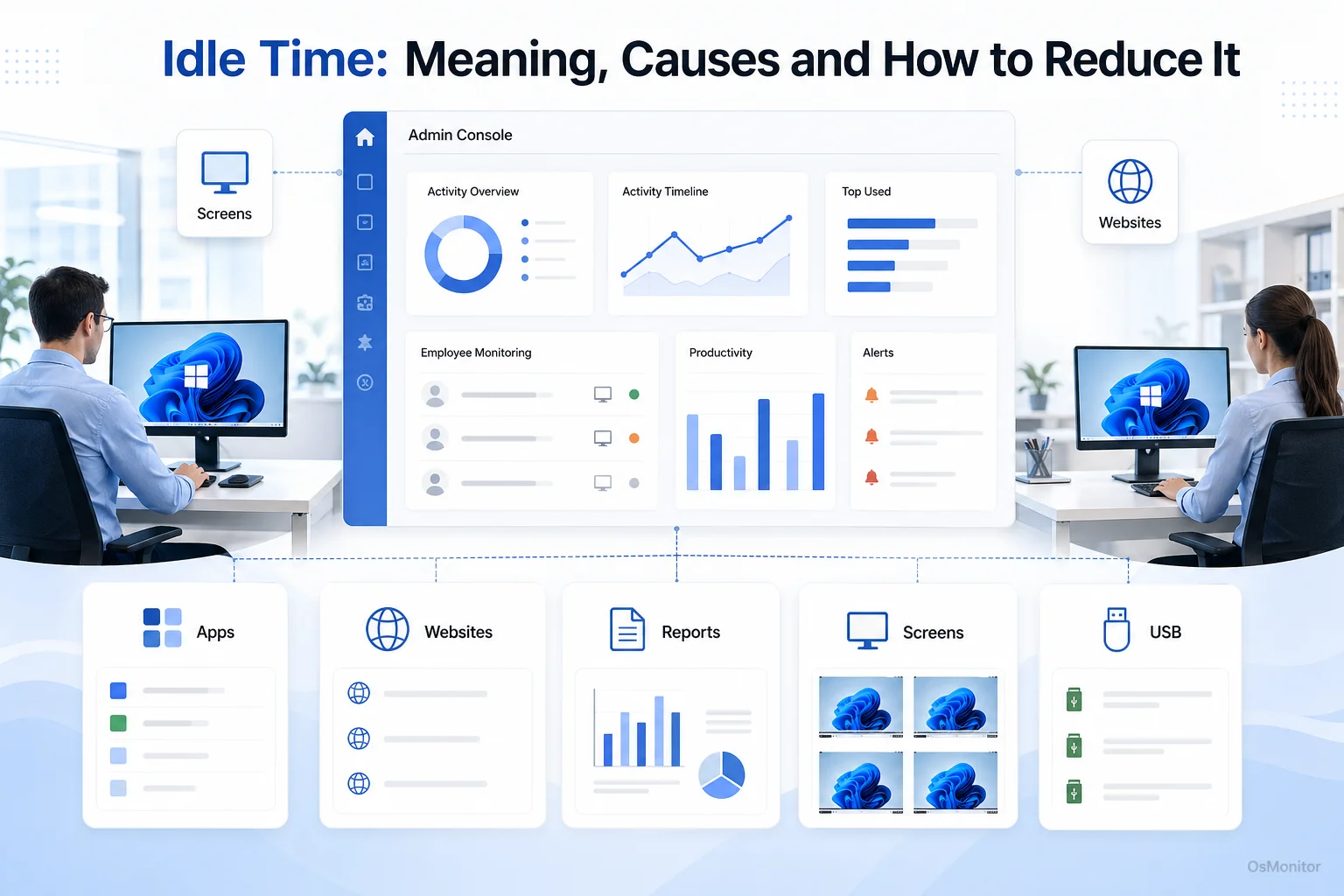
A practical overview of idle time for workplace computer management.
What is Idle Time in a Business Context?
In the IT and business management world, idle time is the period when an employee is on the clock and being paid, but is not actively engaged in productive work. To be clear, this is not about scheduled lunch breaks. Unproductive idle time represents a direct loss of output and is usually a massive red flag for deeper issues within a department.
Some idle time is unavoidable—like a staff member waiting for a massive CAD file to render or waiting on approval from a supervisor. However, excessive, chronic idle time destroys project timelines and inflates labor costs. The hardest job for a manager is distinguishing between a necessary workflow pause and someone just slacking off.
Usually, the root causes fall into three buckets:
- Operational Inefficiencies: Slow network speeds, hardware bottlenecks, or waiting on other departments.
- Management Gaps: Poor project scheduling, lack of assigned tasks, or terrible communication.
- Employee Disengagement: Pure digital distraction—burning hours on non-work websites or dealing with burnout.
You have to identify the root cause before you can fix it. Assuming everyone is just lazy ignores systemic IT or management problems that, if fixed, could unlock massive productivity.
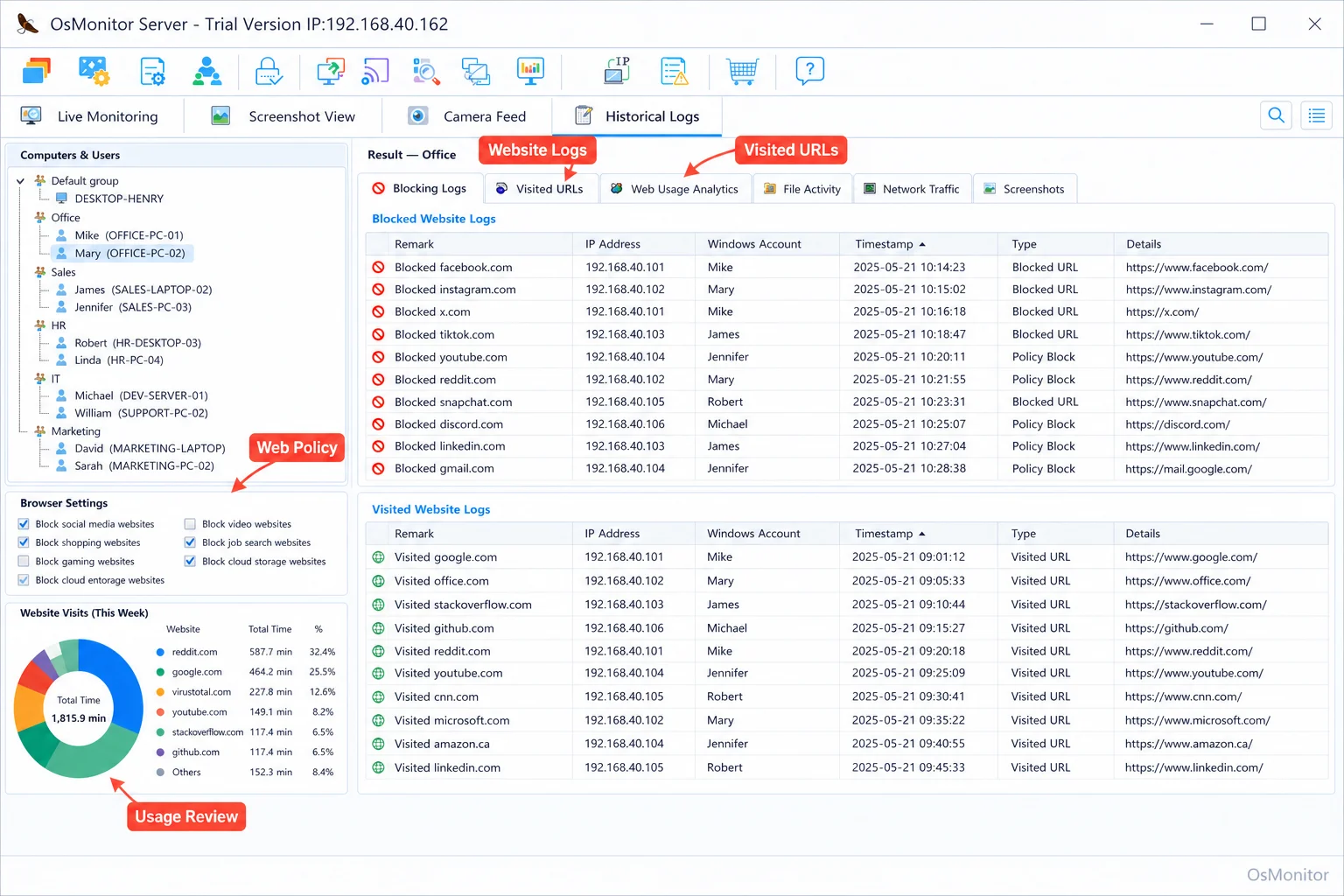
A real-product style screenshot highlighting website activity monitoring in OsMonitor.
How to Find and Measure Idle Time
Before you can fix the leak, you have to find it. If you want to know how to find idle time, forget about standing over people’s shoulders—it’s inefficient and creates a toxic environment. The only objective approach is utilizing data directly from the operating system.
Key Metrics for Measuring Idle Time
Deploying workplace productivity software gives you hard data on several key indicators:
- Application and Website Usage: This is the big one. High active time spent on non-work URLs (Netflix, Reddit, gaming portals) during core hours is the most direct indicator of unproductive time.
- Active vs. Inactive Time: Monitoring actual keyboard and mouse inputs. If a workstation shows zero input for 45 minutes straight during a shift, that is hard idle time.
- Task Duration: Correlating active app time with project output. If a task takes twice as long as expected, but the app logs show low active use, you’ve found a distraction issue.
The Idle Time Formula
If you need a simple idle time formula to conceptualize the problem, it looks like this:
Idle Time = Total Paid Hours - Productive Work Hours
The tricky part is accurately defining “Productive Work Hours.” This is exactly where idle time tracking software earns its keep. By categorizing specific executables and URLs as productive or non-productive based on a user’s role, the software does the math for you. For example, OsMonitor aggregates exact active times in approved apps versus time spent on blocked or idle screens. This data from Employee Activity Monitoring Software turns a vague “I think they are distracted” feeling into a hard, measurable fact.
Common Causes of Excessive Idle Time
Excessive downtime is rarely just one person’s fault. It is usually a mix of broken systems, poor management, and human nature.
1. System and Process Issues
Sometimes, your IT infrastructure is the problem.
- Technical Bottlenecks: Five-year-old laptops, crawling Wi-Fi, or constantly crashing legacy software literally forces your staff to sit idle.
- Inefficient Workflows: Waiting three days for a manager to approve a simple document brings momentum to a dead stop.
- Lack of Resources: Expecting a team to edit 4K video without the right software or training guarantees massive downtime.
2. Management and Planning Gaps
Management sets the pace.
- Poor Task Allocation: If the project board is empty, employees will fill the time with the internet.
- Unclear Instructions: Vague goals cause hesitation. Employees will stop working entirely while they wait for clarification.
- Inadequate Supervision: If you never check in, disengagement sets in. People need to know their work is actually being noticed.
3. Employee-Related Factors
And yes, sometimes it is just distraction.
- Distractions: The internet is an endless distraction machine. Without strict IT policies, it is incredibly easy to lose an hour to shopping or news.
- Low Motivation or Burnout: Exhausted employees naturally seek out low-effort, non-work activities to cope.
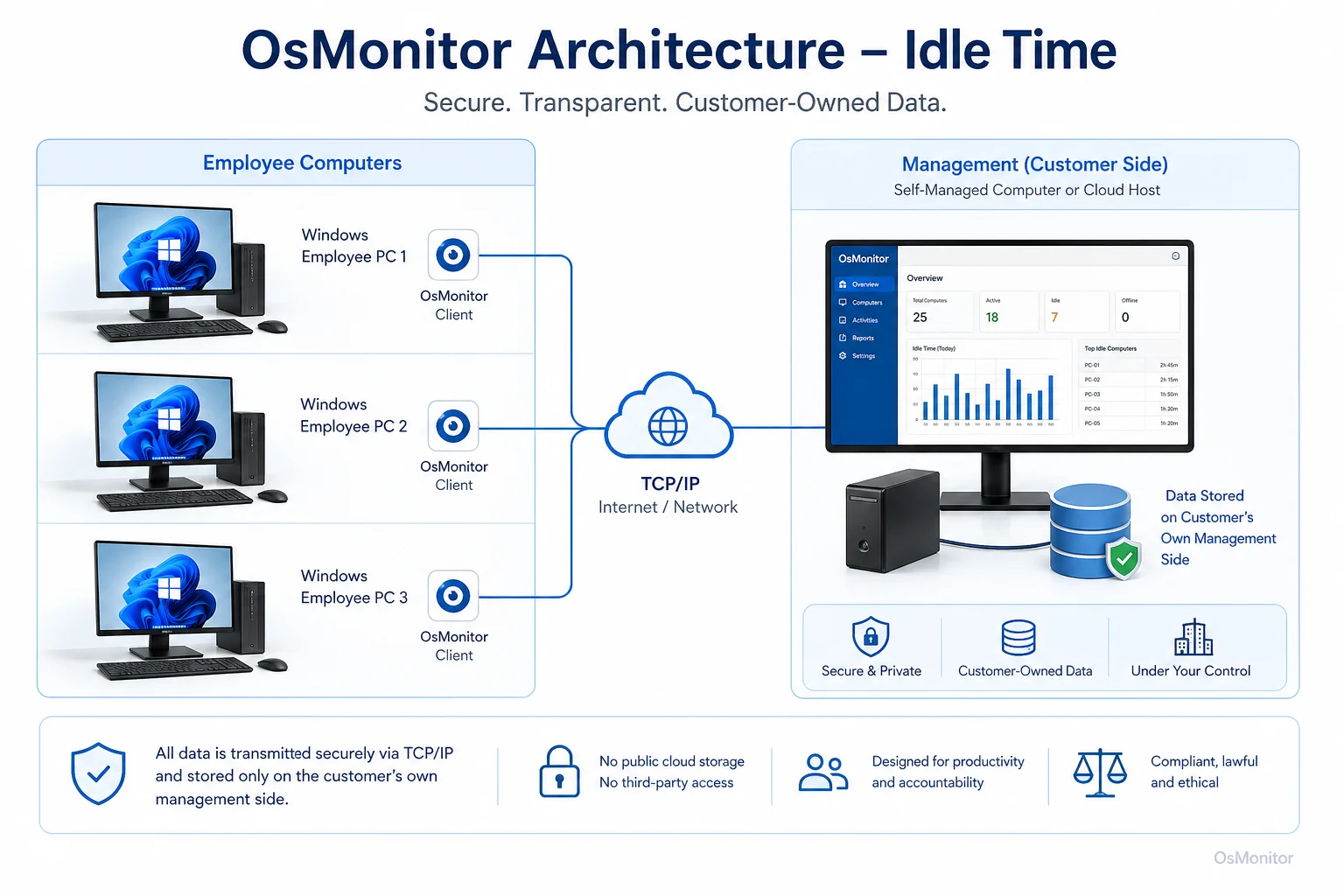
OsMonitor keeps monitoring data under the customer’s control on the management computer or self-managed server.
Strategies to Reduce Unproductive Idle Time
Fixing this requires a three-pronged approach: clear rules, better management, and the right IT tools to enforce them.
Policy and Management Solutions
Start by fixing the foundation.
- Set Clear Expectations: Write a formal Acceptable Use Policy (AUP). State exactly what is and isn’t allowed on company hardware.
- Optimize Workflows: Talk to your IT department. Find the hardware bottlenecks and eliminate them. Stop making people wait on slow machines.
- Improve Task Management: Keep the pipeline full. Ensure everyone always knows what their next three tasks are.
Using Technology to Support Your Policies
You cannot enforce an AUP manually. Workplace management software provides the objective data required to actually lead. Tools like OsMonitor help by:
- Providing Visibility: Generating clean, indisputable reports on web and app usage to spot exactly where the hours are burning.
- Enforcing Policies: Actively blocking access to known time-wasters like gaming sites, streaming portals, and social media. Kill the distraction at the source.
- Creating Records: Maintaining an undeniable log of activity. When you need to have a tough conversation about performance, you use the data, taking emotion out of the equation. Utilizing Productivity Tracking Software for Workplace Teams ensures managers and staff are looking at the same facts.
Here is a quick look at how different management styles stack up.
| Strategy | Description | Best For |
|---|---|---|
| Manual Observation | Walking the floor to see who looks busy. | Tiny, single-room offices (and even then, it’s terrible). |
| Project Management Tools | Using Asana or Jira to track tasks. | Good for tracking output, but ignores how the time is spent. |
| Policy Enforcement | Writing an AUP without technical backing. | The honor system. Fails at scale. |
| Idle Time Tracking Software | Using IT tools to automatically log app usage, web visits, and active inputs. | Any business needing hard data to kill distractions and enforce IT policy. |
A Note on Legal and Transparent Use
I cannot stress this enough: transparency is mandatory. Do not deploy monitoring software in secret. Write a clear AUP, put it in the employee handbook, and inform your staff that company-owned hardware is monitored for security and efficiency. OsMonitor is built strictly for authorized, legal business use on company hardware. Always consult local legal counsel to ensure your deployment complies with regional privacy and labor laws.
Frequently Asked Questions (FAQ)
What is idle time?
In an IT management context, it is the duration when a user is logged in and being paid, but the operating system registers zero productive input (no active work apps, no keystrokes) or high activity on non-work websites. It indicates a pause in actual workflow.
Is tracking idle time legal for businesses?
In most jurisdictions, yes. Employers have the right to monitor the use of their own hardware for legitimate business reasons. However, privacy laws vary heavily by region. You must maintain transparency, establish a written policy, and consult local legal counsel before deployment.
Does OsMonitor require a client on employee computers?
Yes. OsMonitor utilizes a highly stable client/server architecture. A lightweight client application must be installed on each Windows endpoint you intend to manage.
Where is OsMonitor monitoring data stored?
Your data stays with you. All logs and screen recordings are stored exclusively on your own management computer or your internal server. We do not use third-party vendor clouds.
Can OsMonitor work without internet in a LAN?
Absolutely. It is fully designed to operate flawlessly within a closed Local Area Network (LAN) without any internet connection, which is vital for high-security environments.
What Windows versions does OsMonitor support?
It supports Windows 7, 8, 10, and 11, along with Windows Server editions (both 32-bit and 64-bit).
If you are tired of guessing why projects are stalling and are ready to manage based on hard data, a self-hosted monitoring tool is the most secure path forward. Download OsMonitor Free Trial to test the full suite of features securely within your own network.