Employee Productivity Software for Small Business Teams
When you run a small business, every hour counts. It’s frustrating when you realize your team’s momentum is constantly broken by casual browsing—a few minutes on a news site here, a quick video there, maybe a bit of online shopping. The problem isn’t that your team is malicious; the internet is simply built to distract. If you want to fix this, you don’t need a heavy, overpriced enterprise security suite that takes a month to deploy. You just need a practical way to implement clear usage policies and review computer usage reports. This is exactly why IT managers deploy employee productivity software. It cuts through the noise, giving you the objective data you need to guide your team toward better focus and efficiency.
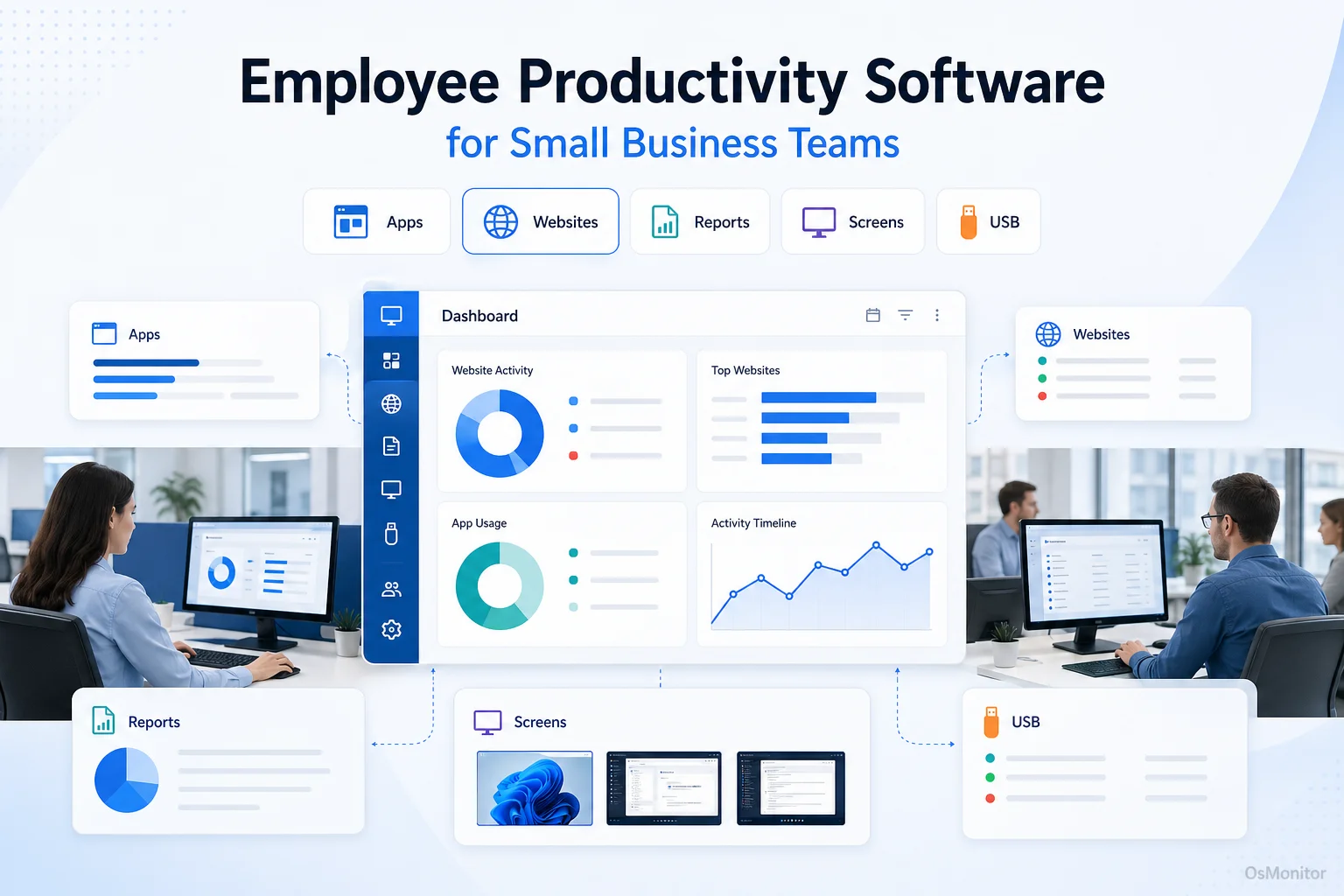
A practical overview of employee productivity software for workplace computer management.
What is Employee Productivity Software?
Let’s break it down: employee productivity software is an IT management tool designed to show you exactly how company-owned hardware is being utilized. Unlike broad cybersecurity suites that hunt for external hackers, this software looks inward. It is laser-focused on workplace efficiency. The main goal is to hand managers and IT administrators clear, undeniable data on application usage, website visits, and overall active computer time.
For small and medium-sized businesses, deploying workforce productivity software is a highly practical way to:
- Measure Output: Quantify the exact hours spent in productive applications versus distracting websites.
- Improve Focus: Automatically enforce policies that block access to non-work-related content during business hours.
- Enhance Accountability: Maintain a transparent log of computer activity for objective management reviews.
- Optimize Resources: Identify which expensive software licenses are actually being used and which can be canceled.
Ultimately, the right tools empower you to make data-driven decisions that protect your company assets and support your team’s goals.
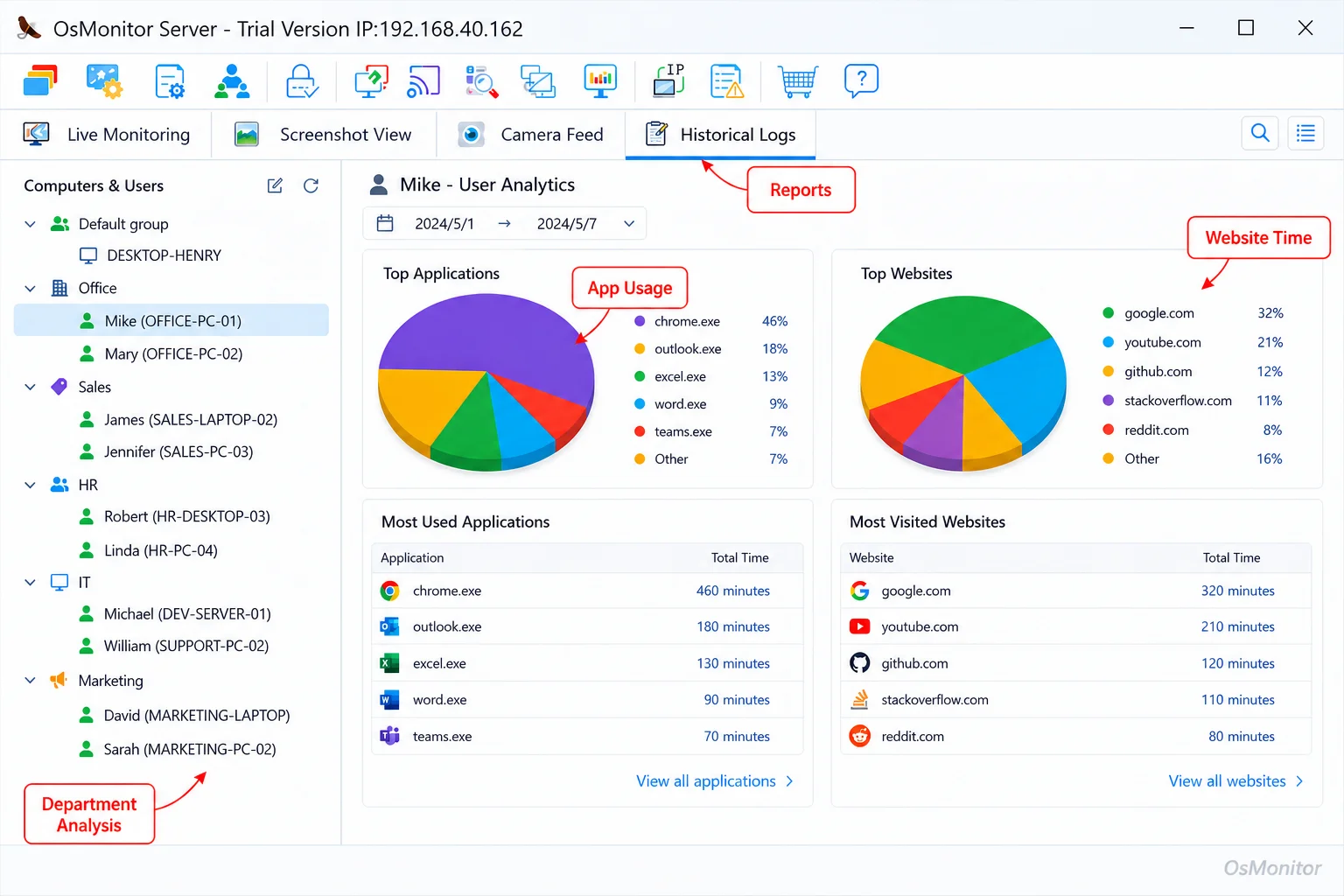
A real-product style screenshot highlighting application and productivity reports in OsMonitor.
OsMonitor: Practical Workforce Productivity Software
OsMonitor is a dedicated Windows-based track employee productivity software suite built for transparent, legal workplace management. It is positioned as a highly practical tool for IT admins, not a complex forensic audit platform. It’s built to do exactly three things well: understand work patterns, secure basic company data, and guide employees toward better habits on company-owned PCs.
This is the ideal solution for businesses that need a straightforward way to handle:
- Tracking precise application and website active time.
- Generating department activity reports and individual summaries.
- Setting hard computer usage policies (like blocking specific URLs or apps).
- Keeping activity logs secure for administrative review.
OsMonitor gives you all the management power you need without the bloat and complexity of enterprise systems that simply don’t fit a smaller team’s infrastructure.
How OsMonitor’s Client/Server Architecture Works
OsMonitor doesn’t rely on a fragile cloud connection. It operates on a rock-solid client/server model. This architecture is purpose-built to give you total control over your data while ensuring reliability.
- Management Console (Server): You install the server console on one machine—usually the IT admin’s PC or an office server. This is your command center where logs are collected, rules are built, and reports are generated.
- Lightweight Client: A tiny, highly efficient client program is pushed to each employee’s Windows computer. It runs silently in the background, logging activity and enforcing the rules you set on the server.
- Direct Communication: The clients talk directly to your server over your Local Area Network (LAN).
This self-hosted approach means the system functions flawlessly even without an internet connection, making it an incredibly secure choice for businesses handling sensitive client data.
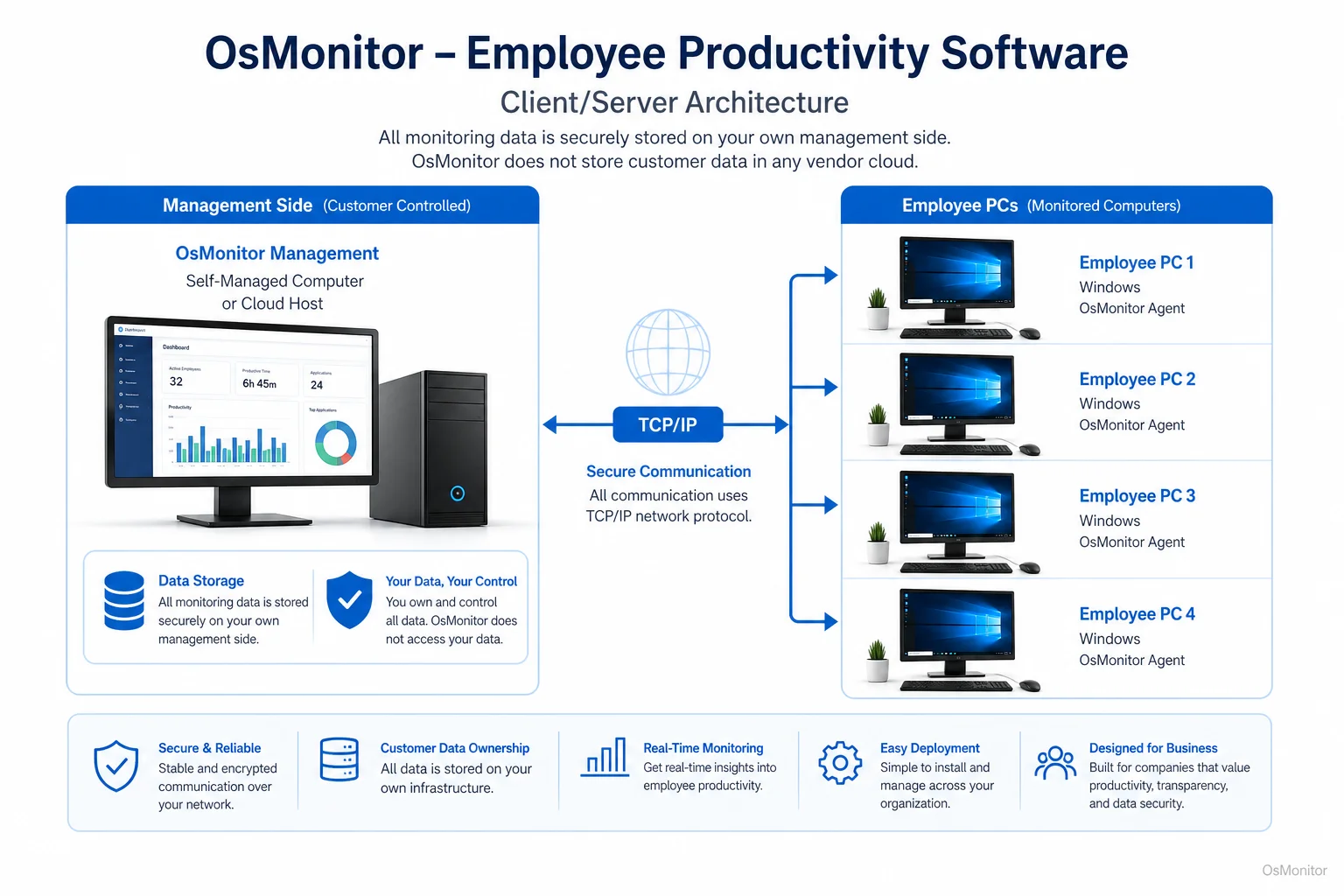
OsMonitor keeps monitoring data under the customer’s control on the management computer or self-managed server.
Core Features for Managing Team Productivity
A good employee productivity software suite needs features that provide both high-level summaries and deep-dive records. Here is how OsMonitor handles it.
Website and Application Usage Tracking
If you want to improve efficiency, you have to know where the time goes. OsMonitor automatically logs every site visited and app used on the endpoints. The management console aggregates this, showing you exactly how many hours your team spends in work-related tasks versus social media or streaming. You can pull detailed reports by user, department, or date range. This is the cornerstone of effective Application Usage Monitoring for Employee Computers & Tools.
Screen Monitoring and Activity Records
For roles that require tight coordination, OsMonitor offers live screen viewing and historical playback. You can pull up a multi-screen wall to view several employee desktops simultaneously, or rewind the recorded screenshots from yesterday. It’s perfect for quality assurance or figuring out exactly how a workflow bottleneck occurred. If visual context is important to your management style, this is a vital part of a complete Employee Screen Monitoring Software solution.
Policy Enforcement: Website and App Blocking
Tracking is good, but preventing distractions is better. OsMonitor lets you proactively manage the network. You can block specific websites, entire categories (like gaming or social media), or unauthorized executable files. You can even set different rules for different departments. When an employee tries to access a blocked site, the system stops them and logs the attempt for your review.
Device and Data Management
Data leaks are a nightmare for small businesses. OsMonitor helps you lock down your digital assets with strict USB device controls. You can block unauthorized thumb drives entirely or set them to read-only to stop file theft. Plus, the software includes a background document backup feature, automatically saving copies of vital files to your server to protect against accidental deletion.
Productivity Reports and Analytics
Raw data is useless if it takes hours to decipher. OsMonitor translates activity logs into actionable management reports:
- Time-on-Task Reports: Instantly compare active time in productive apps versus idle time.
- Violation Reports: A quick summary of every attempt to bypass your blocked lists.
- Bandwidth and Download Statistics: Find out who is hogging the network with massive downloads.
- Department Summaries: Get a high-level overview of team output before your next staff meeting.
These analytics give you the objective facts you need to have constructive conversations about performance.
On-Premise Data Control and Security
In the IT world, data ownership is everything. Unlike SaaS tools that hold your logs hostage on their servers, OsMonitor is strict On-Premise Employee Monitoring Software. All data is stored directly on your own hardware.
This self-hosted model gives you massive advantages:
- Complete Data Privacy: Your employee activity records never leave your building. You maintain absolute control.
- No Internet Required: The system runs perfectly on a closed LAN, making it immune to external internet outages.
- Predictable Costs: You pay a one-time purchase fee. There are no recurring monthly SaaS subscriptions to drain your IT budget year after year.
This is the exact architecture required by finance, healthcare, and legal sectors where data confidentiality is non-negotiable.
Practical Use Cases for Employee Productivity Software
This software adapts perfectly to different business environments.
| Industry / Team | Primary Challenge | How OsMonitor Helps |
|---|---|---|
| Small Business Office | Staff distracted by news, shopping, or social media. | Block non-work sites; pull reports on productive vs. distracting app time. |
| Call Center | Ensuring agents stay in the CRM and use approved tools. | Restrict application usage strictly to required tools; view live screens for QA. |
| Design/Engineering Firm | Protecting sensitive CAD files and auditing expensive software use. | Lock down USB ports; track software active time to optimize licensing costs. |
| Educational Computer Lab | Stopping students from gaming or changing system settings. | Block distracting URLs and apps; use remote viewing to ensure students are on task. |
Limitations and Responsible Use Guidelines
Let’s be realistic: software is a tool, not a magic wand. It works best when paired with good management and clear communication.
IT Limitations:
- It is a management tool, not a dedicated enterprise DLP (Data Loss Prevention) or antivirus replacement.
- It logs facts, not intent. (e.g., A user might be on YouTube looking up an Excel tutorial, not watching cartoons.)
- It is designed exclusively for Windows environments.
Responsible Deployment:
- Transparency: You should always inform your staff that their company-issued hardware is subject to authorized workplace monitoring.
- Legality: Always consult local legal counsel to ensure your policies comply with regional employment and privacy laws.
- Focus on Improvement: Use the data to fix broken workflows and reward hard work, not just to act as a disciplinarian.
Frequently Asked Questions (FAQ)
What is employee productivity software?
It is an IT management tool used to monitor and manage how company-owned computers are utilized. By logging application usage, web visits, and active time, it provides managers with the data needed to reduce distractions, enforce IT policies, and improve overall team efficiency.
Is using employee productivity software legal for businesses?
In most jurisdictions, yes. Employers generally have the right to monitor company-owned hardware. However, privacy laws vary heavily by region. You must maintain transparency, have a written policy, and consult local legal experts before deployment.
Does OsMonitor require a client on employee computers?
Yes. To properly monitor the machine and enforce your blocking rules, a highly efficient, lightweight client must be installed on each Windows endpoint.
Where is OsMonitor monitoring data stored?
Your data stays with you. All logs and screen recordings are stored directly on your own management computer or internal server. It never touches OsMonitor vendor servers.
Can OsMonitor work without an internet connection?
Absolutely. It is fully capable of running completely offline within a Local Area Network (LAN), which is a massive benefit for high-security facilities.
What Windows versions does OsMonitor support?
It supports Windows 7, 8, 10, and 11, along with Windows Server editions (both 32-bit and 64-bit).
By implementing a transparent, data-driven approach to computer management, you can stop guessing and start leading. Download OsMonitor Free Trial to test the full suite of features securely within your own network.