Employee Monitoring Software for Windows Office and Remote Teams
Grab a cup of coffee and let’s talk about a challenge every IT manager and business owner wrestles with: network visibility. You need a practical way to know what’s happening on company computers without constantly interrupting everyone’s flow for status updates. Imagine trying to get a read on your entire floor—instead of pinging each person individually, wouldn’t it be easier to review multiple screens through a centralized screen wall?
That’s where solid employee monitoring software comes in. It helps you manage Windows computer activity, see where work stands, offer remote IT support, and enforce basic, common-sense workplace policies. I’ve found that OsMonitor is purpose-built for exactly this type of legal, transparent workplace computer management, whether you’re running a traditional office, a bustling call center, or keeping tabs on a distributed team.
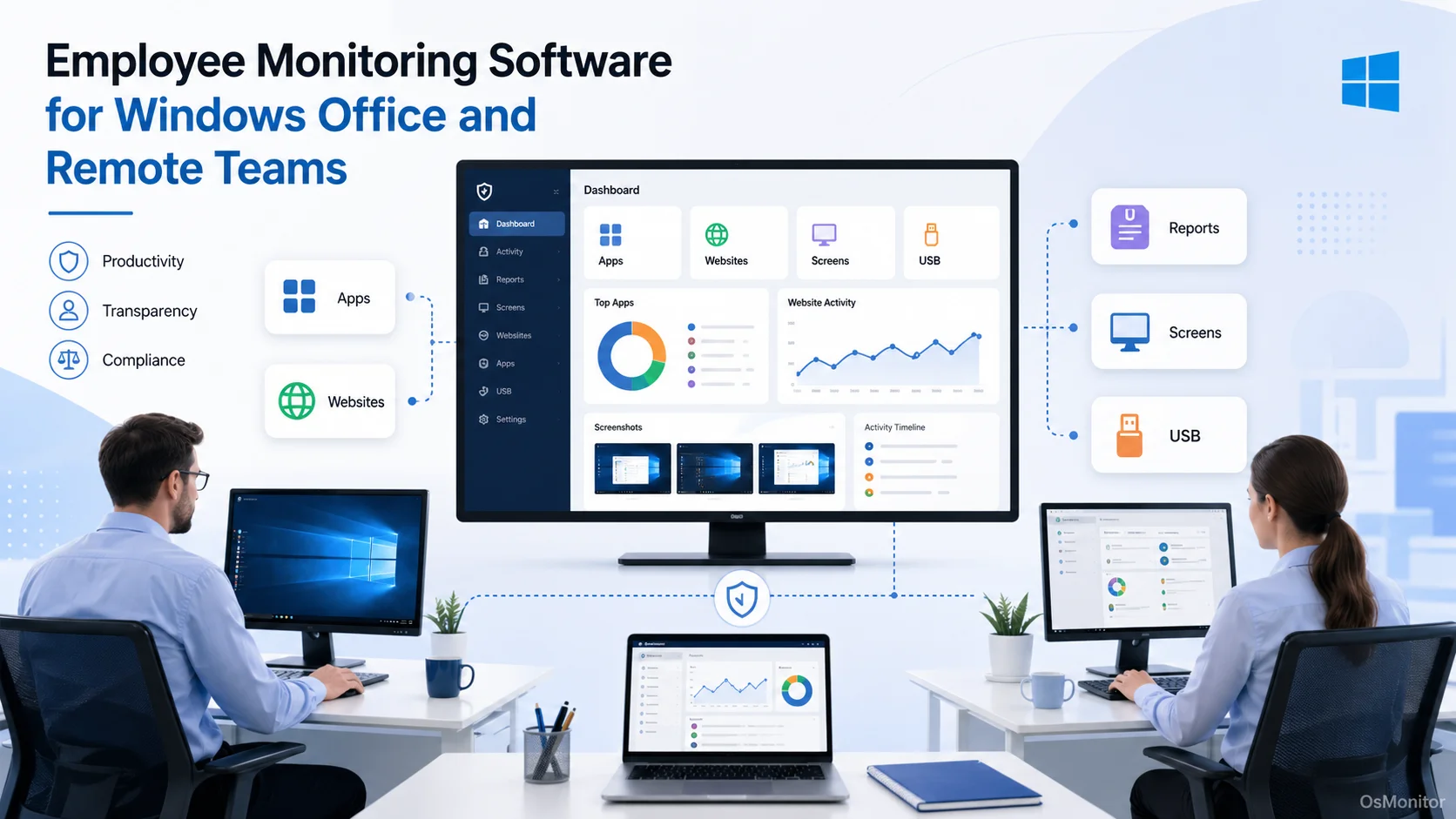
A practical overview of employee monitoring software for workplace computer management.
What Is Employee Monitoring Software?
At its core, an employee monitoring system is just a workplace computer management tool used to view, record, and manage activity on company-owned hardware. In a typical Windows environment, monitoring employees helps managers and IT veterans like us answer a few basic, everyday questions:
- Which PCs are actually awake and active right now?
- What apps or websites are eating up bandwidth during work hours?
- Who needs a hand from the IT helpdesk?
- Are our acceptable use policies actually being followed?
- Can managers review team activity reports later when needed?
- Crucially, can we keep all this worker monitoring data locked down on our own servers?
For most small to medium businesses, you don’t need a bloated, overly complex analytics engine. You just need software to track employee productivity, eliminate time waste, support your staff faster, and manage your hardware from one dashboard.
OsMonitor is designed for exactly this kind of Windows business environment. It rolls screen viewing, employee activity records, app/web controls, USB restrictions, reporting, and document backups into a clean client/server package.
If your main priority is just getting live visibility so you can monitor employees computer usage, my dedicated Employee Screen Monitoring Software page dives deep into how dashboard monitoring and screen playback work in the trenches.
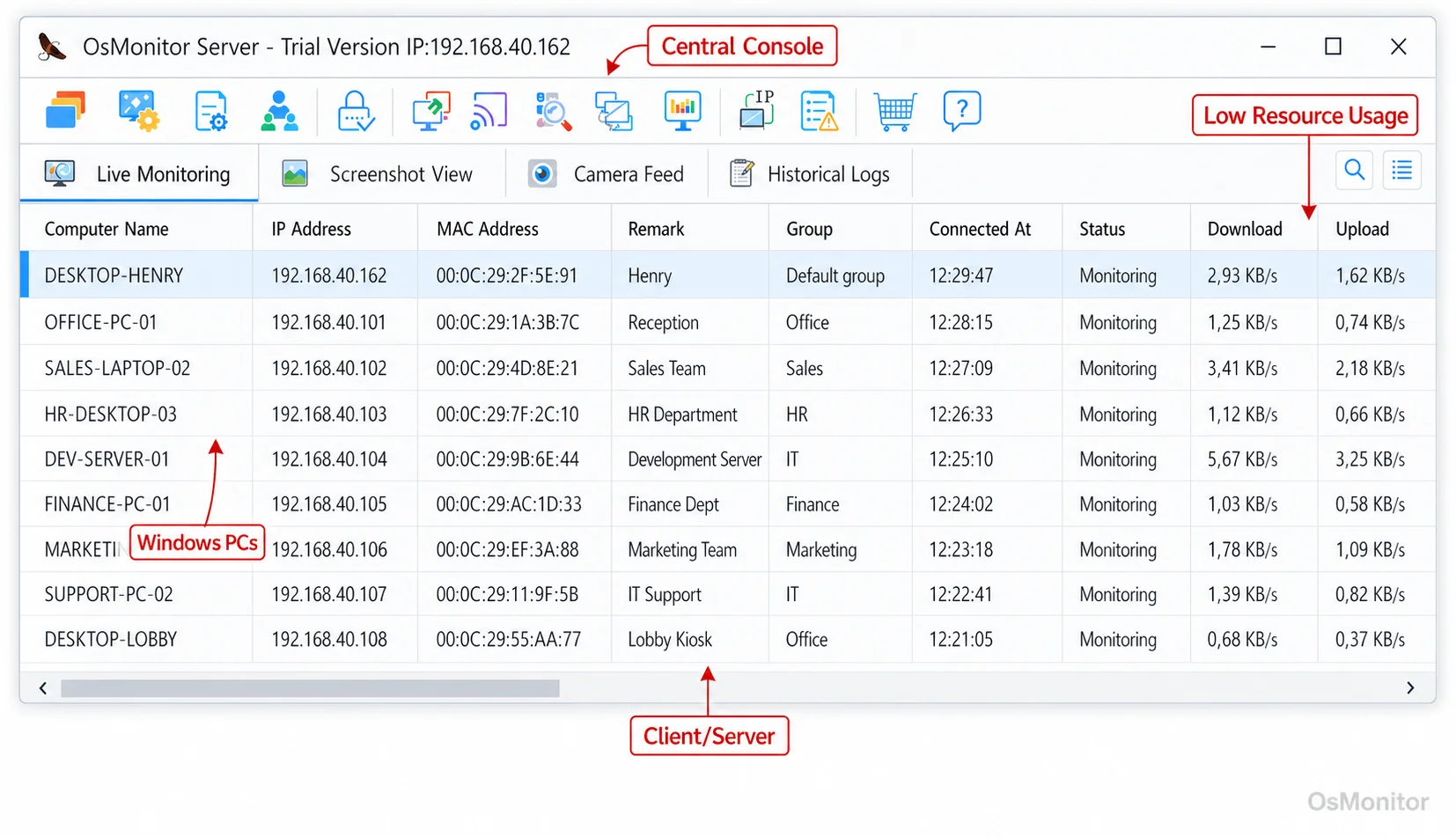
A real-product style screenshot highlighting centralized computer monitoring in OsMonitor.
Who Needs an Employee Monitoring Tool?
Honestly? An employee monitoring tool becomes essential the minute your business scales to a point where you manage multiple Windows PCs and need consistent visibility. It’s an absolute lifesaver for teams whose entire day revolves around a desktop or laptop.
Here’s a breakdown of where these employee monitoring tools shine:
| Business environment | Typical need | How employee monitoring software helps |
|---|---|---|
| Small and medium offices | See work status without constant manual check-ins | Computer activity overview, activity records, application visibility |
| Call centers | Keep agents focused on approved tools | Website and application controls, reports |
| Schools and training rooms | Manage student or trainee computers | Screen viewing, remote assistance, usage control |
| Branch offices | Support remote Windows PCs from a central place | Client/server deployment, remote monitoring through controlled network setup |
| Work-from-home teams | Review computer activity during work time | Screen monitoring, activity logs, reports |
| Finance, admin, and operations teams | Manage document and device usage | USB controls, file records, document backup support |
Keep in mind, employee monitoring works best when it’s backed by clear, human communication. Define what you’re tracking, why you’re tracking it, who holds the keys to the data, and how long you keep those records to help with genuine employee productivity tracking.
If you’re looking for broader network hardware management that goes beyond just everyday user activity, check out my broader Computer Monitoring Software guide.
OsMonitor Positioning: Workplace Productivity and Computer Activity Management
Let’s be clear about what this is. OsMonitor is a straight-shooting staff monitoring program focused on workplace productivity and computer activity management. It’s built for authorized workplace monitoring on company hardware where managers need practical oversight.
I want to emphasize what it isn’t. It is not an antivirus, a heavy enterprise encryption platform, or a formal security audit product. Instead, it’s highly focused monitoring employee software designed for the day-to-day grind:
- Viewing employee screens from a central console
- Playing back screen activity records
- Checking application and website usage
- Applying website, application, and USB usage policies
- Reviewing reports and activity records
- Providing remote assistance
- Supporting document backup and work record management
This matters because when you’re drafting your employee monitoring software list, you probably don’t want a massive enterprise security platform with a six-figure price tag. You just want software for employee monitoring that helps you run a tighter, more efficient Windows network.
Always use tools like this alongside clear internal policies. Give your team a heads-up where required, because privacy rules vary depending on where your office is located.
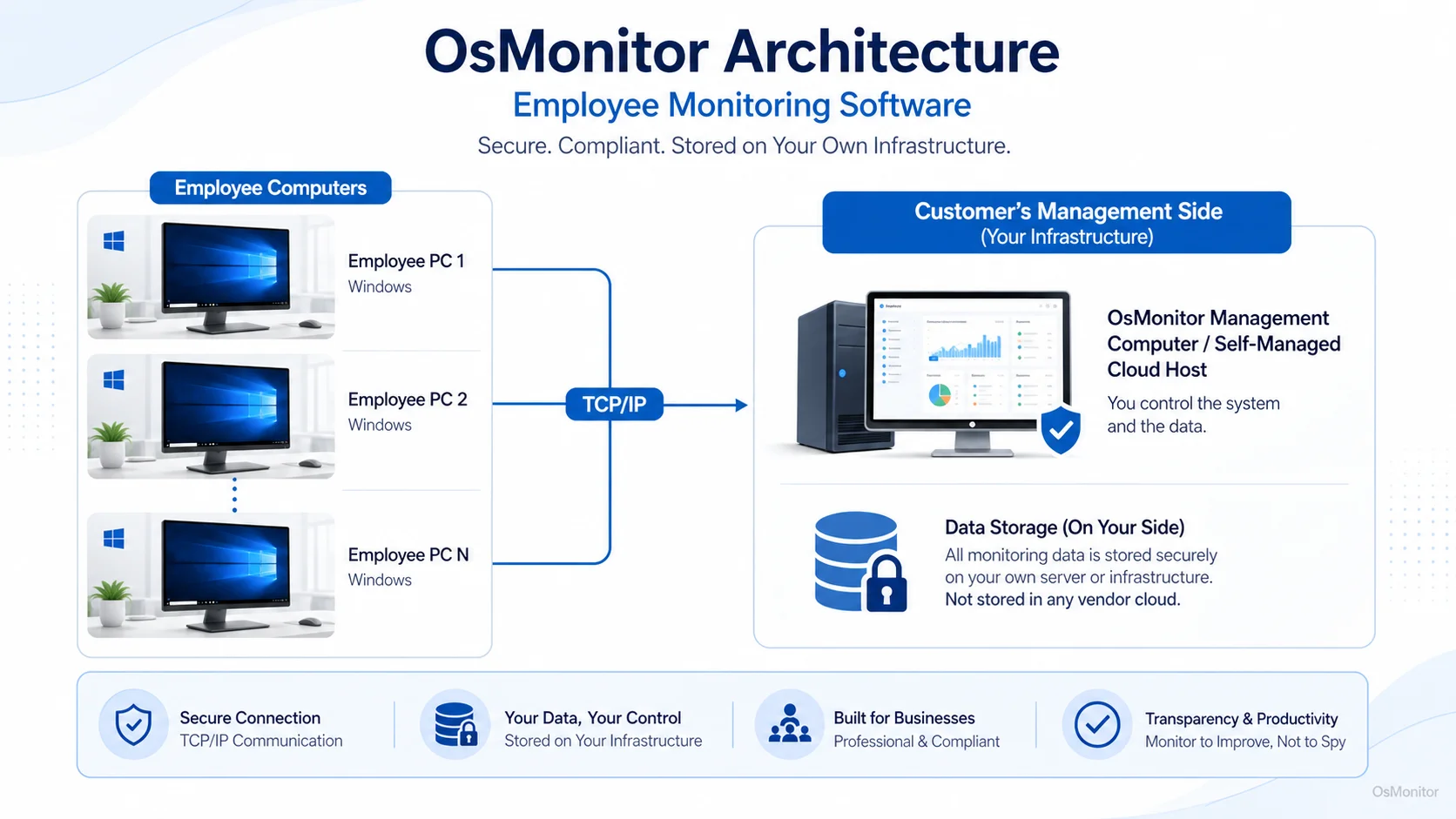
OsMonitor keeps monitoring data under the customer’s control on the management computer or self-managed server.
How OsMonitor Works: Management Console Plus Lightweight Clients
OsMonitor runs on a classic, reliable client/server architecture. One machine runs the management console (the server side), and each workstation you need to track gets a lightweight client.
As an IT guy, I love this setup. It centralizes your employees monitoring software controls so you aren’t running around the office checking local event logs manually.
Here is how a typical rollout goes:
- Install the OsMonitor management console on your machine or a self-managed server.
- Push the lightweight client to the employee Windows computers.
- Connect the clients to the management console via your LAN or a secure, controlled network.
- Start viewing screens, pulling logs, and adjusting controls from your desk.
- Tweak your worker tracking and management policies as your business evolves.
The best part? OsMonitor runs perfectly offline inside a LAN. For businesses that want to keep their infrastructure completely self-contained, this means your data never touches a vendor cloud. If you specifically want to avoid SaaS cloud dashboards, take a look at my guide on On-Premise Employee Monitoring Software.
Core Features of OsMonitor Employee Monitoring Software
OsMonitor packs several essential tools into one neat Windows package. The feature set is less about broad corporate security and more about answering practical office management questions.
Activity Overview Monitoring
This feature lets you view multiple employee computer screens from a single interface. It’s perfect for a supervisor who needs a quick read on the room’s workflow.
Instead of tapping on shoulders, you can just glance at the dashboard to see if the right apps are open, if projects are moving, or if someone’s system has frozen up.
It is incredibly useful for:
- Open-plan offices
- Sales support teams
- Customer service teams
- Training rooms
- Branch office management
- Remote worker monitoring setups
Screen Playback
Think of this as a DVR for your workstations. Screen playback lets you review historical activity records. It’s brilliant for performance reviews, clarifying workflow disputes, and general tracking employee time. If a deadline gets blown, you can check the tape to see if it was a software crash, process confusion, or just non-work browsing.
Website and Application Controls
Want to ensure folks are focused on approved tools during business hours? You can enforce access policies right from the console. This kind of policy-based computer management beats guessing every time. For a deeper dive into restricting apps, check out my Employee Activity Monitoring Software page.
USB and Device Usage Controls
USB drives can be a headache for managing files. While this isn’t a full-blown DLP suite, OsMonitor gives you tight control over removable media to enforce workplace policies and stop unmanaged file movement.
Reports and Records
For managers who don’t have time to stare at live screens all day, the reporting engine is your best friend. Depending on how you configure it, you can handle:
- Employee attendance tracking
- App and web usage reviews
- Summary snapshots of daily computer activity
- Work pattern analysis
- Department activity reports for managers
It’s a fantastic way to handle management through structured data rather than micromanagement.
Remote Assistance
This is my favorite IT feature. If a user is struggling with a configuration issue, you can jump right in and take control. It makes support much faster, whether you are dealing with local staff or running a remote worker monitoring software environment.
Document Backup Support
Files go missing. It happens. The document backup feature quietly keeps copies of work-related files based on your internal rules. It’s an administrative safety net that helps keep important business documents exactly where they belong.
On-Premise Data Ownership and LAN-Friendly Deployment
Let’s talk data ownership. With OsMonitor, the data lives on your hardware. Not on an external vendor’s cloud.
This is a massive advantage for businesses that prioritize:
- Total internal data control
- LAN operation without internet access
- Self-managed infrastructure
- Predictable storage
- Less dependency on third-party SaaS platforms
If your entire team is in one building without internet, OsMonitor works flawlessly over the local network. For distributed teams, you can host it on your own private cloud. If your main challenge is how to monitor employees working from home while maintaining data sovereignty, I highly recommend reading my guide on Remote Employee Monitoring Software for Work-from-Home Teams.
Windows Compatibility and Lightweight Installation
OsMonitor is a dedicated employee monitor software built strictly for Windows environments. It supports Windows 7 and newer, including Windows Server editions, across both 32-bit and 64-bit architectures.
You don’t need to buy extra proprietary hardware. Just drop the console on your server, push the client to the workstations, and you are good to go. It’s lightweight, quiet, and seamlessly integrates into your existing setup. For the exact technical specs, take a look at Windows Employee Monitoring Software.
Practical Use Cases for Employee Monitoring
Theory is great, but how does this actually play out in the real world? Here are a few ways my clients use this system daily.
Office Productivity Management
If you want to know how your teams are really spending their 9-to-5, this is how you do it. By reviewing application and website usage records, you can easily implement how to track employee performance using hard data instead of gut feelings, supporting true smart staff monitoring.
Call Center and Support Team Oversight
Call centers live and die by their CRM and helpdesk tools. Supervisors use the software to ensure agents aren’t straying onto unapproved sites, keeping focus sharp and call times low.
School, Lab, and Training Room Management
Instructors use the console to apply usage controls on student computers during exams or push remote assistance when a trainee gets stuck on a tutorial step.
Branch Office Management
Got a satellite office three states away? A central IT team can keep an eye on hardware health, verify activity, and provide remote support without booking a flight.
Work-From-Home Visibility
Using monitoring software for employees is practically standard these days for distributed teams. It lets you extend your office policies to remote environments. You can handle remote worker time tracking and verify that company-issued laptops are strictly being used for business tasks.
Administrative and Document-Heavy Teams
For HR, finance, and ops teams dealing with sensitive files, the USB restrictions, document backups, and activity records add a much-needed layer of internal compliance.
Responsible Use and Practical Limitations
Listen, as an IT pro, I’ll give it to you straight: responsible monitoring is key. Employee screen monitoring software works beautifully when it’s transparent and proportionate to your business needs.
Some golden rules for responsible use:
- Only deploy this on company-owned or explicitly authorized devices.
- Be upfront. Tell your team what types of computer activity may be monitored where required.
- Restrict dashboard access to authorized managers and IT staff only.
- Use the data to support productivity and fix issues.
- Always check your local employment and privacy laws first.
OsMonitor isn’t a substitute for a robust antivirus or a dedicated cybersecurity operations center. But for practical day-to-day oversight, it’s one of the best tools you can deploy.
Pricing and Deployment Fit
Nobody likes hidden subscription fees. OsMonitor is priced transparently as a one-time purchase. No recurring SaaS cloud fees, no unexpected budget hits.
This model is a perfect fit for:
- Small businesses planning for the long haul
- Schools with fixed hardware labs
- IT departments that demand self-managed systems
- Teams avoiding recurring per-user software budgeting
If you run a Windows-based business and want local data control paired with a practical employee monitor, this is your solution.
FAQ About Employee Monitoring Software
What is employee monitoring software?
It is a business tool used to view, record, and manage activity on employee computers. It includes screen monitoring, application usage records, website activity review, reports, device controls, and remote assistance. OsMonitor focuses heavily on Windows computer monitoring for legal workplace productivity and management.
Is employee monitoring software legal for businesses?
Yes, in many business environments it is legal when used appropriately—especially on company-owned computers. However, rules vary heavily by location and industry. You should always use clear internal policies, notify your employees where required, and consult local employment laws before deployment.
Does OsMonitor require a client on employee computers?
Yes. OsMonitor uses a client/server model. One machine runs the management console, and each employee Windows PC needs the lightweight client installed for the core monitoring features to function.
Where is OsMonitor monitoring data stored?
Your data stays with you. It is stored directly on your own management computer or a self-managed cloud host. We don’t store it in an OsMonitor vendor cloud, giving you complete infrastructure control.
Can OsMonitor work without internet in a LAN?
Absolutely. It can run entirely inside a local area network without ever touching the public internet. This is a massive feature for highly secure offices, schools, and labs.
What Windows versions does OsMonitor support?
It supports Windows 7 and later, including Windows Server editions, in both 32-bit and 64-bit versions.
Try OsMonitor for Business Employee Monitoring
OsMonitor is a highly practical choice for Windows offices, branch teams, and remote work environments that want centralized computer activity management while retaining total ownership of their data.
If you want to see exactly how the installation and setup work, Read the Quick Start Guide before planning your rollout.