Employee Internet Monitoring Software for Workplace Web Usage
When project deadlines slip but everyone looks busy staring at their screens, you likely have a browsing bottleneck. Untracked non-work website use can quietly drain hours of productive time from your team each week. If you run a small or medium business, you need a way to curb access to video sites, browser games, and entertainment portals during business hours, while maintaining clear records for management review. That’s exactly where a reliable tool like OsMonitor comes in. It provides practical website activity logs, usage reports, and network-level policy controls for your company-owned Windows computers, keeping your workplace focused.
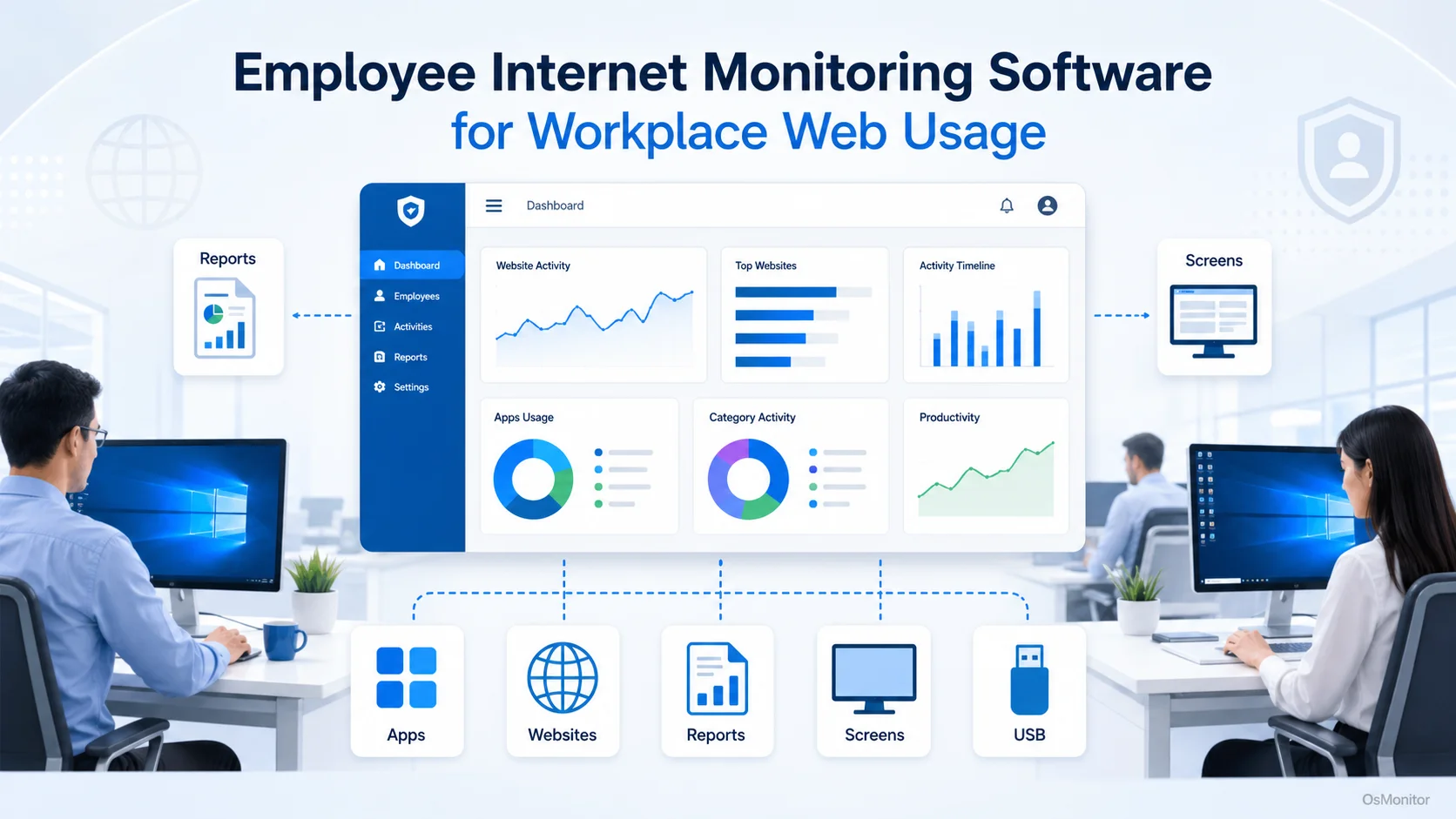
A practical overview of website activity for workplace computer management.
Why Website Activity Matters for Workplace Internet Management
In my experience managing office networks, website activity is the clearest pulse check on how company hardware is utilized during the 9-to-5. For HR and IT teams, internet monitoring isn’t just about blocking distractions; it’s about understanding workflow patterns, applying a fair internet usage policy, and having objective records when usage questions arise.
If a department is spending excessive time on social media or personal download pages, you don’t want to rely on assumptions. By deploying a proper employee internet monitoring software, managers can review exact URL visit records, website usage time, policy violation counts, and department-level trends before making administrative decisions.
OsMonitor is built specifically for transparent workplace computer management. It’s designed for authorized workplace monitoring on company-owned PCs, always paired with clear internal policies and proper employee notice.
Common reasons IT departments roll out internet monitoring software for business include:
- Reducing time wasted on entertainment, gaming, and non-work video platforms.
- Keeping accurate URL visit records for management audits.
- Supporting and enforcing a written internet usage policy.
- Understanding which web platforms consume the most bandwidth and time.
- Reviewing department-wide or individual browsing habits.
- Tracking violations against website blacklists or whitelists.
- Securing the network by keeping an eye on download statistics.
- Giving IT the data they need to administer office computers efficiently.
If your network requires broader oversight beyond just browsers, OsMonitor seamlessly ties into Employee Activity Monitoring Software to give you a full picture of workstation habits across both local apps and web tools.
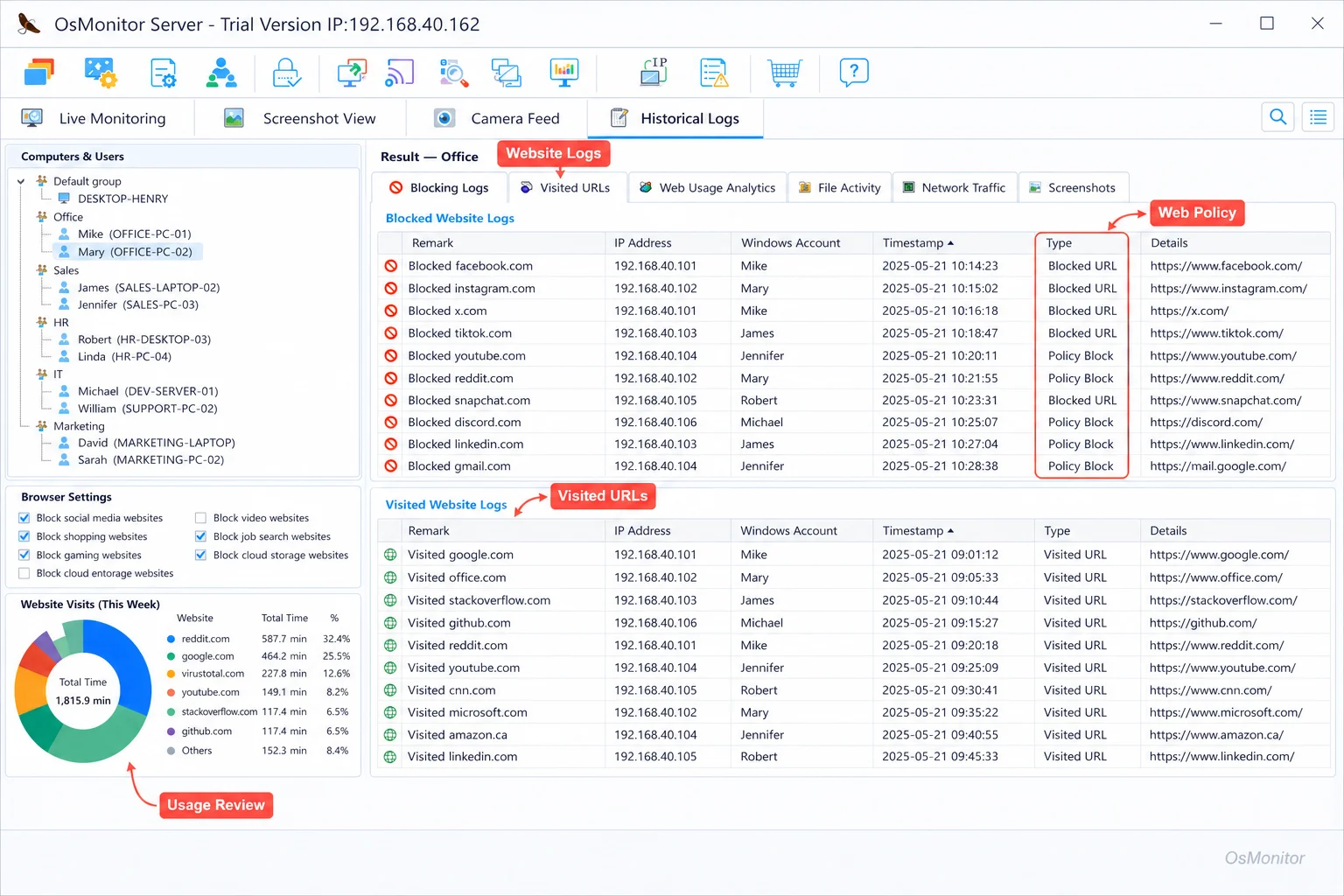
A real-product style screenshot highlighting website activity monitoring in OsMonitor.
How OsMonitor Handles Employee Internet Monitoring
OsMonitor uses a classic, highly stable client/server architecture. One machine runs your management console, while the lightweight client sits quietly on each employee’s Windows PC to handle the core employee web monitoring tasks.
I always recommend this deployment model to businesses that want robust employee internet usage monitoring but refuse to send sensitive company data to a vendor’s third-party cloud. Your data stays on your own management PC or your self-managed server. You can even run OsMonitor entirely within a closed local area network (LAN) that has no internet access at all.
When you need to monitor employee internet activity, OsMonitor gives you a practical dashboard to manage:
- Website blacklist and whitelist rules
- Detailed URL visit records
- Website usage time reports
- Combined software and web usage analysis
- Department and individual user reports
- Violation counts for quick policy reviews
- Network download statistics
- Full internet usage policy enforcement
The end goal here is to establish a clear, policy-based computer management culture, not to create a stressful environment. Start with a written policy, define what is off-limits, and be transparent about how you handle monitoring internet usage.
Core Website Activity Features for Office Teams
When you’re evaluating employee internet monitoring software, you need practical features, not just raw data dumps. Here is what matters most for a clean, efficient IT setup.
Website Blacklist and Whitelist
A website blacklist is your first line of defense for employee computer activity management. It restricts access to known time-wasters like gaming sites, streaming services, and unrelated download portals. Conversely, a whitelist locks down a workstation so it can only access approved sites.
For instance:
- Customer service reps might only need access to your CRM, knowledge base, and shipping portals.
- Accounting strictly needs banking, tax software, and vendor sites.
- Training room PCs should only load your company’s learning management system.
These lists take the guesswork out of monitoring employee internet usage and help IT administrators enforce rules automatically.
URL Visit Records
URL visit records show you exactly which pages were loaded. When you need to track employee internet usage to review a specific incident or audit policy compliance, this is the data you look at.
Sometimes a simple category report isn’t enough. If you are handling employee monitoring of internet usage for an HR review, you need to know if the user was on an educational YouTube tutorial or watching a three-hour gaming stream. OsMonitor keeps these exact records secured on your local server.
Website Usage Time Reports
Knowing a site was opened is one thing; knowing it was active on the screen for three hours is another. Website usage time reports are the backbone of a good employee internet monitor. By analyzing the actual time spent on specific domains, you can easily separate an accidental misclick from a chronic productivity issue.
Software and Website Usage Time Analysis
Work doesn’t happen just in the browser. Your team uses document editors, messaging apps, and custom line-of-business software. OsMonitor provides a unified view, allowing you to compare productive application use alongside web browsing. If you are looking for software to monitor employee internet usage but also need to see local app activity, this hybrid reporting is a lifesaver.
For a deeper dive into managing the entire PC environment, check out our Computer Monitoring Software guide.
Department and Person Reports
No IT manager has the time to review hundreds of individual URL clicks. A solid web monitoring program aggregates this data. Department and person reports summarize the website activity by team, role, or individual machine.
This makes life easier across the board:
- Department heads can check their own team’s trends.
- IT can spot recurring firewall or policy violations.
- HR has objective application and website usage records.
Violation Counts and Download Statistics
Violation counts flag how often a user hits a blocked page. If you see high violation counts, either your blacklist is working perfectly, your employees don’t understand the policy, or a department legitimately needs access to a newly blocked tool. Furthermore, download statistics help you protect network bandwidth from massive, unrelated file transfers.
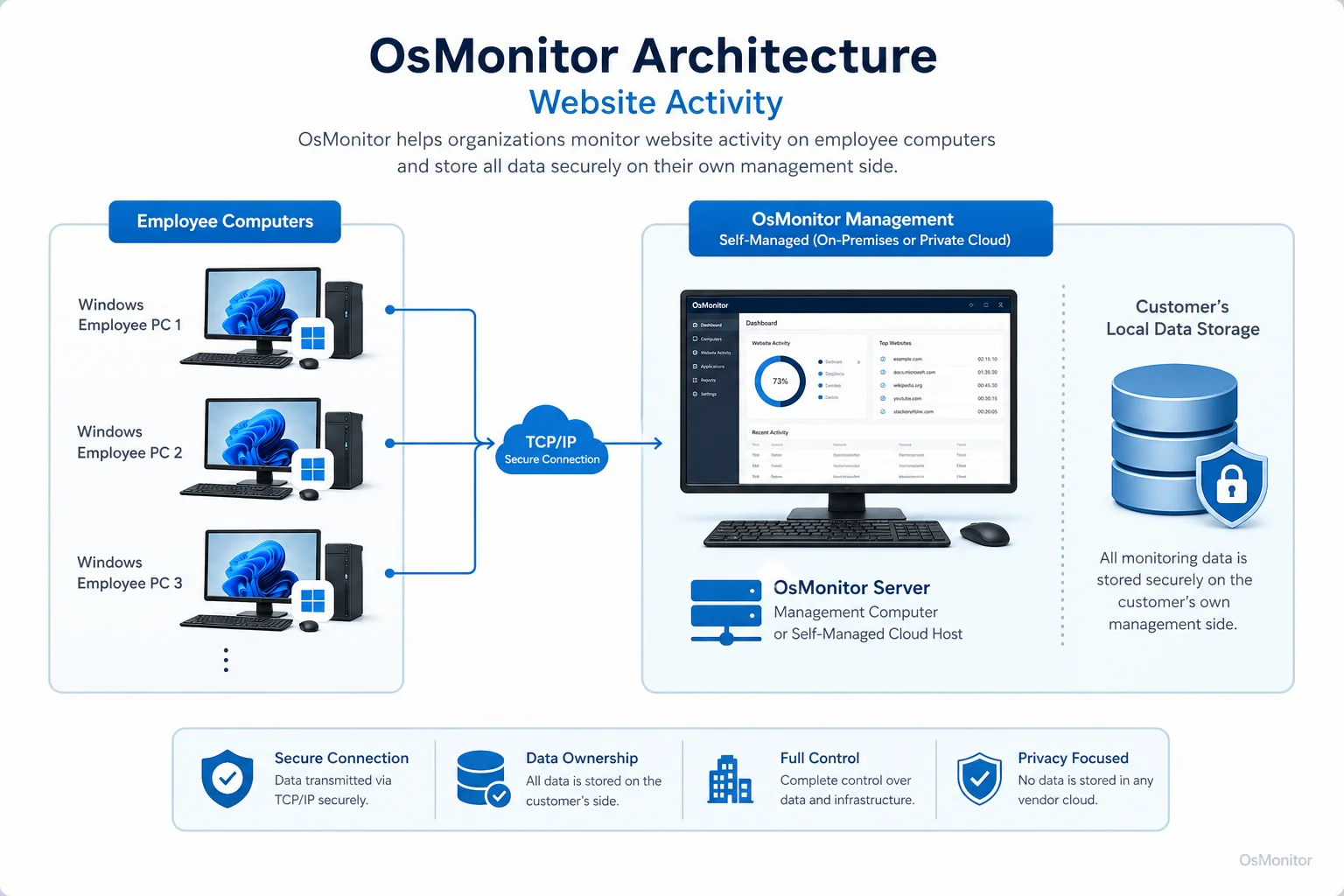
OsMonitor keeps monitoring data under the customer’s control on the management computer or self-managed server.
Practical Internet Usage Policy Examples
You can’t just monitor staff internet usage in a vacuum. It works best when paired with a clear, written rulebook. Explain what is allowed, what is restricted, when the monitoring happens, and who reviews the logs.
Here is a quick framework I use to build a workplace internet policy:
| Policy Area | Example Rule | OsMonitor Support |
|---|---|---|
| Entertainment websites | Games, short-video, and entertainment sites are not allowed during work hours | Website blacklist, violation counts |
| Work-related browsing | Approved business systems, customer portals, and supplier websites are allowed | Website whitelist, URL records |
| Personal browsing | Limited personal browsing may be allowed during breaks if permitted by company policy | Website usage time reports |
| Downloads | Large or unrelated downloads should be avoided unless required for work | Download statistics, URL records |
| Department access | Different teams may have different approved website lists | Department/person reports |
| Review process | Managers may review website activity records when needed for workplace management | Reports and visit records |
Keep your rules simple and avoid vague statements like “be responsible online.” Define the categories clearly to ensure smooth employee internet usage across the board.
Workflow: How to Monitor Employee Internet Usage with OsMonitor
People often overcomplicate deployments. Here is a straightforward IT workflow to get you started.
Step 1: Define the Web Usage Policy
Before installing any employee web monitoring software, write your policy. Identify restricted categories (gambling, gaming, heavy streaming) and allowed categories (industry research, CRMs, vendor portals).
Step 2: Install the Management Console and Clients
Set up the OsMonitor console on your main server or IT management PC. Then, push the lightweight client out to the employee Windows computers. Remember, the client must be installed on the endpoints for the core features to function.
Step 3: Configure Blacklists and Whitelists
Build your blacklist rules for sites that have no business on your network. For high-security workstations, use whitelists.
Step 4: Review Website Activity Reports
Use your new employee internet usage monitoring software to review weekly trends. Look for repeated issues, extreme time sinks on unrelated sites, or policy exceptions, rather than micromanaging every single click.
Step 5: Adjust Rules and Communicate Clearly
If you notice legitimate work sites getting blocked, update your whitelist. If a new distraction site is trending, add it to the blacklist. Consistent, transparent management is the key.
Data Ownership and Deployment Options
One of the biggest reasons I advocate for OsMonitor is data sovereignty. It is not a cloud SaaS product that hoards your tracking internet usage data on external servers.
LAN Deployment Without Internet Access
If you manage a high-security office, production facility, or offline lab, OsMonitor runs flawlessly on a local area network without any internet connection. The management PC and the clients talk directly to each other over the LAN.
Self-Managed Cloud Host
If you have multiple branch offices, you can host the management server on your own private cloud instance. This still gives you total control over your data. To understand the benefits of managing your own infrastructure, read our page on On-Premise Employee Monitoring Software.
Windows Compatibility and Deployment Requirements
OsMonitor is a dedicated Windows environment tool. It supports Windows 7 and newer, including Windows Server editions (32-bit and 64-bit).
The footprint is extremely light and requires no proprietary hardware. You simply need a management PC, your employee endpoints, and a standard network connection.
We offer transparent pricing—a one-time purchase forever, with absolutely no recurring SaaS fees.
Limitations and Responsible Use
Let’s talk about the human element. Employee internet monitoring is a tool for legitimate business management, not micromanagement. Always ensure compliance with your local employment and privacy laws, and give proper notice to your staff.
A few things to keep in mind:
- You must install the client on employee PCs.
- It is designed exclusively for Windows.
- Website activity should always be reviewed with context (e.g., someone researching a competitor’s YouTube channel vs. watching cartoons).
- Keep access to these reports restricted to authorized IT and HR personnel.
When implemented responsibly, this software improves trust, secures your network, and enforces a standard of professionalism.
FAQ
What is website activity?
In a business context, website activity encompasses all records related to web browsing on company hardware. This includes URL visit records, time spent on pages, blacklist/whitelist triggers, and download statistics, helping you understand how digital resources are used.
Is website activity monitoring legal for businesses?
In most jurisdictions, yes. Businesses have the right to monitor company-owned hardware to ensure productivity and security. However, you should always consult local legal professionals, maintain a clear written policy, and perform transparent, authorized workplace monitoring.
Some buyers search for “software to track internet usage of employees.” Is that what this is?
Yes. While some people search for clunky phrases like software to track internet usage of employees or ask how to monitor staff internet usage, the industry-standard term is simply employee internet monitoring software. OsMonitor handles exactly this by tracking URLs, active time, and enforcing access rules.
Does OsMonitor require a client on employee computers?
Yes, the lightweight client must be installed on the employee Windows machines to connect to your central management console.
Where is OsMonitor monitoring data stored?
Your data stays with you. It is stored directly on your own management computer or your self-managed cloud server. We do not use vendor clouds.
Can OsMonitor work without internet in a LAN?
Absolutely. It is fully capable of running on a closed LAN without any external internet connection.
People also ask “how to monitor internet usage” or “how to track employee internet usage” effectively. What is the best way?
The most effective method is utilizing an on-premise employee internet monitor like OsMonitor paired with a strict whitelist or blacklist. This automates the policy enforcement rather than relying on manual reviews.
What Windows versions does OsMonitor support?
It supports Windows 7 and later, including Windows Server editions (32-bit and 64-bit).
Try Website Activity Monitoring for Your Office
If you are tired of guessing where your team’s bandwidth and time are going, you need an objective way to monitor employee internet traffic. OsMonitor provides a secure, self-hosted approach for Windows networks. To test the features and see how it fits your infrastructure, Download OsMonitor Free Trial today.