How to Block Websites on Company Computers
I constantly hear from frustrated managers asking, “How do you block websites on our network?” The scenario is always the same: project deadlines are tight, but the firewall logs show a massive chunk of bandwidth is being eaten up by YouTube, online gaming, and endless social media scrolling. If you manage a small business, you can’t afford that kind of productivity drain. You aren’t trying to cut the office off from the internet entirely; you just need a reliable website blocker to eliminate the worst distractions. More importantly, you need a way to keep clear access records so you can verify that your acceptable use policies are actually working, ensuring your team stays focused on the job at hand.
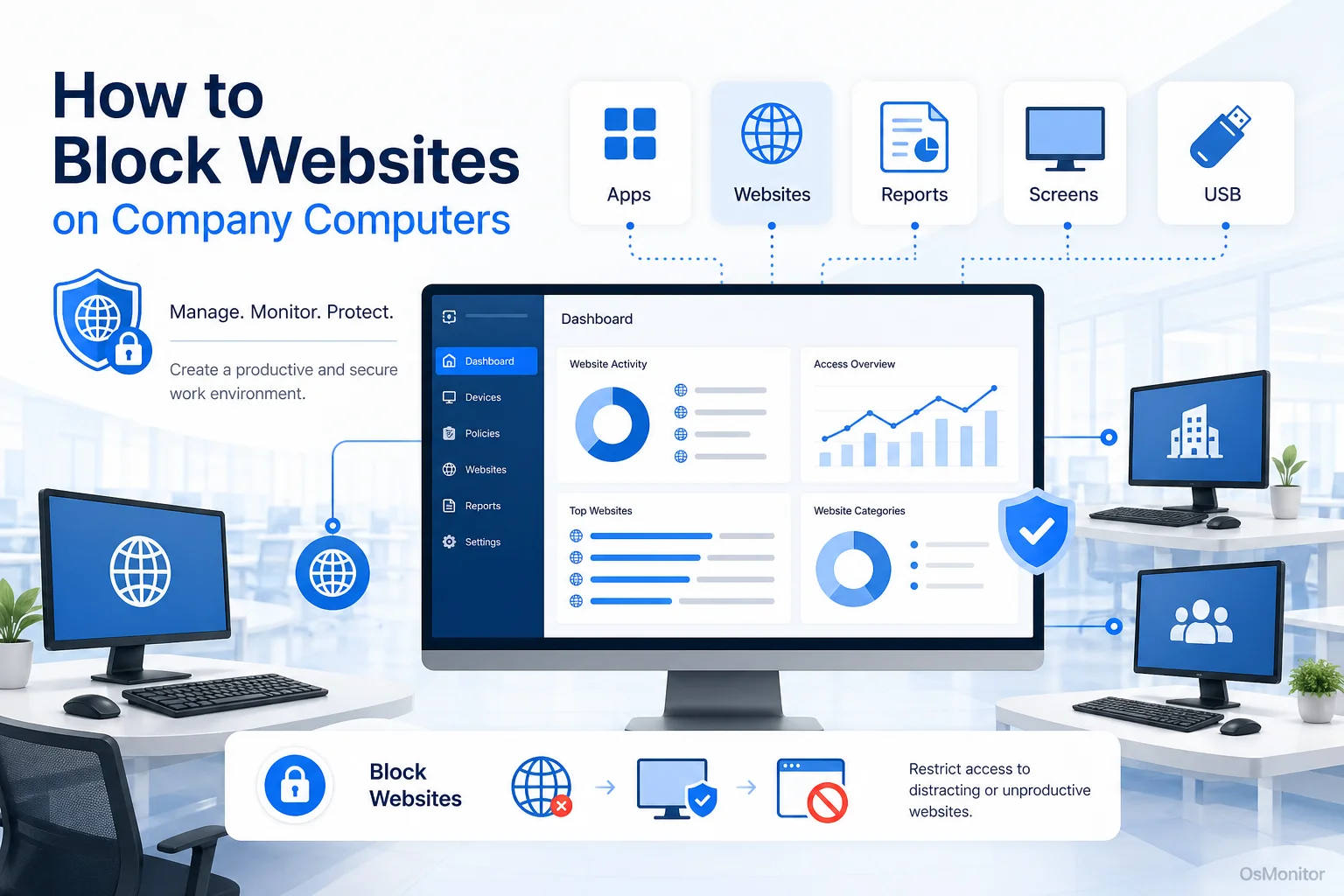
A practical overview of how to block a website for workplace computer management.
Why Companies Need a Website Blocking Strategy
If you are wondering is there a way to block a website effectively, the answer is yes, but it has to be part of a broader IT strategy. Putting a hard stop on digital distractions isn’t just about stopping people from checking Facebook. It is a fundamental part of modern IT administration that solves several massive business headaches.
1. Enhancing Employee Productivity
If you want to know how to block websites for productivity, you first need to understand the cost of doing nothing. A team member spending just 30 minutes a day on news or shopping sites burns over two hours of work time a week. For a small team, that is a devastating loss of output. By finding the right method for how to block certain website categories, you instantly create an environment where your staff can actually focus.
2. Conserving Network Bandwidth
Heavy video streaming and downloading games consume massive amounts of bandwidth. On a shared office connection, this throttles critical business applications for everyone else. Blocking these heavy sites ensures your network remains fast and responsive for actual work.
3. Mitigating Security Risks
Many people ask how can i block a specific website because they’ve dealt with malware. Non-work sites are breeding grounds for phishing scams and malicious downloads. By locking down high-risk sites, you drastically reduce your company’s attack surface and protect your internal data.
4. Enforcing Acceptable Use Policies (AUP)
Every company needs an AUP outlining the rules for company hardware. But a policy is useless without enforcement. Using software to block websites is the only practical way to ensure those rules are respected across the board.
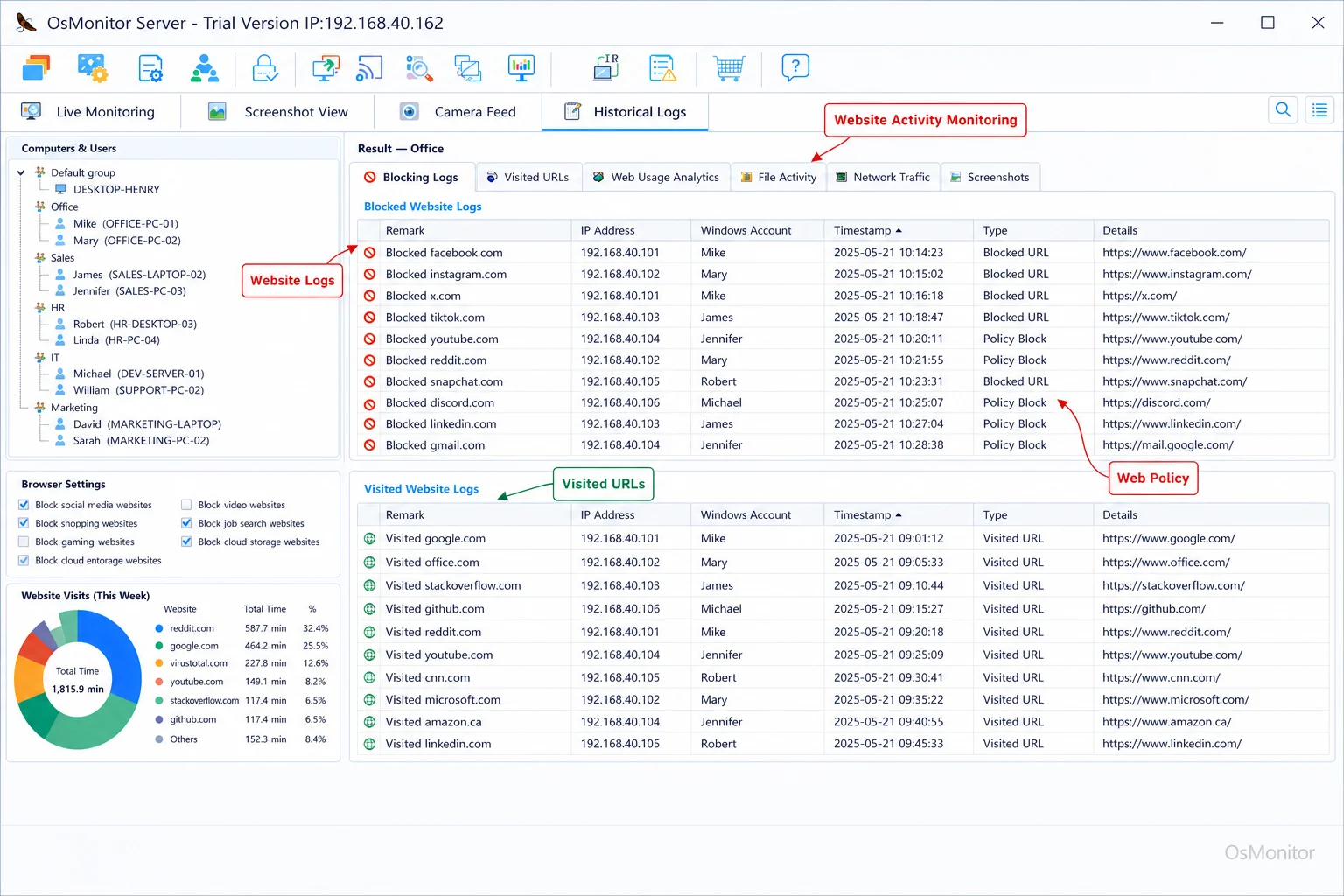
A real-product style screenshot highlighting website activity monitoring in OsMonitor.
Methods for Blocking Websites on Company Computers
When IT admins ask me how do i block websites, I tell them the right method depends entirely on the size of their network. You can do it manually on a single PC, or you can deploy centralized software.
Manual Methods (Limited Scalability)
1. Editing the Hosts File
If you just want to know how to block particular website domains on a single machine, you can edit the Windows “hosts” file. You simply map the distracting domain (like youtube.com) to the localhost IP (127.0.0.1).
- Pros: It’s free and built directly into Windows.
- Cons: You have to configure this manually on every single PC. Worse, anyone with basic Google skills can reverse it in five minutes, and it provides zero reporting.
2. Router-Level Blocking
Most modern routers have basic filtering. You log into the admin panel and add a list of websites to block at work.
- Pros: It covers every device on the Wi-Fi.
- Cons: The interfaces are notoriously clunky. If an employee asks can i block a website just during work hours, most routers can’t handle that level of scheduling. Plus, it gives you no insight into who is trying to access the blocked sites.
3. Browser Extensions
There are plenty of extensions for Chrome or Edge designed for productivity.
- Pros: Very easy to install for a single user.
- Cons: They only work on that specific browser, and users can simply turn them off or uninstall them whenever they want.
Centralized Software Solutions
If you have more than three employees, manual methods are a waste of IT hours. You need dedicated websites to block for work software.
This is where a client/server tool like OsMonitor becomes mandatory. It allows an administrator to manage access policies for the entire fleet of company computers from one single console. You push a lightweight client to each PC, and the rules are managed centrally. If you want to know how to block any website reliably, this is the only answer that scales. For a deeper look at how this ties into broader network management, check out our guide on Employee Activity Monitoring Software.
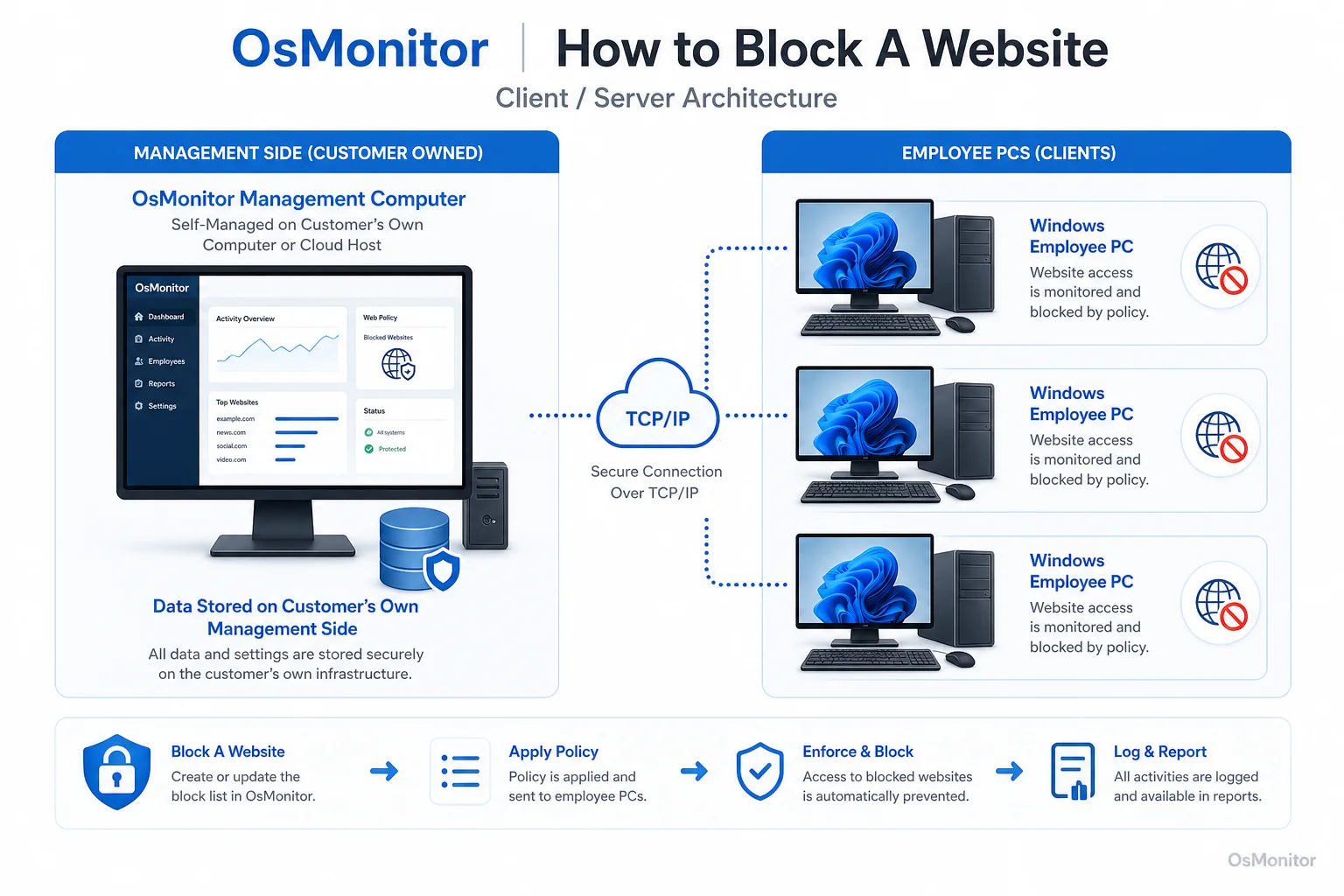
OsMonitor keeps monitoring data under the customer’s control on the management computer or self-managed server.
Creating and Implementing an Effective Website Access Policy
Deploying the software is the easy part. The hard part is implementing the policy without tanking office morale.
Step 1: Analyze Current Internet Usage
Before you start blocking things blindly, look at the data. Run your monitoring software for a week to see where the time is actually going. This data-driven approach stops you from making assumptions and lets you target the real problem areas.
Step 2: Define Clear and Fair Rules
Write a formal AUP. If you are building a list of websites to block at work, it typically includes:
- Social Media: Facebook, Twitter, Instagram, TikTok
- Video Streaming: YouTube, Netflix, Hulu, Twitch
- Online Shopping: Amazon, eBay
- Gaming Websites: Any online gaming portals
- Inappropriate Content: Adult sites, gambling, and legally questionable torrent sites.
If you are figuring out how to block websites at work fairly, consider scheduling. You might allow access to news sites during the lunch hour but lock them down during core business hours.
Step 3: Communicate the Policy to Employees
Do not deploy a blocker in secret. Tell your team the new policy is coming. Explain why—to improve network speed, enhance security, and keep the team focused. Transparency is critical.
Step 4: Implement and Monitor Consistently
Use your software to enforce the rules uniformly. No exceptions. Check your logs weekly to ensure the policy is working. For more advice on streamlining your operations, read our thoughts on Employee Productivity Software for Small Business Teams.
How OsMonitor Centralizes Website Blocking and Monitoring
OsMonitor is built specifically for Windows workplace management. It takes the headache out of figuring out how to block a certain website.
| Feature | Description | Business Benefit |
|---|---|---|
| Website Blacklist | Block access to a predefined list of sites. You can add specific URLs or broad keywords. | Instantly stops access to known time-wasters, securing the network and improving focus. |
| Website Whitelist | The nuclear option: restrict internet access to only a list of approved sites. Everything else is blocked. | Perfect for high-security roles or training PCs that should only access specific internal tools. |
| URL Visit Logs | Records every site visited by each user, including the exact URL, timestamp, and active duration. | Provides undeniable, objective data for performance reviews and policy adjustments. |
| Time-Based Rules | Configure policies to turn on and off based on the clock. | Gives you the flexibility to allow personal browsing during designated lunch breaks. |
| Centralized Management | All rules are built on your server console and pushed instantly to every client PC. | Saves massive amounts of IT administrative time and ensures rules are enforced consistently. |
Always remember to use these tools transparently and in full compliance with your local labor and privacy laws.
Frequently Asked Questions (FAQ)
How do you block a specific website on a company network?
The most reliable method is deploying centralized client/server software. This allows your IT admin to build a blacklist on the main console and push it out to every PC on the network simultaneously, making it impossible for users to bypass.
Is it legal for a company to block websites on work computers?
In almost all jurisdictions, yes. You own the hardware and the network. However, you must establish a clear, written Acceptable Use Policy and communicate it to your staff. Always consult local legal counsel to be certain.
People also search for “access block websites at work”. How do I prevent employees from bypassing the block?
If you rely on simple router blocks or browser extensions, users will bypass them using proxies or simply switching browsers. A dedicated software client installed at the operating system level (like OsMonitor) is much harder to circumvent.
Does website blocking software require installation on each employee’s PC?
Yes. For a robust system to work, a small, lightweight client must be installed on the endpoint. It receives the rules from your server and enforces them locally.
Where is the website access data stored when using OsMonitor?
Your data stays on your hardware. OsMonitor is strictly an on-premise solution. Your logs are stored on your management PC or your internal server, never on a vendor’s cloud.
Can OsMonitor block websites on a local network without internet access?
Yes. OsMonitor functions perfectly within a closed Local Area Network (LAN). The server and clients talk directly to each other without needing an outside internet connection.
What versions of Windows are compatible with OsMonitor?
It supports Windows 7, 8, 10, and 11, along with Windows Server editions (both 32-bit and 64-bit).
If you are tired of fighting digital distractions and need a secure, manageable way to enforce your IT policies, we can help. Feel free to Contact OsMonitor Support for guidance on getting your network locked down.