Workplace Analytics: What to Measure and How to Use It
Workplace analytics becomes useful when managers need to understand how work is actually happening, not just how busy the team appears. A small business may notice lower output, missed deadlines, or more time spent on games, video sites, entertainment websites, or other non-work browsing during office hours. Without clear records, the manager is left with assumptions.
For computer-based teams, workplace analytics can turn daily activity into practical workforce insights. Website records, application usage, active time, idle time, document activity, and policy events can help managers understand work patterns, reduce avoidable distractions, and improve workplace efficiency.
The goal is not to judge every small action. The goal is to make better decisions with better information.
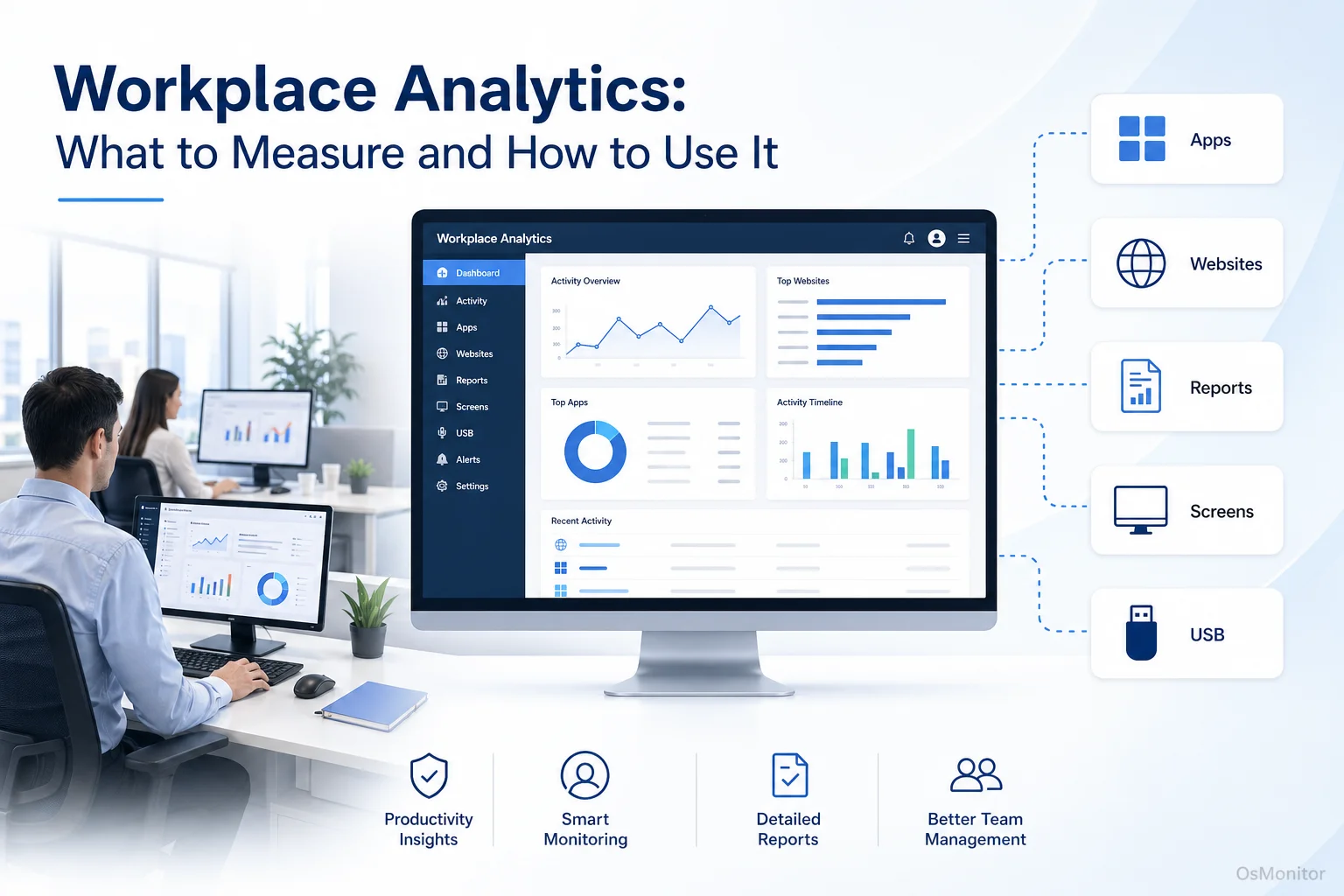
A practical overview of workplace analytics for workplace computer management.
What Are Workplace Analytics and Why Do They Matter?
Workplace analytics is the practice of collecting and reviewing workplace data to understand how people, tools, time, and company resources are being used. In an office computer environment, that usually means reviewing digital activity from company-owned PCs.
Workplace analytics software can help answer practical questions such as:
- Which applications are used most often?
- Which websites consume work time?
- Are employees using the tools required for their roles?
- Are there long idle periods or unusual activity patterns?
- Are software licenses being used effectively?
- Are company computer and internet policies being followed?
- Are workflow problems slowing the team down?
These workplace analytics metrics can support productivity review, software planning, IT policy management, employee support, and operational improvement.
For small and mid-sized businesses, this matters because managers often do not need a complex enterprise platform. They need clear reports that show how company-owned computers are being used and where attention may be needed.
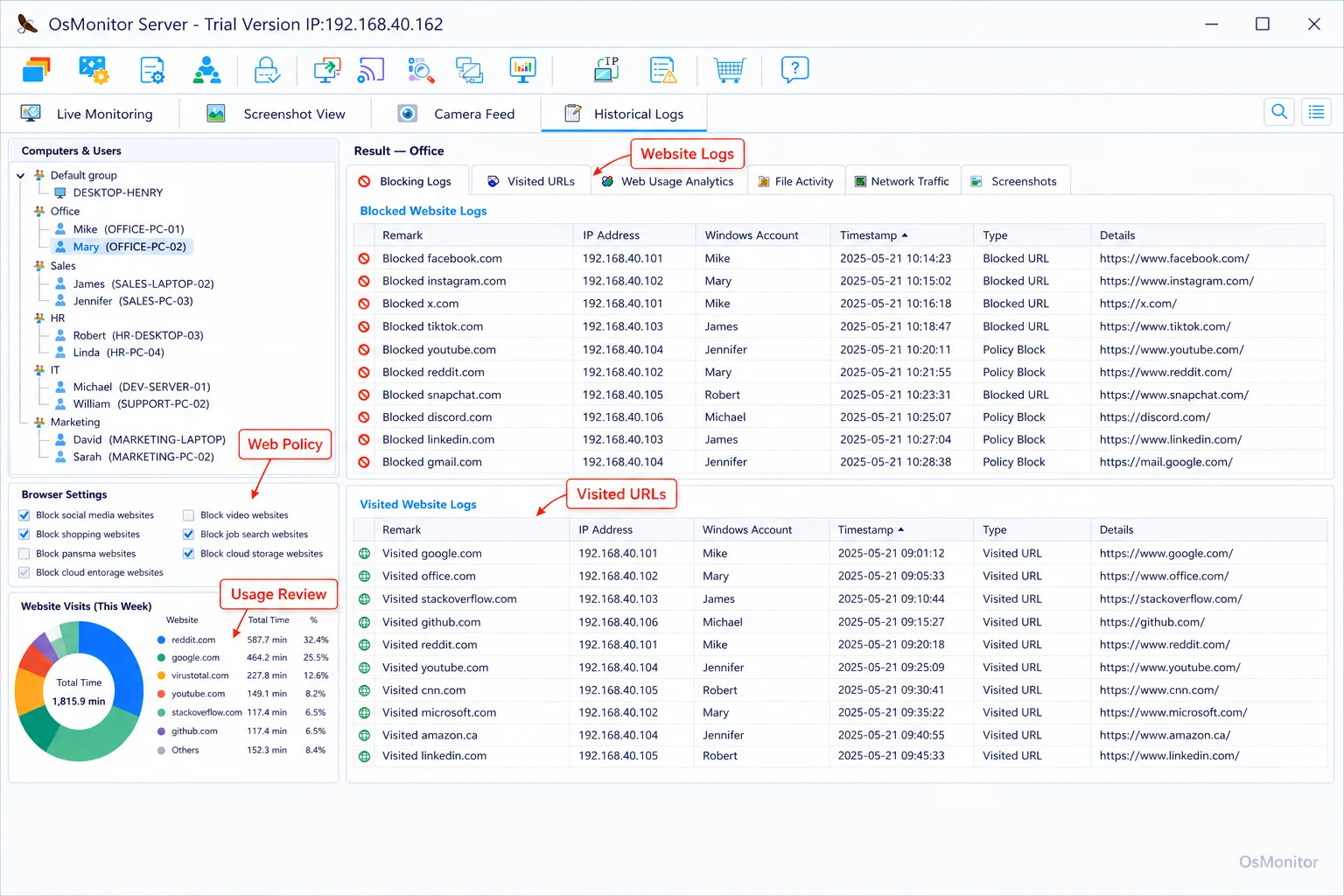
A real-product style screenshot highlighting website activity monitoring in OsMonitor.
A Practical Approach with OsMonitor
OsMonitor is workplace productivity and employee computer activity management software for company-owned Windows PCs. It can support workplace analytics by collecting application usage, website activity, screen activity, active time, idle time, document activity, and policy-related records.
It is not a full cybersecurity suite, not a formal audit system, and not a replacement for management judgment. Its role is more practical: helping managers and IT administrators understand computer usage patterns and apply workplace policies more consistently.
OsMonitor uses a client/server model:
Management Console: Installed on a manager’s computer, administrator’s PC, or self-managed server. This is where reports are reviewed and policies are configured.
Lightweight Client: Installed on each employee Windows computer that the business wants to manage. The client collects workplace activity records and sends them to the management console through the company network.
In this setup, the client works like a practical sensor for workplace analytics. Some buyers search for “top sensor for workplace analytics” or “best sensor for workplace analytics.” In office computer management, the clearer term is endpoint activity data collection. OsMonitor collects activity signals from managed Windows PCs and turns them into usable reports.
A key advantage is data control. OsMonitor stores collected data on the customer’s own management computer or self-managed server. Normal activity data is not stored on an OsMonitor vendor cloud. The system can also work inside a local area network without requiring internet access for core monitoring and reporting.
This makes OsMonitor useful for businesses that want workplace analytics without giving up control of sensitive activity records.
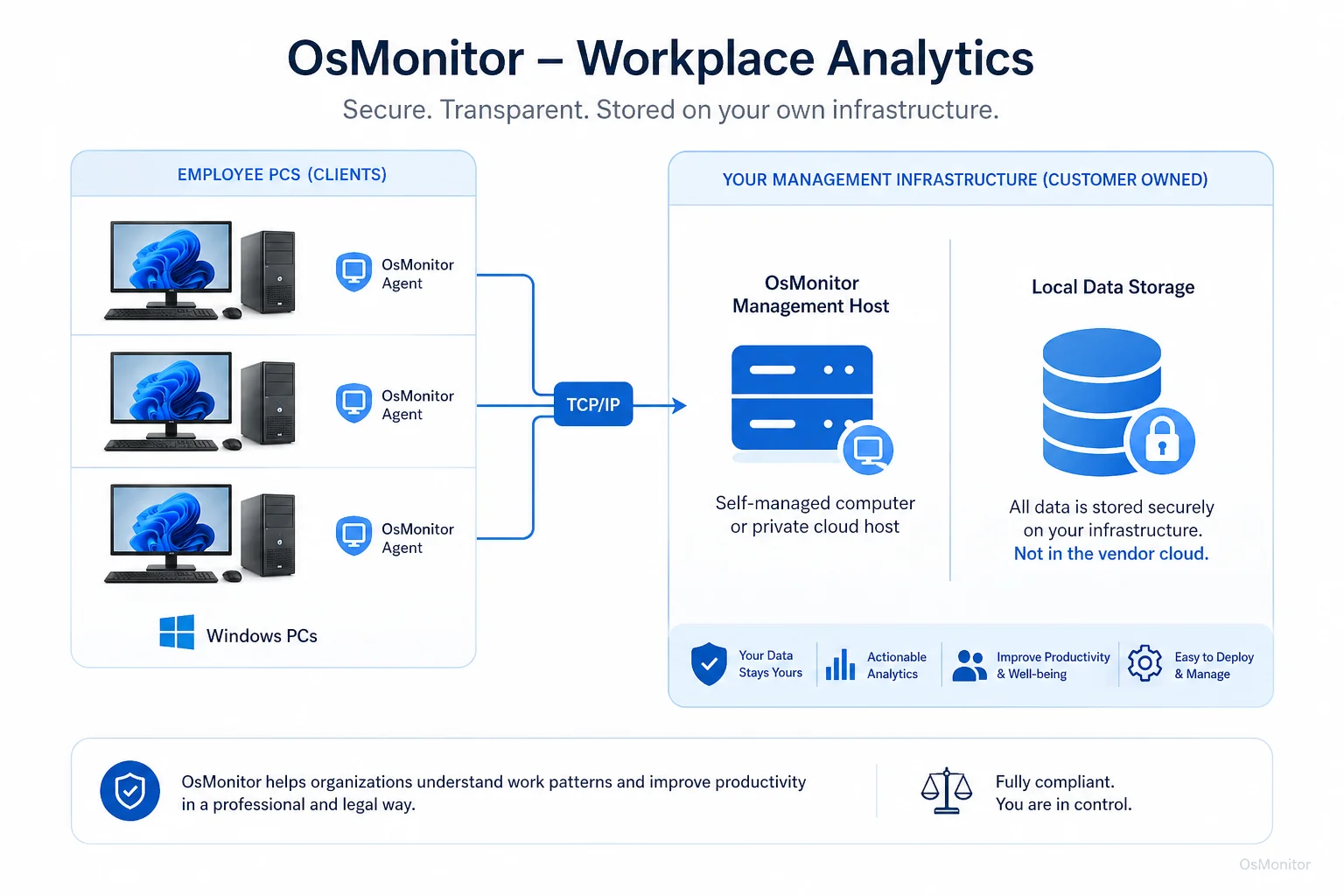
OsMonitor keeps monitoring data under the customer’s control on the management computer or self-managed server.
Key Workplace Analytics Metrics You Can Track
Workplace analytics is only helpful when the metrics lead to useful decisions. A dashboard full of numbers is not enough. Managers need data that explains where time goes, which tools matter, and where workflow or policy issues appear.
Website and Application Usage
Website and application usage records show how company computers are used during the workday. OsMonitor records visited websites, applications used, and active time spent in each.
This can help managers understand:
- Which business applications are central to each role.
- Whether expensive software licenses are actually being used.
- Whether non-work websites are taking too much time.
- Whether employees need better training on certain tools.
- Whether policies should be updated or enforced more consistently.
The detailed records from Employee Activity Monitoring Software can provide the baseline data needed for this kind of workplace analytics.
Productivity and Idle Time
Active and idle time can help managers understand general work patterns. Long idle periods may indicate a lack of assigned work, a technical blocker, excessive meetings away from the computer, or another issue that deserves review.
This metric should be used carefully. Idle time does not always mean low productivity. Some roles require phone calls, meetings, reading printed documents, or hands-on work away from the computer. The value comes from comparing activity patterns with job context.
Document and File Operations
For teams that handle important business documents, file activity can be a useful workplace analytics signal. OsMonitor can log document operations such as file creation, copying, deletion, renaming, and printing.
This can help businesses understand document workflows and support internal data policies. It can also help managers see whether project-related files are being created, modified, or moved as expected.
Device and Peripheral Control
Workplace analytics can also include device usage. USB drives, printers, and other peripherals may affect both workflow and internal data policy.
OsMonitor can help manage USB device access, including blocking or setting drives to read-only mode where appropriate. This supports policy-based computer management and helps reduce avoidable data handling risks.
| Metric | Business Insight | OsMonitor Feature |
|---|---|---|
| Website Visit Duration | Identifies time spent on non-work websites or role-related web tools. | Website History & Blocking |
| Application Usage Time | Measures software utilization, work focus, and training needs. | Application Usage Reports |
| Computer Idle Time | Highlights possible workflow gaps, blocked work, or non-computer tasks. | Activity Timeline |
| USB Device Connections | Tracks external device usage for policy compliance. | USB Device Control |
| Document Access Logs | Provides records of document handling and file activity. | Document Operation Log |
Implementing Workplace Analytics in Your Environment
Workplace analytics can be useful in many environments, but the implementation should match the business need.
OsMonitor is designed for Windows-based business environments. As a dedicated Windows Employee Monitoring Software, it supports Windows 7 and later versions, including Windows 10, Windows 11, and Windows Server editions, with both 32-bit and 64-bit compatibility.
Common Use Cases:
Small & Medium Businesses: Owners and managers can review computer usage, apply policies, and improve business efficiency without building a large IT department.
Offices & Call Centers: Supervisors can review CRM, ticketing, communication, and business software usage to understand work patterns and support coaching.
Schools & Training Centers: Instructors can help keep lab computers focused on approved learning resources and reduce distracting website access.
Hybrid & Distributed Teams: For remote employees connected through VPN or another approved network setup, OsMonitor can provide workplace analytics for hybrid environments. This helps businesses apply policies consistently across office and remote Windows PCs.
Multi-Location Businesses: Companies with branch offices can use centralized reports to support global workplace analytics in a practical way, especially when managed computers can connect to the same self-controlled server environment.
Some workplace analytics discussions focus on corporate real estate workplace analytics, such as office occupancy, desk usage, meeting room utilization, or building sensors. OsMonitor is different. It does not measure room occupancy or office space usage. It focuses on computer activity analytics for managed Windows PCs.
Advanced workplace analytics may combine several data sources: HR systems, project tools, device performance, surveys, occupancy sensors, and computer activity records. OsMonitor can provide the computer activity layer for businesses that need practical workplace reports and customer-controlled data storage.
Responsible Use and Legal Considerations
Workplace analytics should be introduced transparently and responsibly. Employees should understand what data is collected, why it is collected, who can review it, and how it will be used.
Businesses should:
- Create a clear written computer and internet usage policy.
- Inform employees that company-owned computers may be managed and reviewed.
- Use reports for productivity review, IT support, policy consistency, and workflow improvement.
- Limit report access to authorized managers or IT staff.
- Review activity records with context instead of judging isolated events.
- Protect stored data with proper access control and retention rules.
- Consult qualified legal counsel to ensure compliance with local employment and privacy laws.
Good workplace analytics should support better management, not replace trust, communication, or common sense.
Frequently Asked Questions (FAQ)
What is workplace analytics?
Workplace analytics is the practice of collecting and analyzing workplace data to understand how people, tools, time, and company resources are being used. In a computer-based workplace, it may include website activity, application usage, active time, idle time, file activity, and policy-related records.
What is workplace analytics software?
Workplace analytics software helps businesses collect and report workplace data. Some tools focus on office space and occupancy. Others, such as OsMonitor, focus on computer activity from company-owned Windows PCs.
What workplace analytics metrics should businesses track?
Useful metrics may include application usage time, website visit duration, active and idle time, document activity, USB device usage, bandwidth usage, screen activity, and department-level reports. The right metrics depend on the job role and business goal.
Can workplace analytics support hybrid teams?
Yes. Workplace analytics for hybrid environments can help managers review work patterns across office and remote employees. For company-owned Windows PCs, OsMonitor can support this through VPN or another approved network setup that allows remote clients to connect to the management console.
Is workplace analytics legal for businesses?
In many regions, businesses may manage and review activity on company-owned computers for legitimate business purposes when employees have been properly notified and a clear policy is in place. However, laws vary by country, state, province, and industry. Businesses should consult qualified legal counsel before implementing workplace analytics or computer activity monitoring software.
Does OsMonitor require a client on employee computers?
Yes. OsMonitor uses a client/server model. A lightweight client must be installed on each employee Windows computer the business wants to manage. The management console collects activity records and provides reports for authorized review.
Where is OsMonitor monitoring data stored?
OsMonitor stores collected data on the customer’s own management computer or self-managed server. Normal activity data is not stored on a vendor-controlled cloud, giving the business direct control over workplace activity records.
Can OsMonitor work without internet in a LAN?
Yes. OsMonitor can work inside a local area network without requiring internet access for its core monitoring, reporting, and management functions.
What Windows versions does OsMonitor support?
OsMonitor supports Windows 7 and later versions, including Windows 10, Windows 11, and Windows Server editions. It supports both 32-bit and 64-bit Windows systems.
Workplace analytics works best when it helps managers understand patterns, not when it overwhelms them with disconnected numbers. For computer-based teams, application usage, website activity, active time, document records, and policy events can provide useful workforce insights.
Used transparently and responsibly, OsMonitor can support workplace analytics with practical reports, policy controls, screen activity review, and on-premise data storage. To see how these features can provide valuable workforce insights for your team, you can View OsMonitor Pricing and explore the available options.