Workload Management: How to Spot Overload and Underuse
Workload management software becomes useful when a manager can see that the team is busy, but still cannot tell whether the work is balanced. One employee may be overloaded and working nonstop. Another may be waiting for tasks, stuck on a technical issue, or spending too much time on games, video sites, entertainment websites, or other non-work browsing during office hours.
Without clear records, managing team workload turns into guesswork. Managers may ask for constant updates, but that interrupts work and still may not show the full picture.
A better approach is to combine clear policies with practical computer usage data. Application records, website activity, screen activity, active time, idle time, and productivity reports can help managers understand how work is actually being done on company-owned Windows PCs.
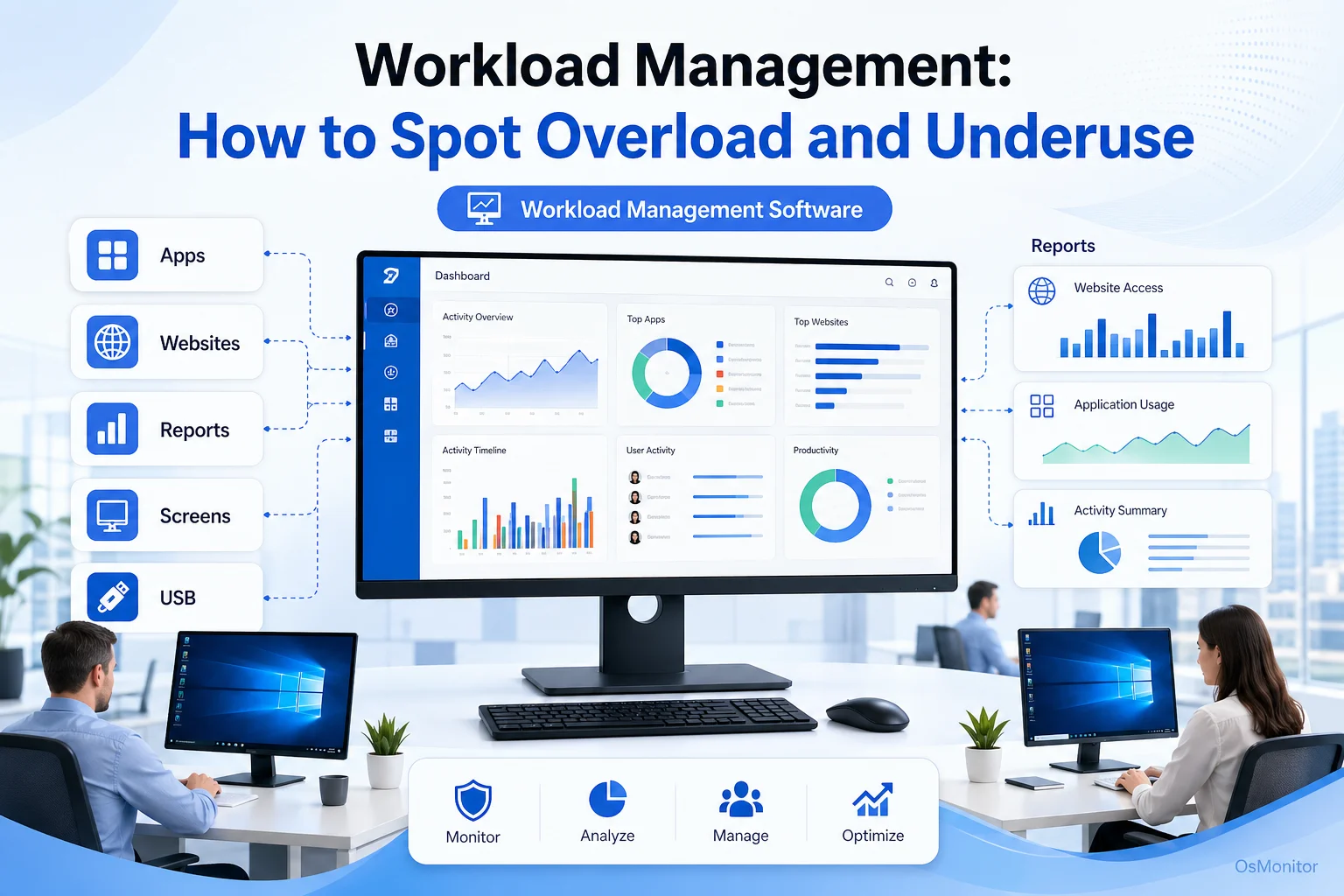
A practical overview of workload management software for workplace computer management.
What is Workload Management Software?
Workload management software helps managers understand, distribute, and review work across a team. In many companies, this includes task planning, project timelines, deadlines, capacity planning, and employee workload management.
For computer-based teams, workload management also needs another layer: how company computers are actually being used during the workday.
A practical workload management tool can help answer questions such as:
- Who appears overloaded with continuous work activity?
- Who may be underused or blocked?
- Which applications are used most for daily work?
- Are employees spending too much time on non-work websites?
- Are workloads balanced across departments or groups?
- Are technical problems slowing people down?
- Are company computer usage policies being followed?
OsMonitor is workplace productivity and employee computer activity management software for company-owned Windows PCs. It supports workload management strategies by giving managers factual computer usage records, including application usage, website activity, screen activity, productivity reports, and policy-related events.
It is not a full project management suite, not a cybersecurity platform, and not a replacement for good management. Its role is more focused: helping businesses understand the computer activity side of team workload.
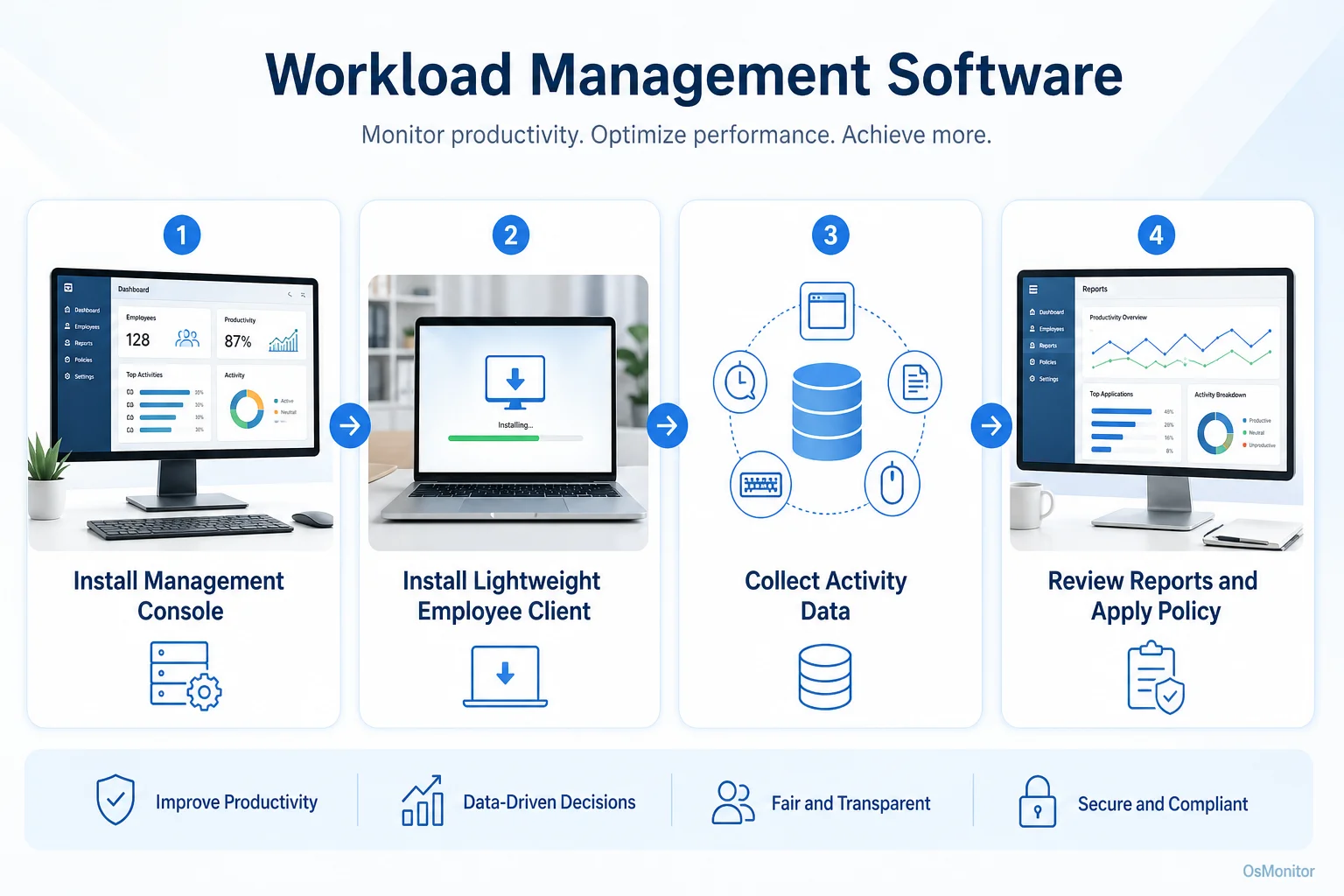
A simple workflow showing how workplace signals can support workload management software.
Core Features for Effective Workload Management
Effective workload management is not just about assigning more tasks to the person who looks available. Managers need context. High activity may mean productive work, but it may also mean overload. Idle time may mean underuse, but it may also mean a blocked employee waiting for support.
OsMonitor helps provide that context through practical activity records.
Application and Website Usage Records: Review which applications are used, which websites are visited, and how long each activity lasts. This helps managers understand work focus, recurring distractions, and software usage patterns.
Real-Time Screen Monitoring: Authorized managers or IT staff can view employee screens in real time when support, training, or activity review is needed. This feature is part of Employee Screen Monitoring Software and should be used transparently according to company policy.
Productivity Reports: Generate reports for individuals, groups, or departments. These reports can show top applications, website activity, active time, idle time, and overall computer usage patterns.
Policy Enforcement: Block non-work websites or applications according to company policy. This helps reduce repeated distractions and creates a more consistent digital work environment.
Document and File Tracking: Track file operations and back up selected work documents to the central server. This can help managers understand document workflows and reduce the risk of accidental data loss.
Remote Assistance: IT staff or authorized managers can remotely help an employee solve a technical problem, reducing downtime and keeping work moving.
These features help managers move from “I think this person is overloaded” or “I think this team is distracted” to a more useful discussion based on activity patterns.
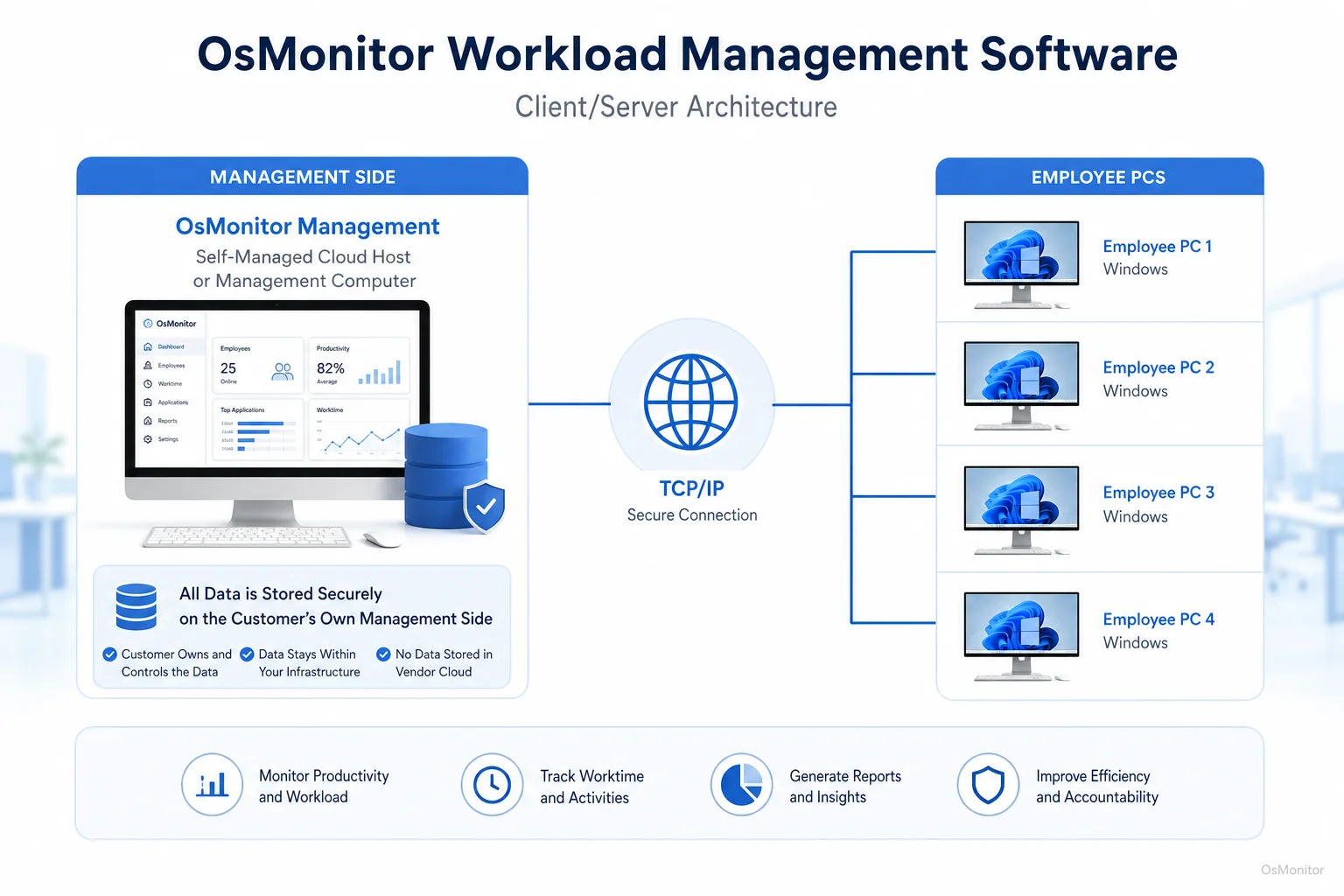
OsMonitor keeps monitoring data under the customer’s control on the management computer or self-managed server.
On-Premise Data Control and Security
Workload data can be sensitive. It may include website records, application usage, screen activity, file activity, and productivity reports. For that reason, many businesses prefer to keep this information under their own control.
OsMonitor uses an on-premise client/server architecture. Monitoring data is stored on the customer’s own management computer or self-managed server. Normal activity data is not stored on an OsMonitor vendor cloud.
This model offers several advantages:
- No Vendor Cloud: Workplace activity records stay on your own hardware or self-managed environment.
- LAN-Only Operation: OsMonitor can work inside a local area network without requiring internet access for its core functions.
- Full Data Control: Your business controls report access, storage, retention, backup, and security policies.
- Predictable Cost: OsMonitor is designed as a one-time purchase option rather than a recurring cloud subscription.
This makes OsMonitor a practical On-Premise Employee Monitoring Software option for organizations that want workload management software with customer-controlled data storage.
Practical Workload Management Strategies with OsMonitor
Good workload management strategies should help managers balance productivity, fairness, and employee well-being. The goal is not to push everyone harder. The goal is to understand where work is heavy, where capacity is unused, and where better support is needed.
Here are practical workload management tips for using activity data responsibly:
Establish a Baseline: Review normal computer usage patterns before making changes. Look at application usage, website activity, active time, idle time, and department reports over a reasonable period.
Identify Overload and Underuse: Continuous high activity with little idle time may suggest overload. Long idle periods or repeated non-work browsing may suggest underuse, unclear tasks, or disengagement. Always review the employee’s role and workload before drawing conclusions.
Balance Task Distribution: Use reports to understand whether work is concentrated on a few employees while others have available capacity. This can support fairer task assignment.
Find Workflow Problems: If a team spends too much time switching between applications or working around inefficient software, the solution may be better tools or training.
Use Reports for Better Conversations: Activity records should support constructive one-on-one discussions. They are a starting point for questions, not the final answer.
Improve Support: If an employee is active for long periods but output is low, they may be struggling with software, unclear instructions, or a process problem. Remote assistance can help solve technical blockers faster.
| Symptom | Potential Cause | How Workload Management Software Helps |
|---|---|---|
| Missed deadlines and long work hours | Overload | Reports may show consistently high application usage, low idle time, and heavy activity across many days. |
| Declining work quality | Overload or burnout risk | Activity patterns can show whether employees are working for long periods without enough breaks or support. |
| High idle time reports | Underuse or blocked work | Data may reveal a lack of assigned tasks, unclear priorities, or a technical issue preventing progress. |
| Excessive non-work browsing | Underuse, distraction, or unclear expectations | Website usage reports show how work time is being spent and whether policy or workload changes are needed. |
Employee workload management works best when managers combine data with human judgment. A report can show activity patterns, but only a manager can understand the employee’s role, project pressure, customer demands, and personal workload context.
Use Cases Across Different Business Environments
Workload management looks different from one workplace to another. A call center, accounting department, school computer lab, and remote team do not measure work in the same way. But they can all benefit from clearer computer activity records.
Small & Medium Businesses: Owners and managers can review productivity reports, apply computer usage policies, and understand whether limited team capacity is being used on core work.
Corporate Offices: Department heads can use activity records to spot overloaded employees, underused capacity, recurring distractions, or workflow problems across teams.
Call Centers: Supervisors can review whether agents are using CRM, ticketing, phone, and communication tools as expected. Active and idle time reports can support staffing and coaching decisions.
Educational Institutions: Schools and computer labs can use OsMonitor to keep computers focused on approved learning tools, block distracting websites, and help instructors review student progress.
Distributed Teams: For branches or remote workers connected through VPN or another approved network setup, OsMonitor provides centralized management for company-owned Windows PCs. It can support businesses using Computer Monitoring Software to maintain consistent operations across locations.
In each case, the value is the same: managers get better visibility into team workload, and employees can receive clearer expectations, faster support, and fairer workload decisions.
Frequently Asked Questions (FAQ)
What is workload management software?
Workload management software helps managers review, balance, and improve how work is distributed across a team. In a computer-based workplace, it may include application usage reports, website activity records, active and idle time, screen activity review, and productivity reports from company-owned computers.
How does workload management software help spot overload?
It can show patterns such as long periods of continuous activity, heavy use of core work applications, repeated overtime-like computer activity, and very low idle time. These signals may suggest that an employee or department has too much work, especially when deadlines or work quality are also affected.
How does workload management software help spot underuse?
It can show high idle time, frequent non-work website activity, low use of required business applications, or limited activity during core hours. These signals may suggest underuse, unclear priorities, technical blockers, or a need for better task assignment.
Is using software for employee workload management legal?
In many regions, businesses may manage and review activity on company-owned computers for legitimate business purposes when employees have been properly notified and a clear policy is in place. However, laws vary by country, state, province, and industry. Businesses should consult qualified legal counsel before implementing computer activity monitoring or workload management software.
Does OsMonitor require a client on employee computers?
Yes. OsMonitor uses a client/server model. A lightweight client must be installed on each employee Windows computer the business wants to manage. The management console runs on a manager’s computer or self-managed server.
Where is OsMonitor monitoring data stored?
OsMonitor stores collected data on the customer’s own management computer or self-managed server. It is not a cloud SaaS product, and normal activity records are not uploaded to OsMonitor’s vendor servers.
Can OsMonitor work without an internet connection?
Yes. OsMonitor can work inside a local area network without requiring internet access for its core monitoring, reporting, and management functions.
What versions of Windows does OsMonitor support?
OsMonitor supports Windows 7 and later versions, including Windows 10, Windows 11, and Windows Server editions. It supports both 32-bit and 64-bit Windows systems.
What are some effective workload management tips?
Start with clear priorities, review workload patterns regularly, balance tasks across the team, provide support when employees are blocked, reduce recurring distractions, and use activity data with context. Good workload management should improve focus and fairness, not create unnecessary pressure.
Workload management software is most valuable when it helps managers understand real work patterns. It can show where employees are overloaded, where capacity is underused, where distractions appear, and where IT or training support may help.
Used transparently and responsibly, OsMonitor can support team workload management with application usage reports, website activity records, productivity reports, screen activity review, remote assistance, policy controls, and on-premise data storage. To see how OsMonitor can fit into your workflow, Read the Quick Start Guide and explore its features.