Screen Monitoring Software for Employee Computers
We’ve all been there: a critical project deadline is looming, and as a manager, you desperately need to know where the team stands. But instead of marching around the office interrupting everyone’s workflow with “how’s it going?” questions, wouldn’t it be easier to just see for yourself? Having the ability to review multiple workstations simultaneously through a central screen wall changes the game. It provides an immediate, high-level overview of who is deep in the code, who is struggling with a formatting issue, and the overall pace of the room. This seamless coordination is exactly why IT departments and business owners invest in screen monitoring software. It replaces constant meetings with immediate visual clarity.
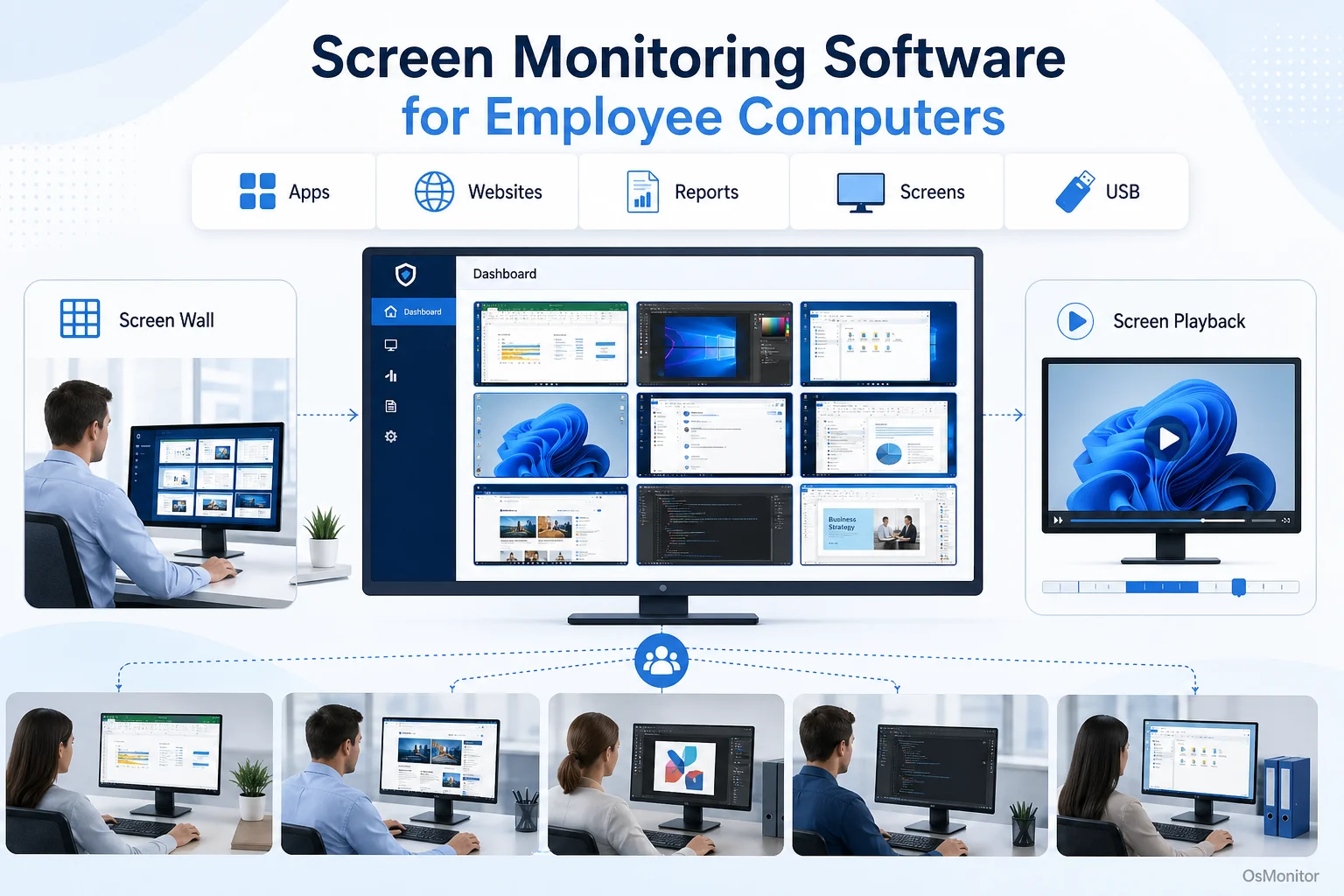
A practical overview of screen monitoring software for workplace computer management.
How Live Screen Monitoring Software Improves Team Coordination
The biggest advantage of computer screen monitoring software is the live feed. It gives you the ability to view employee desktops in real-time from a single management console. This “screen wall” setup displays live, tiled feeds from multiple computers across your network. For managers and team leads, it entirely eliminates the guesswork of daily operations.
With a solid live screen monitoring software setup, you can:
- Assess Workload Distribution: Instantly see if half the team is swamped while the other half is reading the news.
- Identify Bottlenecks: Notice if an employee has been staring at an error message for twenty minutes, indicating they need IT support.
- Verify On-Task Activity: Ensure that critical tasks are actually moving forward without having to physically hover over a desk.
- Support Remote Teams: Maintain that exact same level of visibility for your work-from-home staff using remote screen monitoring, keeping everyone perfectly aligned.
OsMonitor provides an exceptionally clean interface for this, allowing you to view dozens of screens at once. This visual data is infinitely more actionable than waiting for an end-of-day spreadsheet. As a comprehensive Employee Screen Monitoring Software, it centralizes your network visibility to build better team synergy.
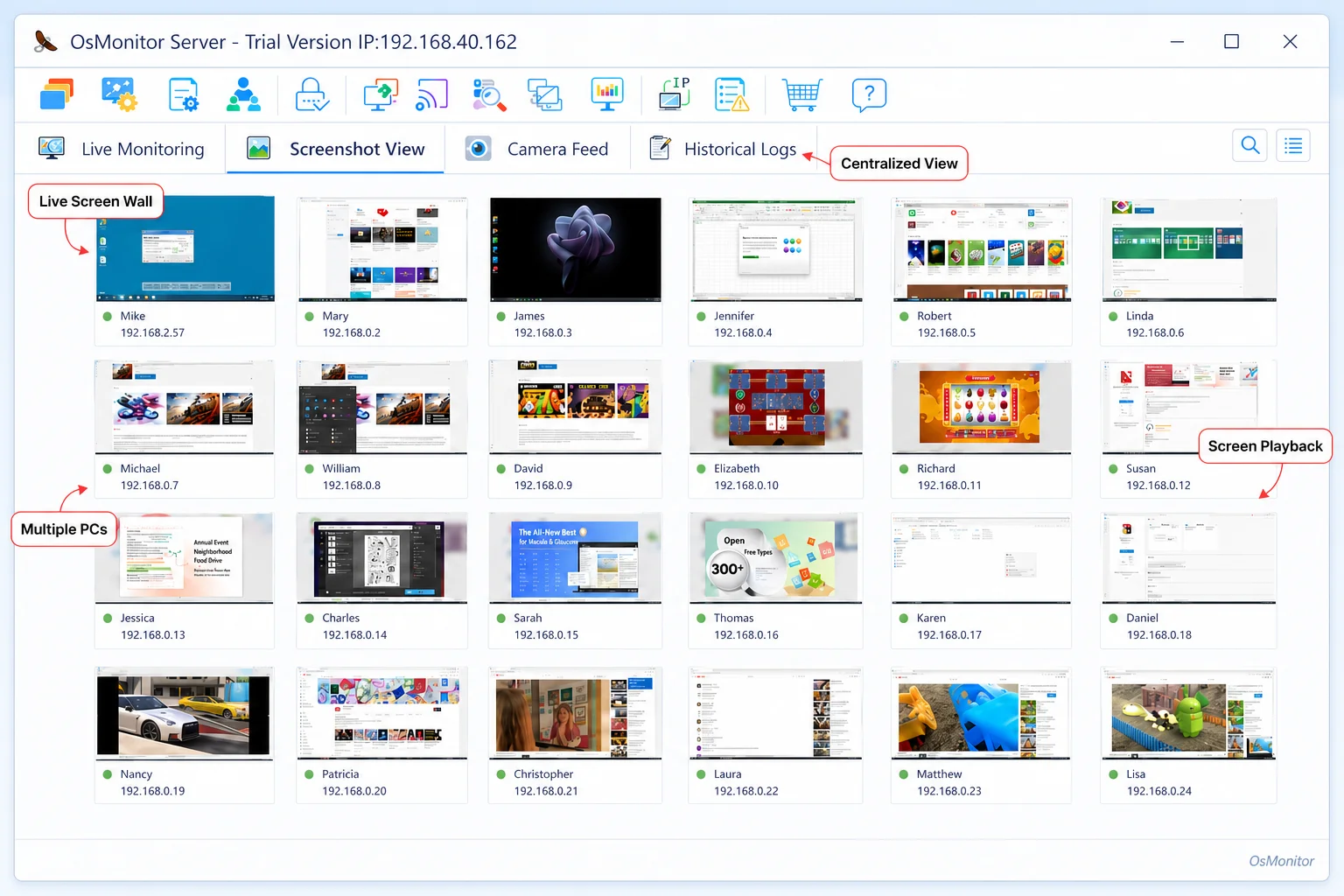
A real-product style screenshot highlighting employee screen monitoring in OsMonitor.
Key Features of a Comprehensive Screen Monitoring Program
While the live view is the star of the show, the best screen monitoring software offers a full toolkit to provide context. These features turn a simple viewing app into a robust IT administration platform.
| Feature | Description | Business Benefit |
|---|---|---|
| Live Screen Wall | View multiple employee computer screens simultaneously in a real-time grid. | Provides an at-a-glance overview of team activity, drastically improving project coordination. |
| Screen Playback | Record screen activity and play it back like a DVR. | Perfect for reviewing security incidents, clarifying workflow disputes, or saving a process for training materials. |
| Remote Assistance | Take secure control of an employee’s mouse and keyboard. | Allows IT staff to troubleshoot problems instantly without leaving their desk, minimizing downtime. |
| Activity Reports | Generate logs on application usage, website visits, and bandwidth. | Connects visual screen activity with hard data to enforce your acceptable use policies. |
Beyond these core features, a dedicated screen monitoring program needs to fit into your existing IT stack. OsMonitor operates efficiently on standard Windows networks, providing deep insights without demanding expensive proprietary server hardware.
Deployment and Data Control with Client/Server Architecture
Here is the most important question for any IT manager: where does the data go? Unlike the heavily marketed cloud SaaS products that hoover your internal logs up to their vendor servers, OsMonitor uses a strict client/server architecture. You own the data.
Here is how the computer screen monitoring deployment works:
- Server/Manager Console: You drop the OsMonitor server program on a management PC or a dedicated server inside your network. This is your central hub.
- Lightweight Client: A tiny, unobtrusive client is installed quietly on each employee’s Windows machine.
- Direct Communication: The clients send their data directly back to your server over your local area network (LAN) or a secure VPN.
This on-premise approach ensures your sensitive pc screen monitoring software logs and visual recordings never leave your building. You can even run the whole system on a disconnected LAN with zero internet access, ensuring bulletproof privacy. That’s why it’s a premier On-Premise Employee Monitoring Software for finance, healthcare, and government agencies with strict data residency rules.
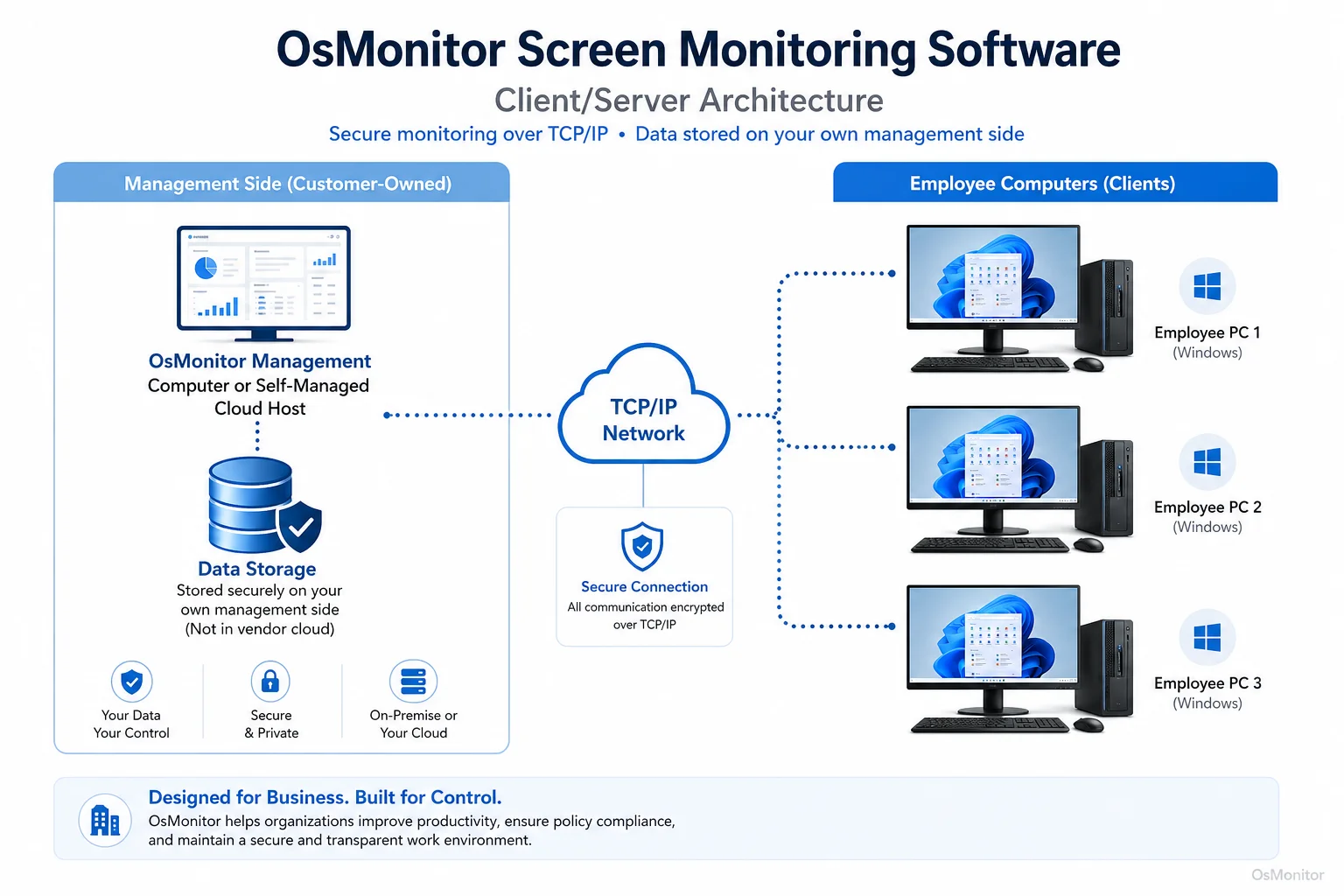
OsMonitor keeps monitoring data under the customer’s control on the management computer or self-managed server.
Implementing Screen Monitoring with Clear Workplace Policies
To keep morale high, implementing screen monitoring software must be handled transparently and strictly within legal bounds. You absolutely must establish a clear, written computer usage policy that tells your staff what is being monitored and why.
Best practices for deployment include:
- Communicate the Purpose: Make it clear that the software is there for IT support, productivity review, and policy enforcement, not for breathing down their necks.
- Define Expectations: Outline exactly what is acceptable regarding personal browsing and data handling on company hardware.
- Obtain Consent: Depending on your local labor laws, you generally need to obtain employee consent (or at least provide notification) before starting the monitoring process.
- Focus on Trends: Use the data to spot team-wide workflow issues or training gaps rather than picking on an individual for taking a five-minute mental break.
Always run your monitoring policies past local legal counsel to guarantee you are complying with all regional privacy and labor regulations.
Technical Requirements and Limitations
OsMonitor is built to be a lightweight, highly accessible tool for businesses of any size.
- Operating System: It fully supports all major Windows versions, from Windows 7 up to Windows 11, including Windows Server editions (32-bit and 64-bit).
- Hardware: No specialized hardware needed. It runs smoothly on standard office PCs.
- Client Installation: You must install the lightweight client on the target endpoint. It cannot monitor a machine without that client present.
- Network: It works flawlessly on a standard LAN. You can also configure it for remote screen monitoring software duties by utilizing a VPN or your own self-hosted cloud server.
Keep in mind, this is policy-based computer management software intended solely for authorized workplace monitoring on company-owned assets.
Frequently Asked Questions (FAQ)
What is screen monitoring software?
It is a business IT tool that allows managers or administrators to view and record the live screen activity of employee workstations. It is utilized to improve team coordination, provide remote IT support, and ensure compliance with internal policies.
Is using computer screen monitoring software legal for businesses?
In most jurisdictions, yes—employers have the legal right to monitor company-owned hardware. However, it requires a clear, written policy and usually employee notification. You must consult local legal counsel to ensure your practices comply with regional labor laws.
Some buyers search for a “free screen monitoring software” or a “screen monitoring software free” trial. Does OsMonitor offer one?
Yes. If you are looking for a way to test remote screen monitoring software free of risk, OsMonitor offers a full-featured free trial so you can evaluate its capabilities directly on your own network before purchasing.
Does OsMonitor require a client on employee computers?
Yes. As a secure client/server system, it requires a small client program to be installed on each Windows PC so it can capture the screen feed and transmit it to your central console.
Where is OsMonitor monitoring data stored?
Your data stays with you. All screen recordings and logs are stored exclusively on your own management PC or self-managed server. We do not use vendor clouds.
Can this PC screen monitoring software work without an internet connection?
Absolutely. It is fully designed to operate on a closed Local Area Network (LAN) without any internet connection, which is ideal for highly secure environments.
What Windows versions does OsMonitor support?
It supports Windows 7, 8, 10, and 11, as well as Windows Server editions (both 32-bit and 64-bit).
If you are ready to stop guessing and start seeing exactly how your network is running, an on-premise visual tool is the answer. To see how a straightforward, one-time purchase model fits your IT budget, View OsMonitor Pricing.