Employee Computer Monitoring Software for Windows PCs
I was talking to a manufacturing client recently who was facing a nightmare scenario: their proprietary engineering drawings, client quotes, and sensitive Excel models were quietly walking out the door on unmanaged USB thumb drives. This kind of data leak happens constantly across every industry, and it highlights exactly why IT departments push so hard for proper network visibility. You need a structured way to enforce policies and protect your data. Employee computer monitoring software provides exactly that—a practical, centralized solution for tracking digital workflows, enforcing security rules, and protecting sensitive business information on your Windows PCs.
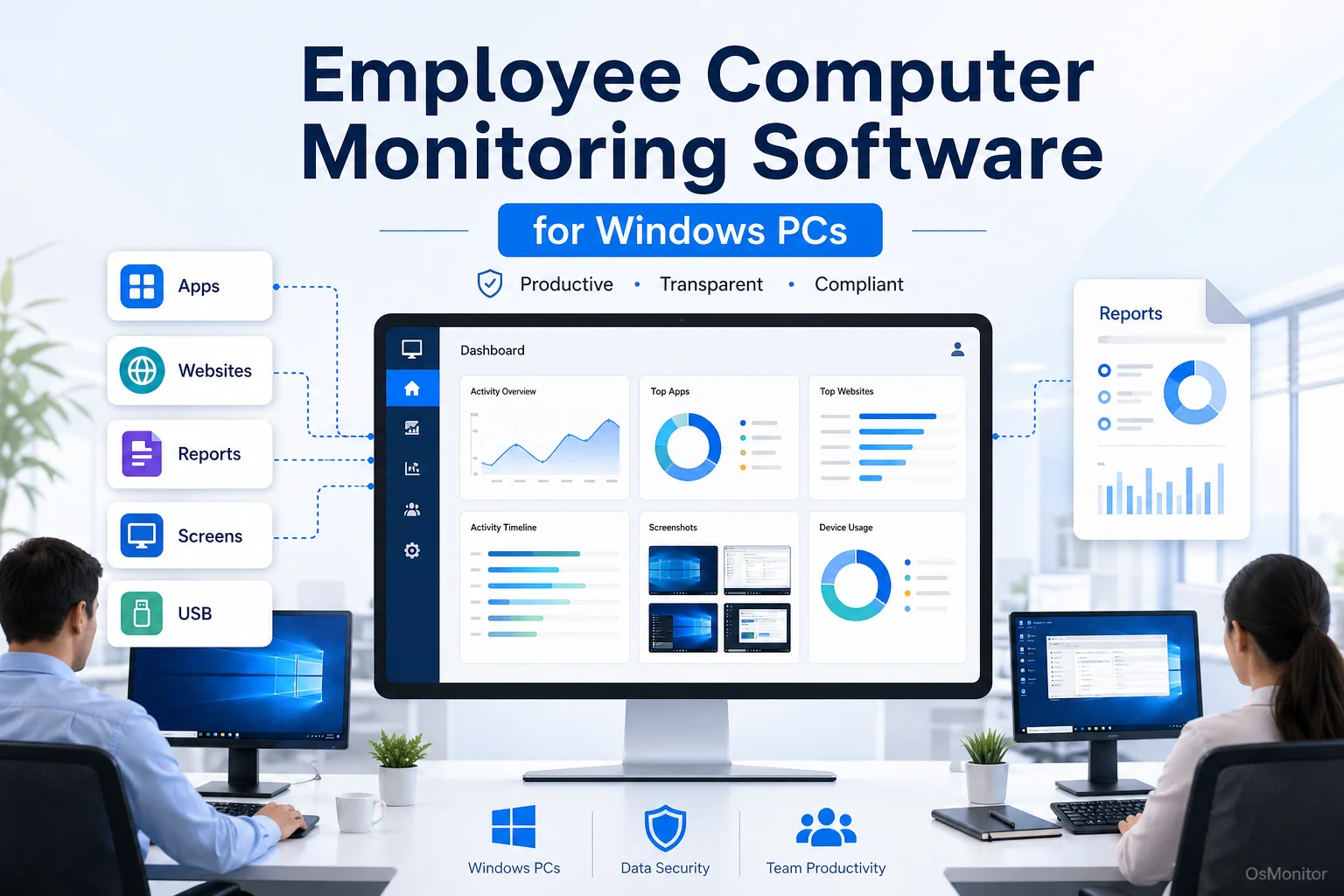
A practical overview of employee computer monitoring software for workplace computer management.
How Employee Computer Monitoring Software Works
Let’s clear the air immediately: effective employee computer monitoring isn’t about micromanaging or breathing down people’s necks. It’s about establishing systematic, transparent workplace computer management. Professional solutions, like OsMonitor, use a rock-solid client-server architecture because it’s the only way to guarantee reliability and strict data security in a business setting.
Here’s the breakdown of how to monitor employee computers effectively:
- Management Console (Server): You install the main OsMonitor server program on a dedicated machine managed by IT or department heads. This central console is your command center. It’s where you configure policies, view the dashboard, and analyze the employee computer activity management data.
- Lightweight Client: You push a small, highly efficient client program to every Windows PC you need to manage. This client runs quietly in the background, logging activity based on the rules you set, and securely transmits that data back to your server over the local network.
This on-premise structure means all your sensitive logs stay on your own hardware. You aren’t relying on a third-party cloud vendor, making this the perfect setup for organizations that take data privacy seriously. This architecture is the backbone of On-Premise Employee Monitoring Software, giving businesses total ownership of their operational data.
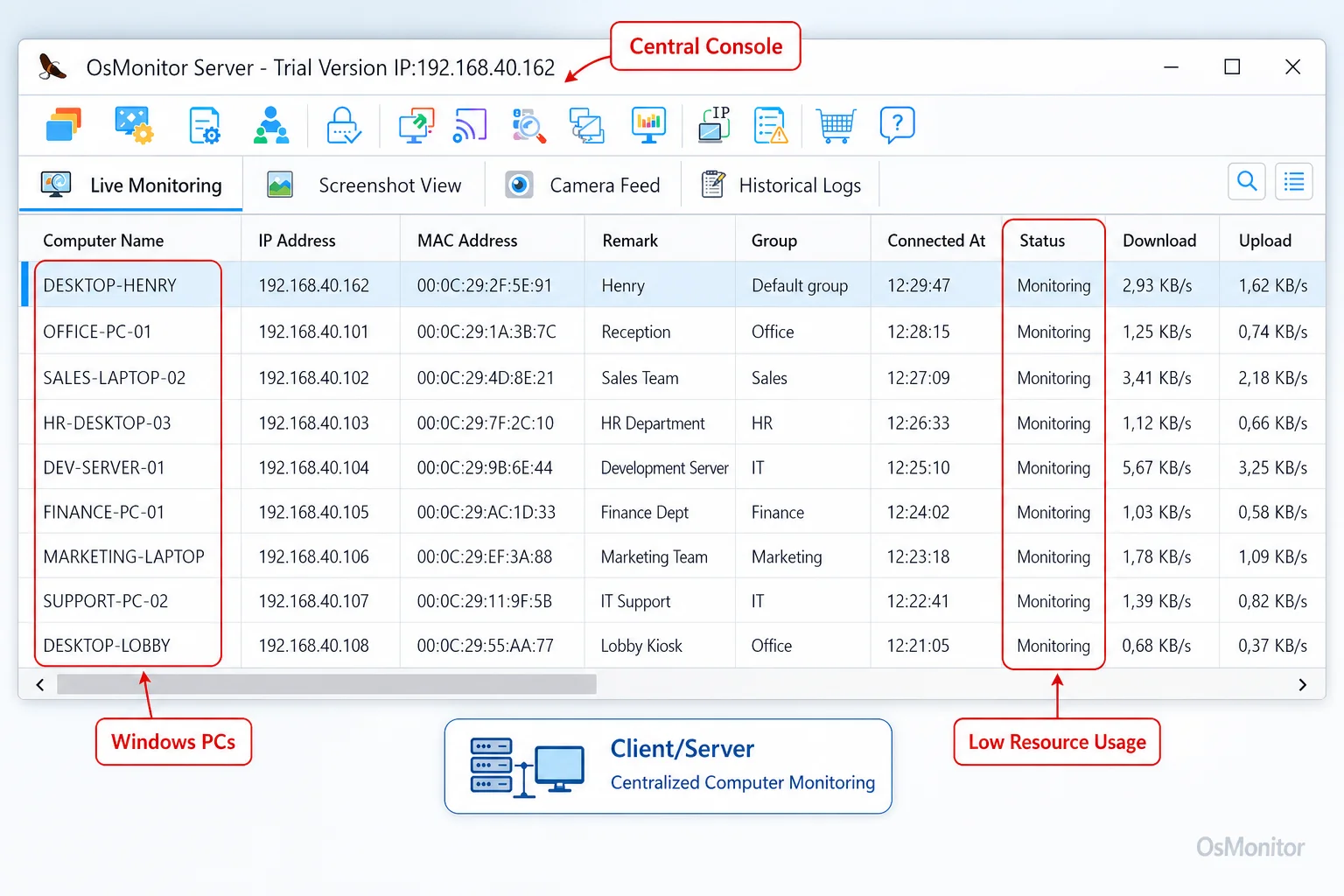
A real-product style screenshot highlighting centralized computer monitoring in OsMonitor.
Core Features for Workplace Computer Management
When you decide to monitor employee computer use, the goal is to gather data that actually helps you improve workflows, secure your assets, and ensure compliance. A modern employee computer monitor does this through practical features, not just raw observation.
Analyzing Software and Website Usage
If you want to know how to monitor employee computer activity effectively, start with time allocation. OsMonitor logs every application opened and every website visited, tracking the actual active duration. Managers use these computer usage reports to:
- Identify which software tools are critical for daily operations.
- Spot excessive time drained by non-work websites or social media.
- Verify that expensive, licensed software is actually being used.
- Find productivity bottlenecks where a team might need better training or different tools.
Tracking File Operations and Device Usage
To stop the kind of data leaks my manufacturing client faced, tracking file movement is non-negotiable. Employee computer tracking software must log file operations—creation, deletion, renaming, and especially copying to external USB drives. This lets IT administrators:
- Get alerts if sensitive files are suddenly copied to removable storage.
- Keep a strict audit trail of document access.
- Lock down unauthorized USB devices or force them into read-only mode.
- Monitor web downloads to stop malware or unauthorized software before it hits the network.
Generating Departmental and Individual Reports
Raw data is useless if you can’t read it. The true value of software to monitor employee computer activity lies in its reporting engine. You can filter data by individual, department, or date range. These department activity reports highlight:
- Active work hours versus idle time.
- The most frequently used applications and websites.
- Violations of your acceptable use policy.
- Heavy bandwidth consumption and download patterns.
This gives managers the objective data they need for fair performance reviews and helps IT justify future hardware or software investments.
| Feature Area | Business Application | OsMonitor Implementation |
|---|---|---|
| Application Tracking | Measure productivity, ensure software license compliance, identify unauthorized software use. | Logs active/idle time for each application; generates usage reports by user or department. |
| Website Monitoring | Enforce acceptable use policies, reduce time on non-work sites, block malicious websites. | Records all URLs visited, tracks time spent, allows for website blocking by category or keyword. |
| File & USB Tracking | Prevent data leakage, monitor access to sensitive documents, maintain audit trails. | Logs file copies to USB drives, tracks document access, and allows for USB port control (block/read-only). |
| Centralized Reporting | Provide managers with data for performance reviews, workflow analysis, and policy enforcement. | Generates detailed reports on computer activity, violations, and usage trends for individuals or teams. |
Deployment, Data Ownership, and System Requirements
The biggest advantage of client-server employee computer use monitoring software like OsMonitor is that you own the deployment. The system lives inside your infrastructure.
You can run the entire setup offline within a Local Area Network (LAN). This is mandatory for high-security environments like financial firms, government contractors, or research labs that require air-gapped networks. If you are managing multiple branches and need to track employee computer activity remotely, you can host the server on your own private cloud (like AWS or Azure) or connect via VPN. By focusing purely on Windows Employee Monitoring Software, it integrates flawlessly into standard IT environments.
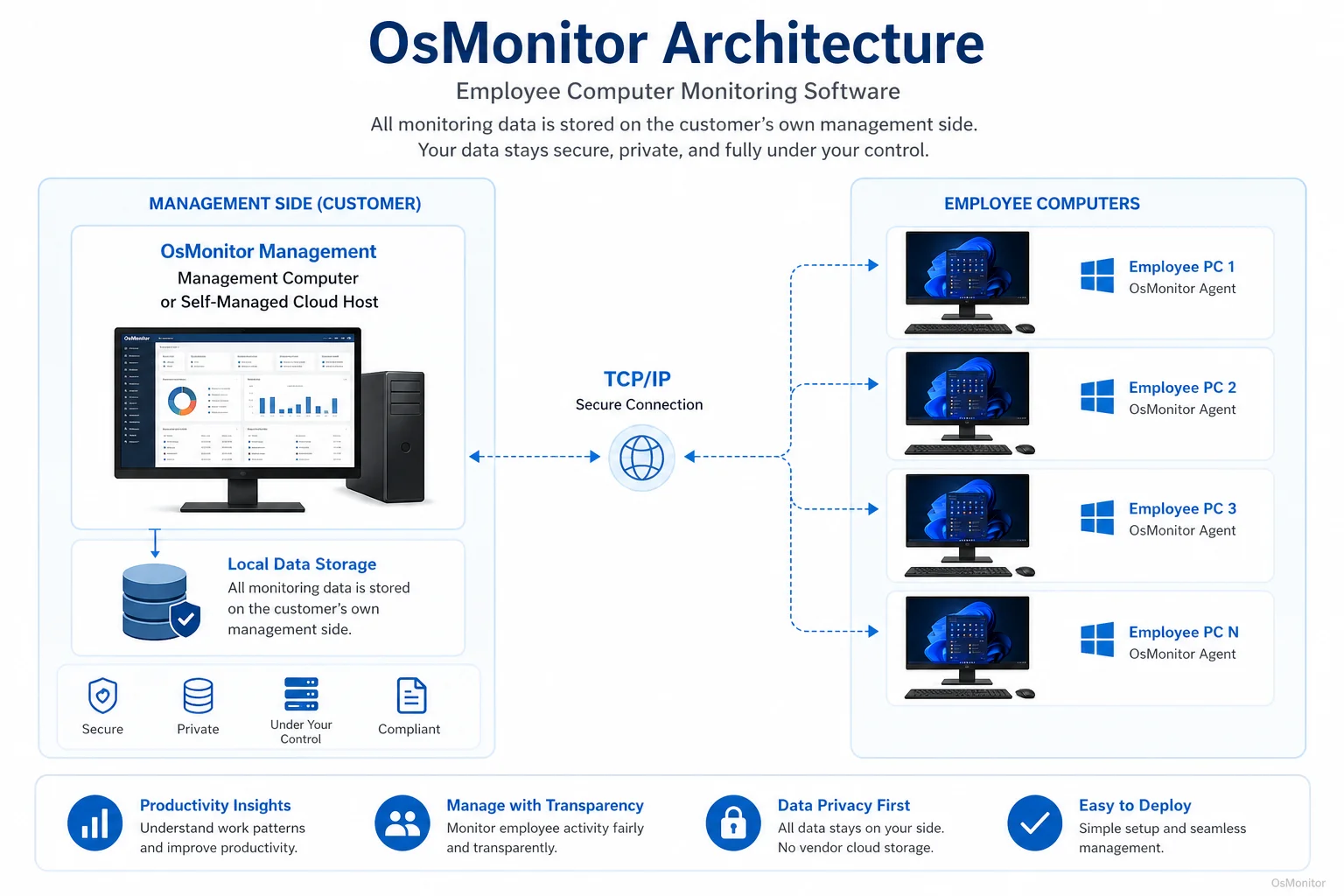
OsMonitor keeps monitoring data under the customer’s control on the management computer or self-managed server.
Compatibility and Efficiency
OsMonitor is built to be lean and highly compatible:
- Operating System: Full support for Windows 7, 8, 10, and 11, plus Windows Server editions (32-bit and 64-bit).
- Client Size: The endpoint agent is tiny—under 2MB—meaning it won’t bog down the host machine.
- Hardware: It runs on standard Windows PCs; no proprietary hardware required.
Implementing Monitoring Policies and Legal Considerations
When you decide to monitor employee computer usage, the rollout must be handled professionally. It should be part of a broader strategy for policy-based computer management.
Best Practices for Implementation:
- Create an Acceptable Use Policy (AUP): Write down exactly what is and isn’t allowed on company hardware and networks.
- Inform Employees: Be transparent. Let your team know that you are monitoring employee computer use in the workplace for security, productivity, and compliance reasons. Put it in the employee handbook.
- Focus on Business Outcomes: Use the employee activity records to fix broken processes, provide IT support, and reward hard work, rather than just acting as a disciplinarian.
- Consult Legal Counsel: Privacy and labor laws differ heavily by region. Always consult a legal professional to ensure your approach to monitoring employee computer activity is fully compliant.
Frequently Asked Questions
What is employee computer monitoring software?
It is a business tool utilized by IT and management to track and manage how company-owned PCs are used. It helps improve productivity, secure sensitive data, enforce acceptable use policies, and maintain compliance.
Some buyers search for “how to monitor employee computer” or ask about “employers monitoring employee computer use.” Is it legal?
Yes, in most jurisdictions, it is legal for businesses to monitor their own property, including PCs and networks, for legitimate business purposes. However, transparency is legally and ethically required. You must have a written policy and inform employees of the monitoring. Always consult local legal counsel first.
Does OsMonitor require a client on employee computers?
Yes. To monitor employee computer activity accurately, a lightweight client program must be installed on each Windows machine. This client talks securely to your central management server.
Where is OsMonitor monitoring data stored?
Your data stays with you. It is stored directly on the machine where you install the OsMonitor server console or on a private cloud server you control. We never store your data on our vendor servers.
Can OsMonitor work without an internet connection?
Absolutely. It can run entirely offline within a closed Local Area Network (LAN), making it perfect for high-security, internet-restricted environments.
What Windows versions does OsMonitor support?
It supports Windows 7, 8, 10, and 11, as well as Windows Server editions (both 32-bit and 64-bit).
By establishing clear visibility over your network, you empower your business to manage digital resources securely and efficiently. If you are ready to implement these controls, Download OsMonitor Free Trial and test its capabilities in your own environment.