Desktop Monitoring Software for Office PCs
As an IT manager, one of the most common complaints I hear from business owners is the lack of visibility into their own network. You know your staff is logging hours, but you have no clear way to turn raw data—like computer usage records, website visits, and application time—into readable, actionable reports. Without this clarity, it’s impossible to spot workflow bottlenecks, ensure compliance with your internal IT policies, or protect sensitive company data. This is exactly where effective desktop monitoring and management software steps in. It bridges the gap between guessing and knowing by consolidating all that scattered activity into a single, structured dashboard.
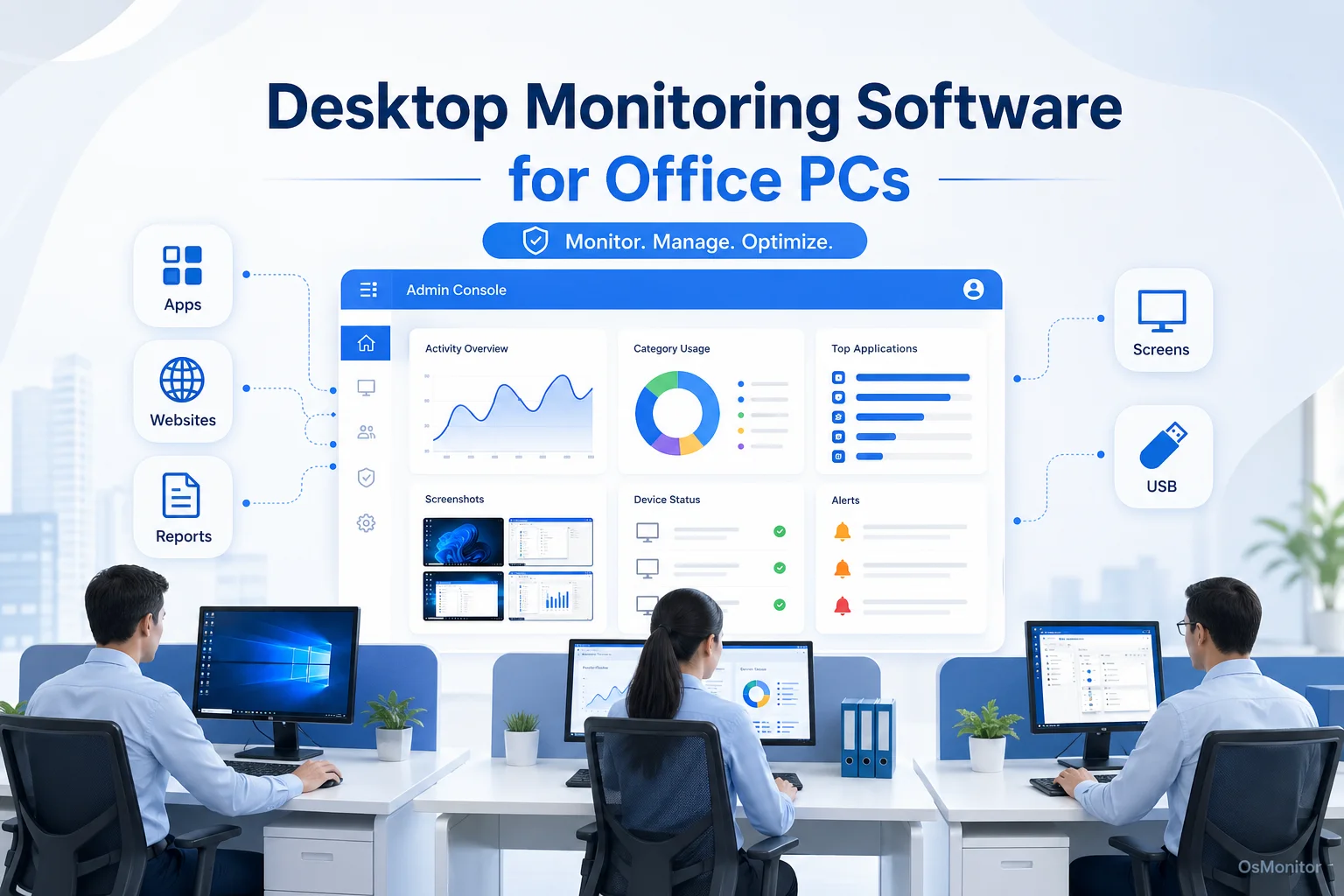
A practical overview of desktop monitoring and management for workplace computer management.
What is Desktop Monitoring and Management?
If you are wondering, “what is desktop monitoring?”, it is simply the IT practice of overseeing and administering how company-owned computers are utilized during business hours. It involves deploying specialized desktop monitoring software to track daily activities, enforce your Acceptable Use Policies (AUP), and gather objective data. The goal isn’t just to watch; it’s to manage your hardware and staff effectively.
A solid desktop monitoring tool helps you hit these key objectives:
- Productivity Analysis: By tracking exactly which applications and websites your team uses (and for how long), you can easily distinguish between focused work and digital distractions.
- Policy Enforcement: You can automatically lock down the network by blocking non-work URLs, restricting unauthorized executables, and preventing data theft via USB drives.
- Asset Management: It allows IT to track software usage, ensuring you aren’t overpaying for unused licenses while keeping tabs on network health.
- Operational Transparency: Providing department heads with clear, data-driven desktop monitoring reports replaces “gut feeling” performance reviews with hard facts.
A well-implemented suite is the backbone of any modern IT management strategy, giving you the visibility required to make smart decisions.
Centralized Desktop Monitoring with OsMonitor
OsMonitor is a classic, highly stable client/server-based system built specifically for this purpose. Unlike clunky hardware appliances, it works by deploying a tiny, lightweight client to each employee’s Windows PC. These endpoints then report back securely to a single, centralized management console sitting on your IT administrator’s desk. This architecture delivers incredibly efficient, real-time oversight of your entire network from one screen.
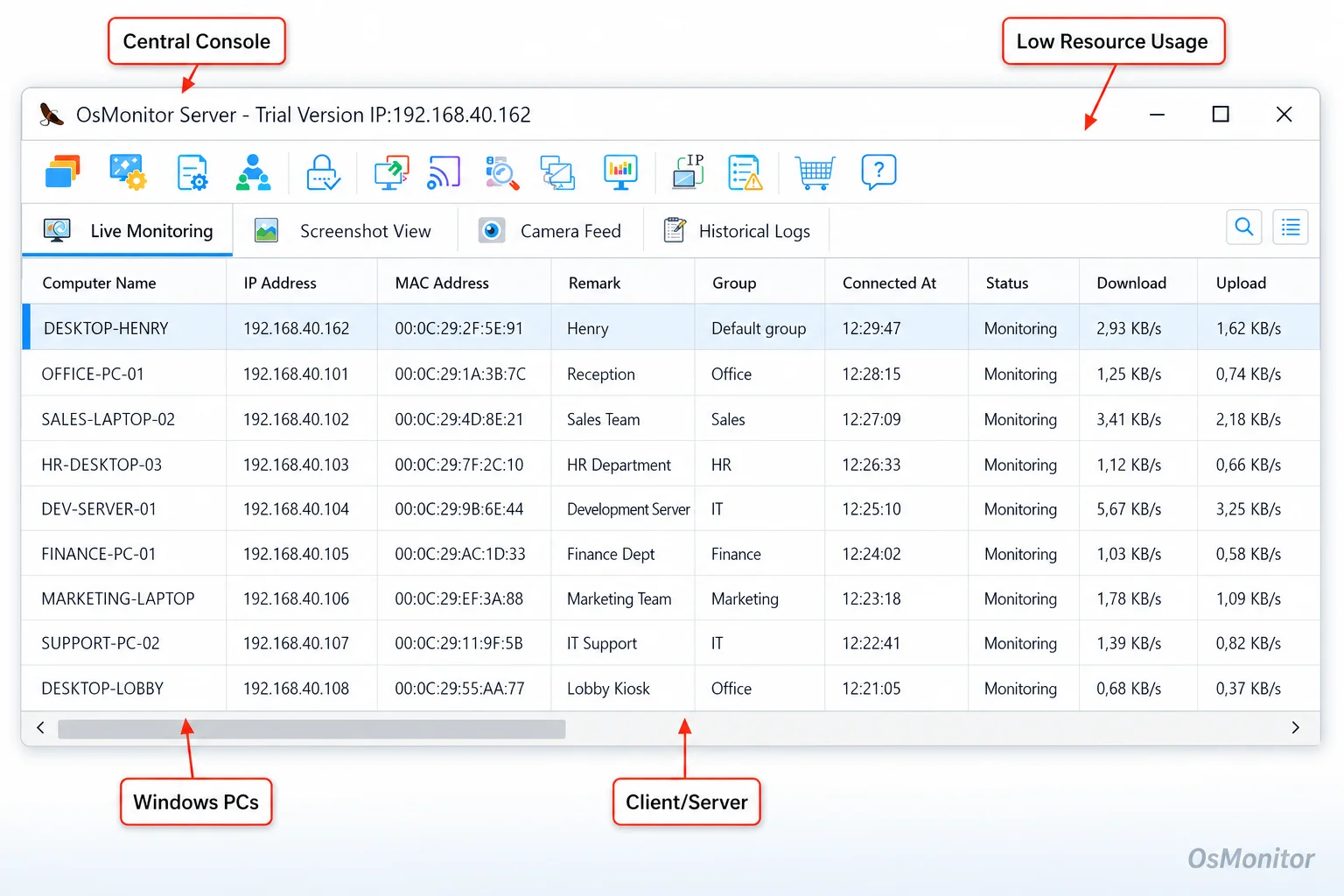
A real-product style screenshot highlighting centralized computer monitoring in OsMonitor.
As you can see in the interface example above, the management console provides a massive, comprehensive dashboard. From here, you can view live screens, pull up historical web and app logs, audit file transfers, and generate clean summary reports for specific users or whole departments. This centralized model entirely eliminates the need to physically walk over to a machine to check its status. It transforms raw, chaotic logs into an organized format. If you need to manage your hardware efficiently, this type of Computer Monitoring Software is an absolute necessity.
Key Features of a Desktop Monitoring Tool
The best desktop monitoring tools go far beyond just snapping screenshots. They offer a complete toolkit to understand workflows and proactively enforce your company policies.
Application and Website Usage Tracking
The foundation of any good system is the activity log. The software automatically records the start and end times for every application launched and website visited, calculating the exact active duration. This data is vital for:
- Identifying Top Applications: See exactly which tools are driving your business and which expensive licenses are collecting dust.
- Detecting Unauthorized Software: Get instant alerts if someone tries to install a restricted program.
- Analyzing Browsing Habits: Separate the hours spent on critical industry research from the hours burned on social media.
Real-Time Screen Viewing and History Playback
Live screen monitoring lets managers view an employee’s desktop as it happens. This is a game-changer for IT staff providing remote helpdesk support, or for supervisors verifying workflow during a crunch period. Furthermore, the system captures screenshots at regular intervals to build a historical playback reel. This acts as an undeniable visual record for clarifying workflow disputes or reviewing security incidents.
Policy Enforcement and Alerts
Monitoring is only half the battle; enforcement is the other. A robust tool allows you to proactively lock down the environment:
- Website Blocking: Instantly deploy blacklists to block access to streaming, gaming, or adult content.
- Application Control: Stop the execution of time-wasting software or risky peer-to-peer clients.
- Device Control: This is critical for data security. You can block USB thumb drives entirely or force them into read-only mode to prevent staff from walking out with sensitive files.
- Keyword Alerts: Set triggers so management is notified the second a specific, high-risk keyword is typed on the network.
Comprehensive Reporting and Analytics
The true ROI of desktop monitoring is found in the reporting engine. The software aggregates massive amounts of data into clean, readable summaries:
- Attendance and Work Hours: Track actual active time versus idle time away from the keyboard.
- Productivity Metrics: Compare the ratio of time spent in core business apps versus distracting websites.
- Bandwidth Usage: Instantly spot the machine that is hogging the internet with massive downloads.
- File Operations: Build a strict audit trail of file creation, copying, deleting, and printing.
Deployment and Data Ownership: The On-Premise Advantage
Data privacy is a massive concern right now. Unlike the endless wave of heavily marketed cloud SaaS subscriptions that store your logs on their vendor servers, OsMonitor is built strictly for on-premise deployment. All your data is stored directly on your own hardware.
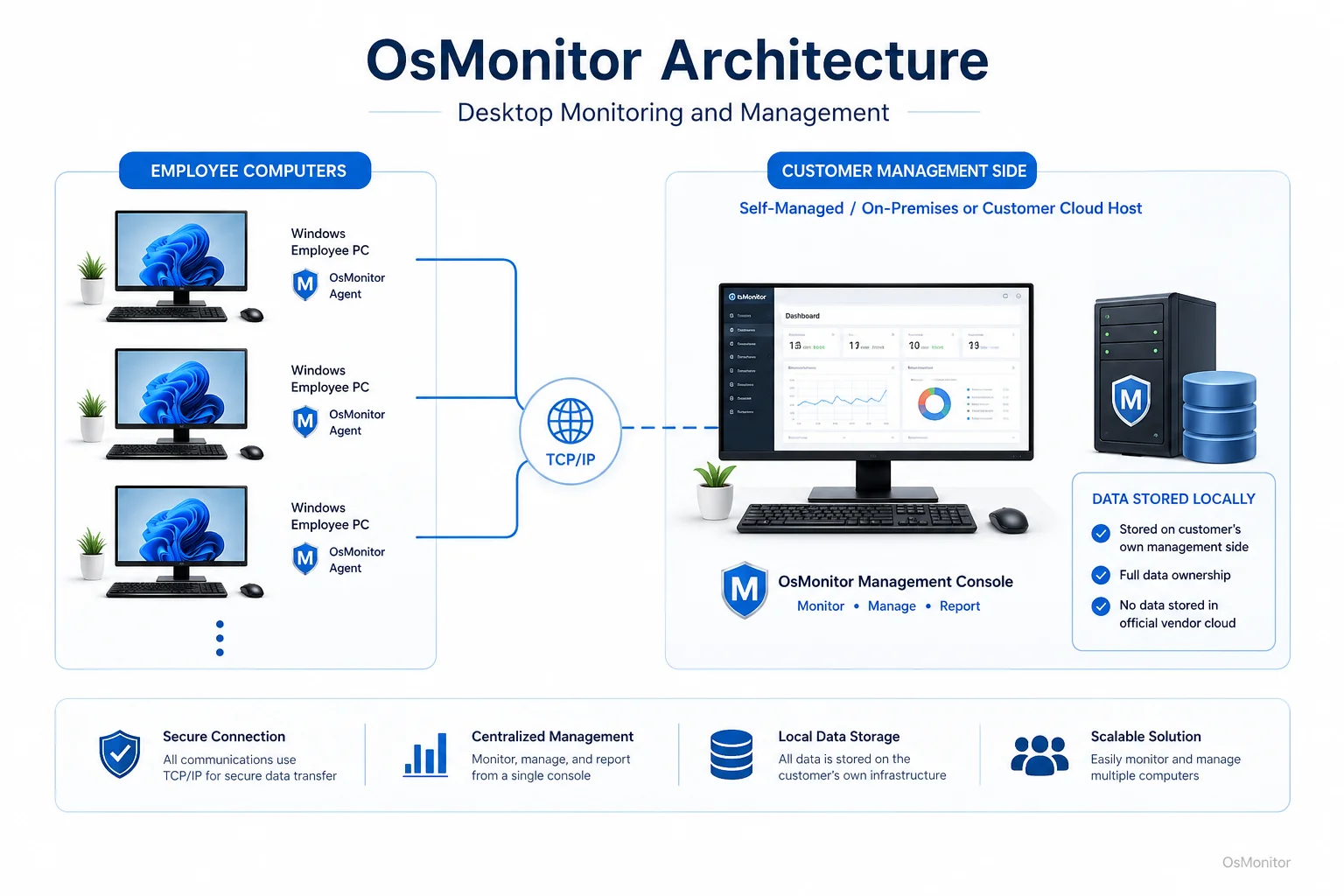
OsMonitor keeps monitoring data under the customer’s control on the management computer or self-managed server.
This client/server architecture is vastly superior for data security:
- Complete Data Control: You own the logs. Nothing is ever transmitted to a third-party vendor cloud.
- Enhanced Security: Keeping your sensitive operational data inside your local network drastically reduces your exposure to external breaches.
- LAN-Only Operation: The system functions flawlessly within a closed Local Area Network (LAN) without needing an internet connection. This is mandatory for highly secure facilities.
- Predictable Costs: You pay a one-time purchase fee. There are no recurring monthly SaaS subscriptions to drain your budget.
If your business prioritizes data sovereignty, an On-Premise Employee Monitoring Software setup is the only logical choice.
System Requirements and Compatibility
OsMonitor is engineered to be incredibly lightweight. It integrates into your existing network without demanding expensive server upgrades or slowing down older workstations.
| Feature | Specification | Benefit |
|---|---|---|
| Supported OS | Windows 7, 8, 10, 11 & Server | Broad compatibility with almost all existing office PCs. |
| Architecture | 32-bit and 64-bit | Works perfectly on both legacy and modern hardware. |
| Client Size | Under 2MB | Absolutely minimal impact on endpoint performance. |
| Deployment | Software-only | No expensive proprietary hardware appliances required. |
This lean profile makes it an ideal fit for any size business, from a five-person startup to a massive enterprise floor.
Legal and Ethical Considerations for Desktop Monitoring
When you deploy these tools, you must do so ethically and legally. The goal is to protect your assets and streamline productivity, not to play “Big Brother.”
Follow these best practices:
- Develop a Clear Policy: Write an Acceptable Use Policy (AUP) that explicitly states company-issued hardware is monitored.
- Ensure Transparency: Do not hide the software. Tell your staff what is being monitored and why it is necessary for network security.
- Monitor Business-Related Activities: Focus your monitoring strictly on work-related tasks during business hours.
- Comply with Local Laws: Privacy and labor laws vary heavily by region. You must consult local legal counsel to ensure your deployment is 100% compliant.
By rolling out the software transparently, you build a culture of accountability without sacrificing team trust.
Frequently Asked Questions (FAQ)
What is desktop monitoring and management?
It is the IT practice of utilizing specialized software to oversee how company-owned computers are used. It tracks app and web usage, enforces security policies (like USB blocking), and generates productivity reports to streamline operations.
Is desktop monitoring and management legal for businesses?
In most jurisdictions, yes. Employers have the right to monitor their own property for legitimate business reasons. However, privacy laws vary. You must establish a clear written policy, notify your employees, and consult legal counsel before deployment.
Some buyers search for “free desktop monitoring”. Is that safe?
Searching for entirely free software in this category is risky. Free tools usually lack basic security, offer zero support, or monetize by selling your internal data. However, professional tools like OsMonitor offer a full-featured free trial so you can evaluate the software securely on your own network.
Does OsMonitor require a client on employee computers?
Yes. OsMonitor utilizes a highly secure client/server model. A lightweight client application must be installed on each endpoint you intend to manage so it can report back to your console.
Where is OsMonitor monitoring data stored?
Your data stays with you. All logs and screen recordings are stored exclusively on your own management PC or internal server. It never touches OsMonitor vendor servers.
Can OsMonitor work without internet in a LAN?
Absolutely. It is designed to function perfectly within a closed Local Area Network (LAN) without any internet connection, making it ideal for air-gapped environments.
What Windows versions does OsMonitor support?
It supports Windows 7, 8, 10, and 11, along with Windows Server editions (both 32-bit and 64-bit).
If you are ready to take back control of your network and start making data-driven management decisions, a self-hosted solution is the best path forward. Download OsMonitor Free Trial to test the full suite of features securely within your own environment.