Best Productivity Software and Tools for Workplace Teams
I was talking to a small business owner recently who was pulling his hair out. His team’s output had tanked, and he strongly suspected that hours were bleeding away into browser games, streaming video, and endless social media feeds. The problem wasn’t a lack of effort; it was a lack of focus. He needed a way to set firm boundaries on web access and actually review how company time was being spent. If you are in the same boat, you are probably starting to research the best productivity tools for professionals. You don’t just need a to-do list; you need a system that gives you visibility and control over your network, forming the backbone of a modern, data-driven management strategy.
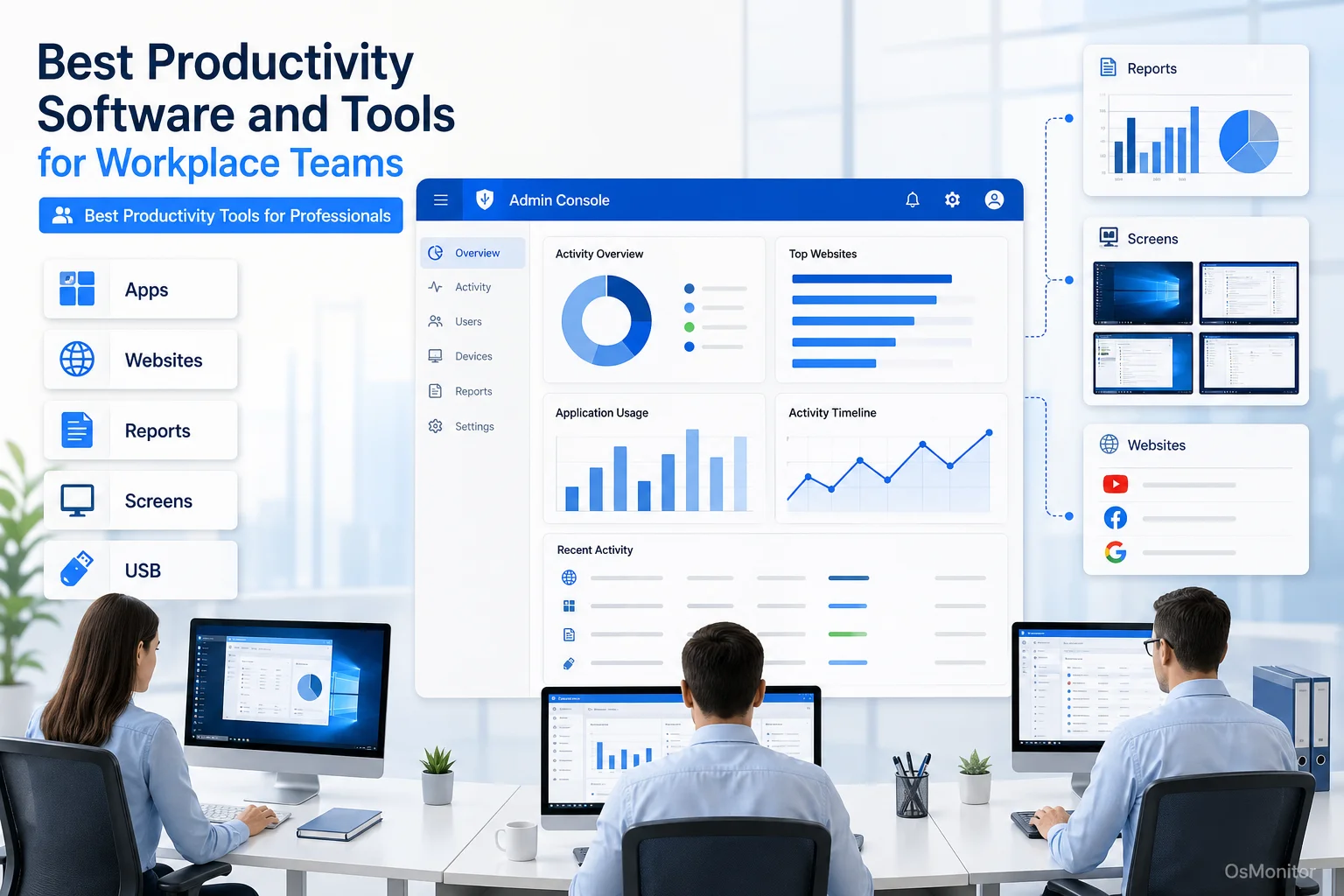
A practical overview of best productivity tools for professionals for workplace computer management.
How to Choose the Best Productivity Tools for Professionals
If you are looking for the best productivity software for small business, do not just compare marketing checklists. You have to look at the architecture. For a business running a fleet of Windows PCs, the right tool has to map to your security policies and your budget.
Here is what you need to evaluate:
- Deployment Model: Does it run in the cloud (SaaS), or is it installed on your own hardware (on-premise)? On-premise solutions give you absolute control over your network and can even run offline.
- Data Ownership and Privacy: This is huge. Cloud-based SaaS tools store your sensitive employee logs on their vendor servers. On-premise tools keep that data locked down on your own management PC.
- Platform Compatibility: It has to fit your hardware. If your office runs entirely on Windows, a dedicated Windows Employee Monitoring Software is vastly more stable than a generic, cross-platform web app.
- Reporting and Analytics: You need hard data, not guesses. The best team productivity tools provide clear reports on active application time, exact URL histories, and idle time per user or department.
- Policy Controls: Passive monitoring isn’t enough. You need the power to enforce your Acceptable Use Policy by actively blocking specific websites, executables, or USB thumb drives.
- Pricing Clarity: Are you paying a monthly subscription forever, or is it a one-time fee? For predictable IT budgets, perpetual licenses are almost always the better long-term choice.
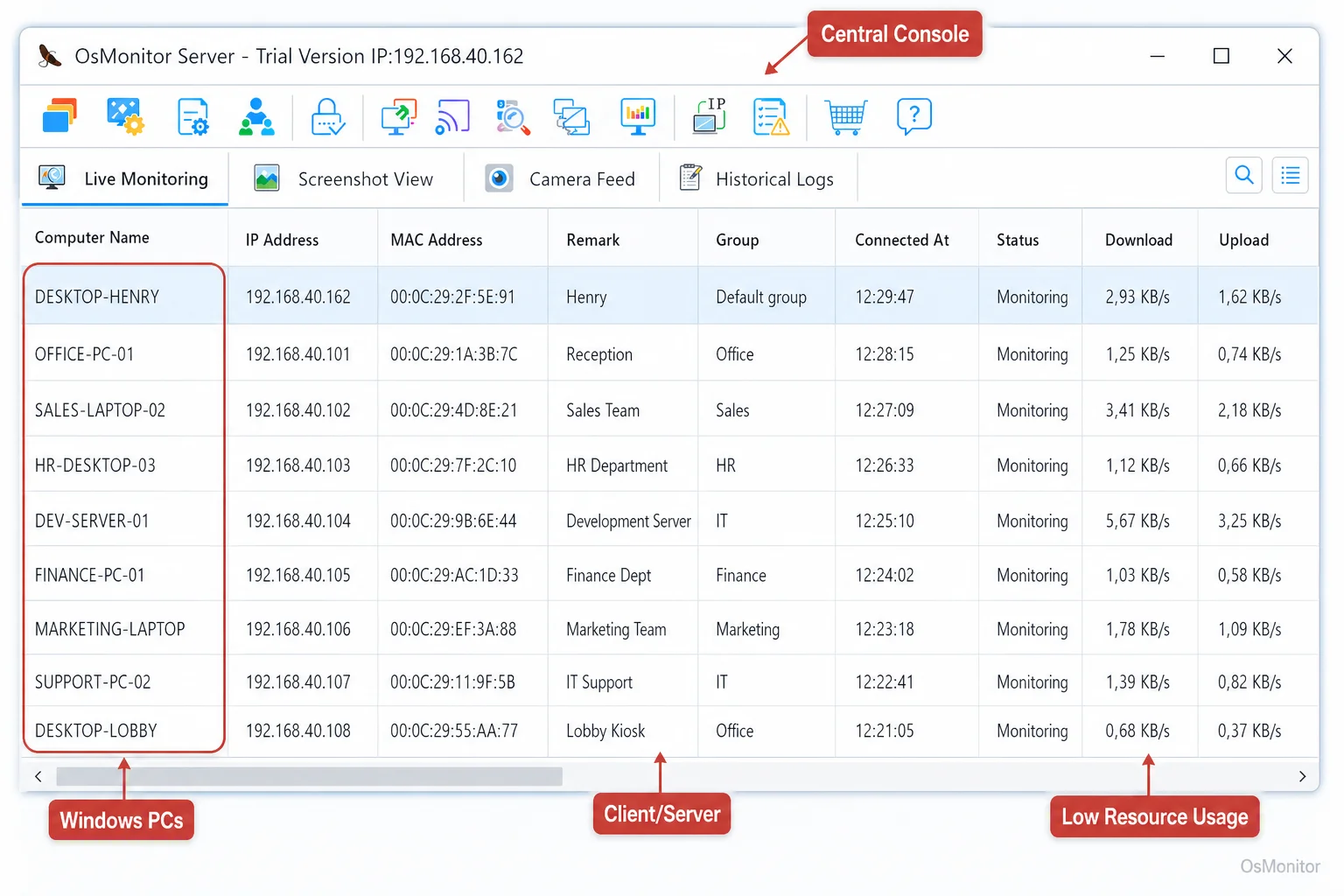
A real-product style screenshot highlighting centralized computer monitoring in OsMonitor.
Common Types of Productivity Software for Businesses
When executives ask me, “what are the best business productivity apps?”, I usually tell them they are looking at a fragmented market. Understanding the categories helps you buy what you actually need.
Cloud-Based SaaS Project Management Tools
These are the household names: Asana, Monday.com, Trello. They are fantastic for tracking tasks and moving digital sticky notes across a board. However, they are totally blind to what actually happens on the computer. They don’t monitor application usage or stop someone from browsing Reddit all day.
Time Tracking Software
Tools like Harvest or Toggl Track are essentially digital stopwatches. They are great for freelancers billing by the hour. But for internal management, they fail because they rely on manual input and provide zero insight into how that logged time was actually spent.
On-Premise Computer Monitoring Software
This is where robust solutions like OsMonitor live. These tools are installed directly on your own server. They log detailed activity, enforce IT policies, and generate undeniable productivity reports. This is a critical category of On-Premise Employee Monitoring Software, heavily favored by finance, legal, and healthcare sectors that refuse to store sensitive data in a public cloud.
All-in-One Collaboration Suites
Microsoft 365 and Google Workspace are the plumbing of your business. You need them for email and docs, but they completely lack the specialized IT features required to track active app time or block distracting websites network-wide.
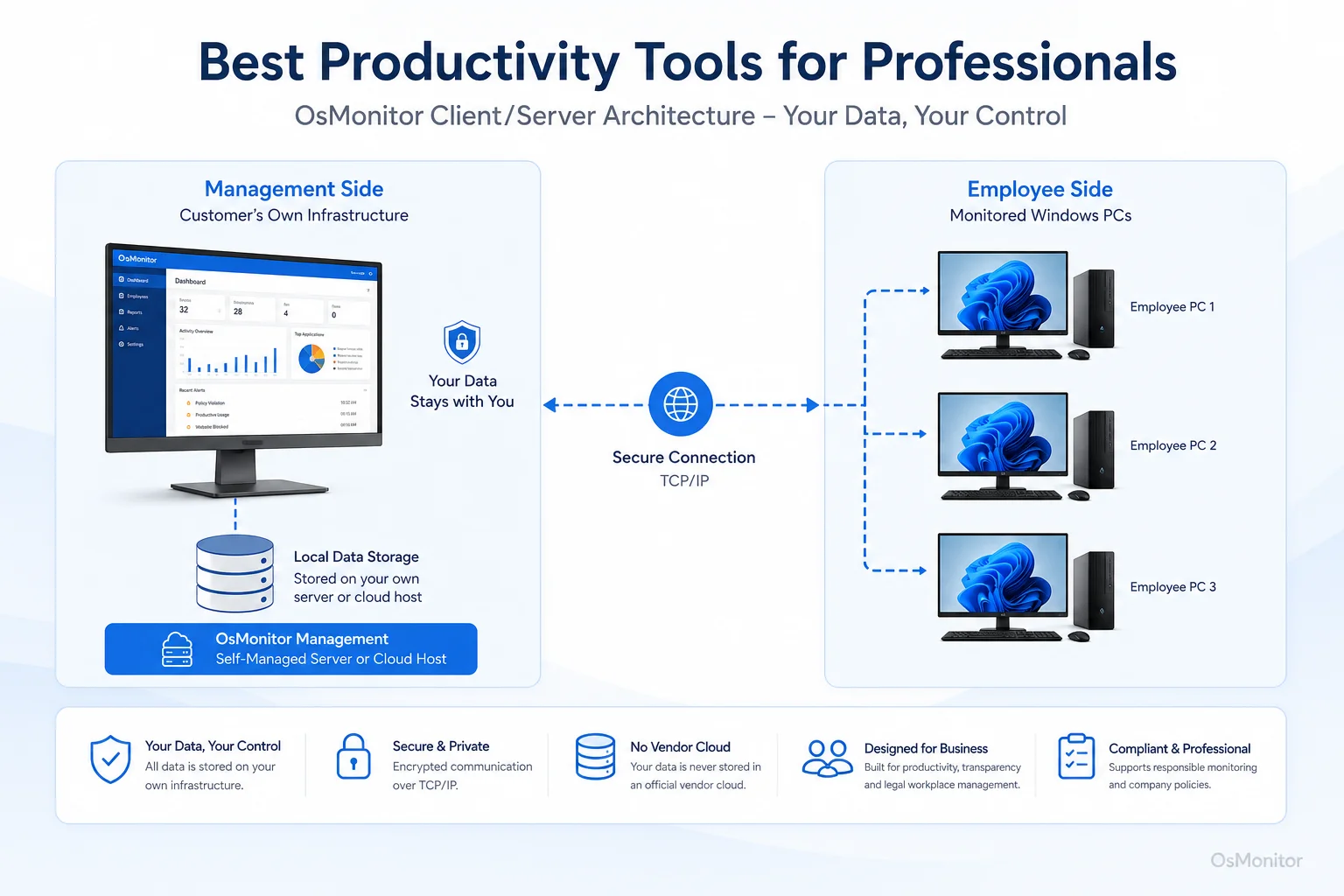
OsMonitor keeps monitoring data under the customer’s control on the management computer or self-managed server.
Where OsMonitor Fits in Your Productivity Toolkit
If you are looking for the best enterprise productivity tools for businesses to manage a Windows network, OsMonitor is a premier choice. It is a highly stable, client/server-based IT management suite. It operates strictly on-premise, meaning all logs are stored locally on your management PC. Your sensitive data never touches a vendor’s cloud.
The architecture is simple: you install the server console on your IT machine and push a tiny, tamper-resistant client to the employee endpoints. This gives you a unified dashboard to pull reports and enforce blocking rules. For founders seeking the best productivity tools for small business owners, it provides a secure, centralized system for Employee Activity Monitoring Software without the privacy risks of third-party SaaS.
OsMonitor isn’t a task manager or a manual stopwatch. It manages the foundational layer: ensuring that company hardware and paid hours are actually dedicated to business.
Key OsMonitor Features for Workplace Productivity
Here is exactly how OsMonitor tackles common office distractions.
| Feature | Description & Productivity Benefit |
|---|---|
| Website & Application Monitoring | Logs exact active time spent on URLs and executables. Instantly separates productive focus from digital distraction. |
| Website/App Blocking | Deploy strict blacklists to kill access to streaming sites, social media, or unauthorized games during core hours. |
| Real-Time Screen Monitoring | View a live, multi-screen wall of your office desktops. Invaluable for QA training and quick workflow checks. |
| Productivity Reports | Generates undeniable, visual reports on software usage and bandwidth hogs by individual or department. |
| USB Device Control | Lock down USB ports entirely or force read-only mode to secure intellectual property. |
| Document Backup | Automatically saves specified file types from endpoints directly to the server, creating a safety net for critical work. |
| Remote Assistance | IT can securely take over an employee’s mouse and keyboard to fix issues instantly without leaving their desk. |
Limitations and Ideal Use Cases
You have to ensure the software matches your environment.
Limitations:
- Windows-Only: It is built exclusively for Windows (Windows 7 and up, including Server). It does not support Mac or Linux.
- Client Installation Required: It is not an “agentless” web tool. A lightweight client must be installed on every endpoint to enforce your rules.
- On-Premise Focus: It requires you to host the server console on your own PC or private cloud instance.
Ideal Use Cases:
OsMonitor is one of the best productivity software choices for organizations that:
- Run primarily on Windows PCs.
- Demand 100% data privacy and want all logs stored locally.
- Need to actively enforce AUP policies (like blocking sites).
- Want a one-time purchase to avoid endless SaaS subscription fatigue.
FAQ about the Best Productivity Software
What are the best productivity tools for online business owners?
It depends on the workflow. For task tracking, use project management tools (Asana). But if you need to manage remote Windows PCs, enforce security, and track actual active application time, a self-hosted monitoring suite like OsMonitor is the professional standard.
Is using productivity monitoring software legal for businesses?
In almost all jurisdictions, yes. Employers have the right to monitor the use of their own hardware. However, privacy laws vary heavily by region. You must maintain transparency, establish a written AUP, and consult local legal counsel before deployment.
Some buyers search for “best free productivity software”. Are there free monitoring tools?
If you are searching for what is the best free productivity software for pc, understand that truly free network monitoring tools are risky. They usually lack basic security and monetize by selling your internal data. Professional IT requires paid, secure solutions. However, OsMonitor offers a full-featured free trial to test the software safely.
Does OsMonitor require a client on employee computers?
Yes. It utilizes a highly stable client/server architecture. A lightweight client application must be installed on each endpoint you intend to manage.
Where is OsMonitor monitoring data stored?
Your data stays with you. All logs and screen recordings are stored exclusively on your own management PC or internal server. We never use third-party vendor clouds.
Can OsMonitor work without internet in a Local Area Network (LAN)?
Absolutely. Because it is an on-premise solution, it is designed to operate flawlessly within a closed LAN without any internet access, making it essential for high-security environments.
What Windows versions does OsMonitor support?
It supports Windows 7, 8, 10, and 11, along with Windows Server editions (both 32-bit and 64-bit).
If you are ready to stop guessing and start managing your network with hard data, a self-hosted, perpetual license tool is the smartest IT investment you can make. View OsMonitor Pricing to see how a one-time purchase model works.