Setup, Deployment, Privacy & Troubleshooting Help
OsMonitor is a Windows employee monitoring software designed for businesses that want total control over deployment, access, and data storage. It serves as a powerful on-premise and self-hosted solution, making it the perfect choice for keeping monitoring data strictly inside your own environment.
🎧 Need direct technical assistance?
If you cannot find the answer in the FAQ below, email our technical team at: support@os-monitor.com
Frequently Asked Questions
OsMonitor combines screen monitoring, employee activity monitoring, website and application control, and centralized policy management in a self-hosted Windows environment. This FAQ explains installation, connectivity, licensing, privacy, and performance questions for organizations evaluating or using OsMonitor.
General, Platform & License
Q: Is OsMonitor a Windows employee monitoring software?
A: Yes. OsMonitor is strictly built for Windows business environments and is best suited for organizations looking for centralized monitoring and management on Windows PCs and Windows Servers.
Q: Which Windows versions does OsMonitor support?
A: It supports Windows 7, 8, 10, 11, and Windows Server editions from 2008 onward (both 32-bit and 64-bit systems).
Q: Does it work on Mac or Linux?
A: No. OsMonitor is designed exclusively for Windows networks.
Q: Are there any monthly or yearly SaaS fees?
A: No. OsMonitor uses a one-time payment model. Your license is permanent, and you do not need to pay recurring cloud subscription fees.
Q: How do I switch from the free trial to a paid version?
A: To upgrade, you only need to update the OsMonitor Server. We will provide a patch file based on your Server's hardware code. Running this patch converts your trial into a full version while keeping all your previous settings and historical data intact. If you ever need to transfer your Server authorization to a different computer, you must run a dedicated uninstall tool on the old machine first.
Q: How are OsMonitor licenses calculated if multiple sessions (e.g., SYSTEM and a logged-on user) appear under the same computer?
A: OsMonitor licenses are calculated based on active concurrent client connections connected to the server. If two separate sessions on the same machine are actively connected at the same time, each active connection consumes 1 license slot. However, seeing both a SYSTEM entry and a logged-on user underneath the same machine is typically temporary—occurring during initial silent background deployment prior to a system reboot. On standard Windows workstations, after rebooting, inactive or lingering background sessions time out and disconnect, leaving only 1 active user session and thus consuming only 1 license per physical computer.
Q: What is the ECCN (Export Control Classification Number) for OsMonitor?
A: The ECCN for OsMonitor Full Version License is EAR99 (NLR - No License Required). It is classified as standard commercial off-the-shelf software and does not require special export licenses for international commercial trade.
Deployment, Setup & Connection
Q: What are the hardware and storage requirements for the Server?
A: Due to its lightweight design, the Server has no strict CPU or memory requirements. Storage needs largely depend on your screen monitoring capture settings. Each screen picture is about 150KB. You can save massive storage space by increasing the capture interval time, lowering the image quality, or turning on the "Do not save identical screens" feature. Text records (like chat and website history) take up almost no space.
Q: What kind of computer is required to run the Manager Server?
- Fewer than 50 computers: Any standard Windows 10 or Windows 11 PC is usually sufficient as a Manager Server. No databases or web services are needed.
- More than 50 computers: You can still use a regular PC, but for maximum data stability and performance, we recommend using a Windows Server OS and Microsoft SQL Server as your database.
Q: How many computers can one Server manage?
A: The free trial supports up to 3 computers. The paid version supports up to the number of licenses you purchase (e.g., a 30-license pack monitors up to 30 employee PCs). For optimal management and database performance, we strongly recommend that a single Server manages no monitoring more than 1,000 employee computers.
Q: Can I migrate the Server to another machine?
A: Yes. The easiest way to migrate while retaining your historical data is to copy the entire OsMonitor Server installation folder to the new computer. We highly recommend keeping the installation directory path exactly the same on the new machine.
Q: Why must I install the OsMonitor Client on employee computers?
A: Monitoring a remote computer without installing an authorized client program is technically impossible. OsMonitor works securely and legally by establishing an authorized connection between your Server and the employee's Client.
Please do not worry about the performance: the OsMonitor Client is exceptionally small (under 6MB). It is designed for very low CPU and RAM usage and typically has minimal impact on the employee's computer.
Q: Does OsMonitor support automated mass deployment via command line or IT management tools?
A: Yes. For large-scale enterprise networks, the Full Version of the OsMonitor Client (provided to customers upon purchase) supports fully automated, zero-touch deployment. IT administrators can seamlessly push the client agent via SSH, Command Line, or endpoint management tools (e.g., Action1, SCCM) without any GUI interruptions.
You can use the following command format to automatically configure the Server IP during an unattended installation:
(Note: Replace 192.168.1.100 with your actual Server IP. This advanced installer package is securely delivered along with your license keys.)
Q: Does the Manager Server support command-line installation?
A: Yes. For IT administrators, instant command-line deployment is fully supported via Windows Package Manager. You can easily install the Manager Server by opening your terminal and running the following command:
Q: I installed the Server and Client, but I cannot see my employees' computers. Why?
A: First, ensure you entered the correct Server IP address on the employee computer. Then, verify that the Windows Firewall on the Server PC allows TCP ports 7211, 7212, and 7213. You can run the command telnet <Your_Server_IP> 7211 from the employee PC to test the connection.
Q: Does OsMonitor only work on a LAN?
A: No. You can install the OsMonitor Server on a cloud-based Windows Server (such as AWS, Azure, or Alibaba Cloud). Important Note: In this case, when you install the employee client, you must enter your cloud server's Public IP address, not the internal IP shown in the OsMonitor Server title bar. Also, please remember to allow TCP ports 7211, 7212, and 7213 in your cloud server's security group/firewall settings.
Q: Can I monitor employees in different cities or countries?
- Enterprise VPN (Easiest): If your company uses a site-to-site VPN or otherwise allows stable IP connectivity between locations, OsMonitor can usually work much like it does on a LAN, provided the required TCP ports (7211-7213) are reachable.
- Cloud Server (Recommended): If you do not have an Enterprise VPN, installing the OsMonitor Server on a Cloud VPS (as explained in the previous question) is the most stable and preferred solution.
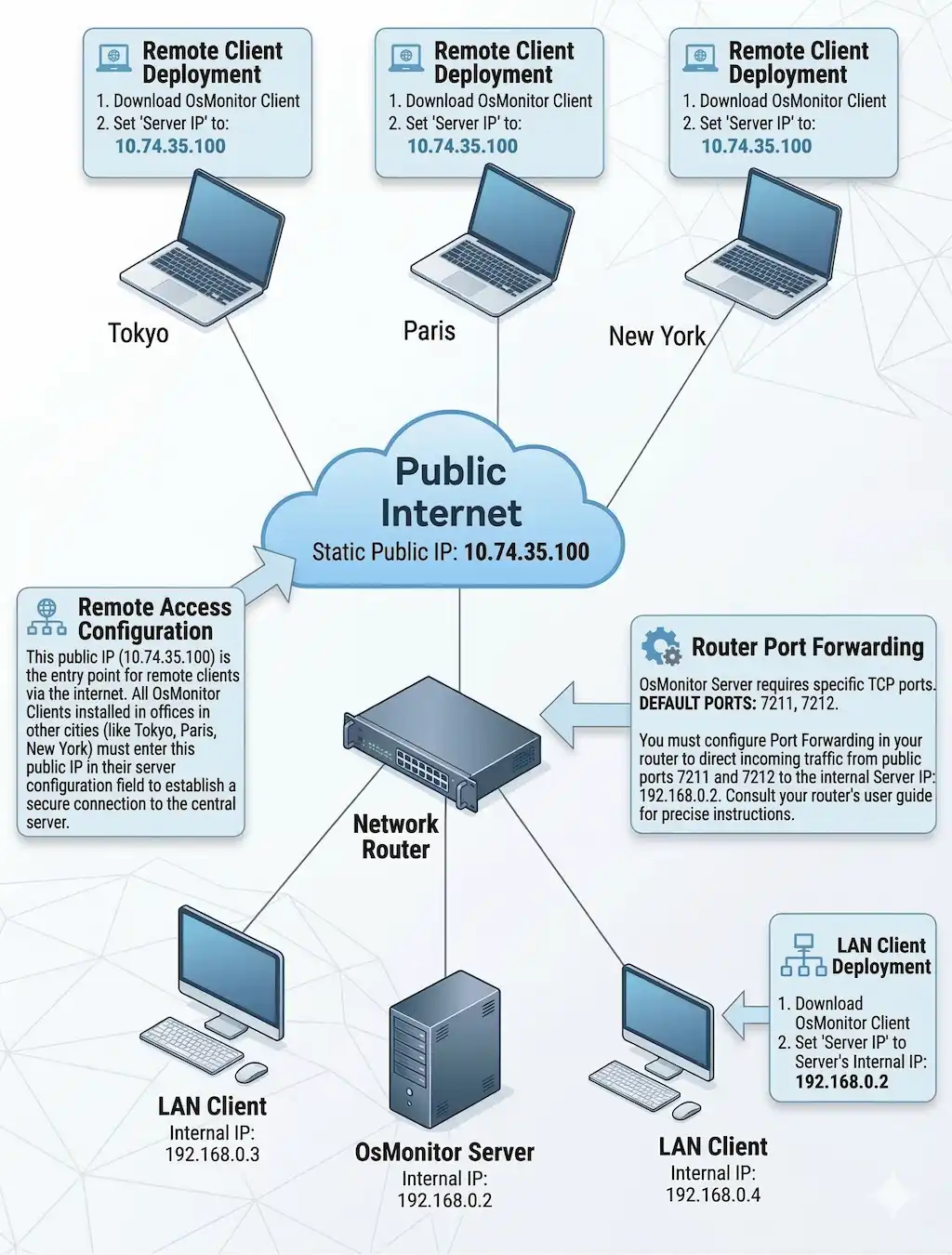
- Router Port Forwarding: If you don't want to use a cloud server and absolutely must use a regular office PC to monitor remote branches, you need to configure Port Forwarding (Virtual Server) on your office router to map ports 7211-7213 to your Server PC. Important: Your office internet connection must have a Static Public IP Address for this to work reliably.
The diagram below shows how a self-hosted OsMonitor Server can be reached from remote offices through port forwarding when a static public IP is available.
Features & Performance
Q: Will OsMonitor slow down the computer or network?
A: OsMonitor is an ultra-lightweight solution written in optimized native code. It is designed for very low CPU and RAM usage and typically has minimal impact on your employees' computers and network performance.
Q: Can users close the software, uninstall it, or change settings?
A: No. The Client is protected from unauthorized changes. Uninstalling or modifying the configuration requires an administrator password. It also offers flexible visibility settings, allowing managers to run it unobtrusively in the background or display a tray icon based on company policy.
Q: Can I schedule blocking rules? (e.g., allow Facebook only during lunch)
A: Yes. You can define strict working hours in the Server console, so website or application restrictions apply only during selected time periods.
Q: Does OsMonitor help with Endpoint Data Loss Prevention (DLP)?
A: Yes. OsMonitor helps businesses track file transfers, restrict USB drive access (read-only or block), and monitor user activity to prevent sensitive business data from leaking.
Q: Does OsMonitor have a keylogger feature?
A: No. We believe recording keystrokes is not highly necessary for employee monitoring. Most importantly, a keylogger could be maliciously used to record passwords, which completely goes against the design purpose of our software.
Privacy & Data Security
Q: Does monitoring employee computers violate their privacy?
A: No, provided it is implemented correctly. Company-issued computers and networks are professional tools designated exclusively for business purposes, meaning employees should not expect to handle personal or private matters on them during work hours. From a legal and management standpoint, auditing company-owned assets is a standard practice to protect intellectual property and ensure workplace productivity. We strongly recommend establishing a clear "Acceptable Use Policy" and transparently notifying your staff that company equipment is being monitored.
Q: Is my monitoring data safe? Does OsMonitor company see our data?
A: Yes, your data is securely stored because you retain total control. OsMonitor is a fully on-premise system. All monitoring records, screen captures, and logs are saved directly to your own server. OsMonitor does not rely on vendor-hosted cloud storage for monitoring records.
Q: Where is the monitoring data stored?
A: All monitoring data is stored strictly on the machine running the OsMonitor Server (employee clients do not store data locally). By default, most data is saved within the Server's installation folder. However, you can manually specify the storage paths for screen monitoring image files and employee file backups in the settings.
Ready to Monitor Employee Computer Activity?
Download the free trial today or choose a permanent license for your business.